
If you own a Samsung microwave, you might notice a “Filter” message on the display after several uses. This message can be confusing, especially if you’re not familiar with what it means or how to get rid of it. Many microwave owners think something is wrong with their appliance. In reality, this alert is a helpful reminder designed to keep your microwave working efficiently and your kitchen air clean.
Resetting the filter indicator is a simple task, but it’s easy to miss some steps if you haven’t done it before. This guide will walk you through the entire process in detail. You’ll learn not just how to reset the filter on a Samsung microwave, but also why the alert appears, how to properly maintain your filters, and what to do if the reset doesn’t work as expected.
With clear instructions, practical examples, and real troubleshooting tips, this article will give you the confidence to keep your microwave running smoothly—no technical background needed.
Why Samsung Microwaves Have A Filter Alert
The filter reminder is not unique to Samsung, but Samsung implements it in a way that’s clear and user-friendly. Understanding why this feature exists will help you appreciate its importance and avoid problems in the future.
The Purpose Of The Filter Alert
Samsung microwaves, especially over-the-range models, come with air filters. These filters catch grease, smoke, and odors from your stovetop. Over time, these filters become clogged, reducing their effectiveness. When this happens, your microwave uses more energy, may smell bad, or even overheat. The Filter alert is your microwave’s way of saying, “Please clean or replace my filter!”
How Often Does The Alert Appear?
Most Samsung microwaves are programmed to show the filter reminder after a set number of cooking cycles—commonly every 30 hours of use. This might seem frequent, but it’s based on average cooking habits to ensure your kitchen stays clean and safe.
If you cook often, you might see the message more quickly.
Types Of Filters In Samsung Microwaves
Understanding your microwave’s filters helps you maintain them better. Samsung over-the-range microwaves usually have two main types:
- Grease filters: Made of metal mesh, they trap grease and can be washed and reused.
- Charcoal filters: These remove odors and smoke. They’re not washable and must be replaced every 6-12 months.
Some models have both; others have only one. Check your user manual if you’re not sure.
How The Filter Alert Works
Before you reset the alert, it helps to know how the filter indicator functions. This knowledge can prevent mistakes and ensure you don’t ignore important maintenance.
- The Filter indicator usually displays as “FILTER” or “FILTR” on the microwave screen.
- It doesn’t mean your microwave has stopped working. It’s just a reminder.
- On some models, the microwave may beep or flash the alert until you reset it.
If you see this message, it’s time to check your filters before resetting the alert.
Preparing To Reset The Filter
Resetting is quick, but preparation is key. Skipping steps can lead to recurring alerts or missed maintenance.
Step 1: Check Your Microwave’s Model
Samsung has many microwave models, and the reset process can differ slightly. Look for the model number on the microwave’s label—usually inside the door or on the back. Knowing your model helps you find the correct instructions.
Step 2: Review The User Manual
If you still have your user manual, check the maintenance section. It often includes diagrams and step-by-step instructions for your specific microwave. If you’ve lost the manual, Samsung’s website provides downloadable copies for most models.
Step 3: Clean Or Replace The Filter
Don’t just reset the alert—clean or replace the filter first. Otherwise, you’re ignoring the reason for the alert. Remove the grease filter and wash it with warm, soapy water. Let it dry completely before putting it back. If you have a charcoal filter, install a new one if it’s been more than six months.
Step-by-step: How To Reset The Filter On Samsung Microwave
Now that you’re ready, let’s go through the reset process. The steps are similar for most Samsung microwaves, but there are small differences depending on the model.
Resetting The Filter Indicator: Common Method
- Make sure the microwave is plugged in and powered on.
- Wait until the “Filter” or “FILTR” message appears on the display.
- Press the “Filter” button (sometimes labeled as “Reset” or “Options” depending on your model).
- Hold the button for 3-5 seconds until the message disappears from the screen.
- The display should return to the normal clock or standby mode.
This method works for most recent Samsung over-the-range microwaves.
Alternative Reset Methods By Model
Some older or less common models use slightly different reset sequences:
- If your microwave has a “Vent” or “Eco” button: Hold the button until the filter alert clears.
- Touchscreen models: Navigate to “Settings” or “Options” using the touchscreen, find “Filter Reset,” and select it.
- No dedicated reset button: Unplug the microwave for 1 minute, then plug it back in. This sometimes clears the alert.
If you’re unsure, consult your user manual or the Samsung support website.
Example: Resetting On A Samsung Me21m706ba
Let’s use a popular model as an example:
- Locate the “Filter” button on the control panel.
- Press and hold it for 3 seconds when “Filter” appears on the display.
- The filter message should disappear, confirming the reset.
If the message remains, repeat the process or check if the buttons are working.
What If The Filter Alert Doesn’t Reset?
Occasionally, the filter alert doesn’t go away, even after following the steps. Here’s what you can do:
1. Double-check The Button Press
Make sure you’re holding the correct button for long enough. Some models need a longer press (up to 10 seconds).
2. Try A Power Cycle
Unplug the microwave for 30 seconds, then plug it back in. This resets the internal computer and can clear stuck alerts.
3. Inspect For Stuck Buttons
Sometimes the reset button is sticky or unresponsive. Press all buttons a few times to free them up.
4. Check For Software Updates
Rare, but some smart Samsung microwaves can have firmware updates. Visit the Samsung support site if your model has Wi-Fi or Bluetooth.
5. Contact Support
If nothing works, contact Samsung customer support. Persistent alerts can signal an electrical or control board problem.
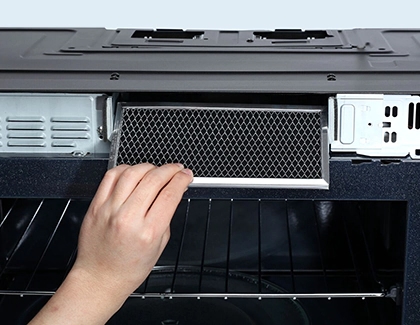
How To Locate And Maintain Your Samsung Microwave Filter
Many users miss the physical location and maintenance of their microwave filter. Let’s break it down.
Finding The Filter
- Over-the-range models: The grease filter is usually underneath, behind a small grill or metal cover.
- Charcoal filters: Often found behind the top vent grille. You may need a screwdriver to remove the grille.
Cleaning The Grease Filter
- Turn off and unplug the microwave.
- Remove the filter (it slides or pops out).
- Soak in warm, soapy water for 10-15 minutes.
- Scrub with a soft brush to remove grease.
- Rinse and dry thoroughly.
- Reinstall the filter only when completely dry.
For heavy buildup, repeat cleaning or use a degreaser.
Replacing The Charcoal Filter
- Remove the vent grille (usually at the top).
- Slide out the old charcoal filter.
- Insert the new filter in the same position.
- Replace the vent grille securely.
Charcoal filters can’t be washed. Replace every 6-12 months, or sooner if you cook a lot.
How Often Should Filters Be Maintained?
Here’s a quick comparison:
| Filter Type | Maintenance Frequency | Replacement Needed? |
|---|---|---|
| Grease Filter | Every 1-3 months (wash) | No, unless damaged |
| Charcoal Filter | Every 6-12 months | Yes, cannot be washed |
Common Mistakes When Resetting The Filter
It’s easy to make small errors that cause frustration. Here are mistakes to avoid:
- Resetting without cleaning/replacing the filter: This causes poor performance and repeated alerts.
- Pressing the wrong button: Not all models have the same button labels. Double-check yours.
- Not holding the button long enough: A quick press may not work. Hold for the full 3-5 seconds.
- Ignoring the alert: This can lead to smoke, odor, or even fire in extreme cases.
- Reinstalling a wet filter: Always dry filters completely before putting them back.
Comparing Samsung Microwave Filter Reset With Other Brands
Are Samsung microwaves different from other brands when it comes to filter resets? Here’s a quick comparison:
| Brand | Filter Reset Method | Filter Types | Unique Features |
|---|---|---|---|
| Samsung | Press and hold “Filter” or similar button | Grease, Charcoal | Alert appears after set cycles |
| LG | Press “Reset Filter” button | Grease, Charcoal | May include voice alert |
| Whirlpool | Touch “Options”, select reset | Grease, Charcoal | Cycle-based reminders |
| GE | Press “Filter Reset” on control panel | Grease, Charcoal | Some models have app alerts |
Most brands use a similar process, but button names and display styles vary.

Credit: www.youtube.com
Practical Tips For Long-lasting Filter Performance
Keeping your microwave filter in good shape is about more than just resetting alerts. These expert tips will help you avoid problems and extend the life of your appliance.
Use The Right Cleaning Products
Avoid harsh chemicals that can damage the metal mesh. Warm, soapy water works best for grease filters. For stubborn grease, a little vinegar or baking soda can help.
Set Calendar Reminders
Don’t wait for the filter alert. Set a reminder on your phone to clean or change your filter regularly. This simple habit prevents buildup and keeps your microwave working efficiently.
Inspect For Damage
Check filters for holes, tears, or corrosion each time you clean them. Damaged filters should be replaced immediately to avoid letting grease and smoke escape.
Know When To Replace
If your kitchen still smells after cooking, or your microwave seems hot or noisy, it might be time for a new filter—even if the alert hasn’t appeared yet.
Buy Genuine Samsung Filters
Generic filters may not fit well or perform as expected. When possible, buy official Samsung filters for best results. You can find them on the Samsung website or from authorized dealers.
Real-world Examples: Resetting Filter Alerts
Let’s look at a couple of practical examples that show the process in action.
Example 1: Busy Family Kitchen
Sarah cooks dinner almost every night for her family. After three months, her Samsung microwave shows the “Filter” alert. She removes the grease filter, washes it, and lets it dry. Then, she presses and holds the “Filter” button for 3 seconds.
The alert disappears, and her microwave is back to normal.
Example 2: Rental Apartment
Tom lives in an apartment with a Samsung microwave he rarely uses. The filter alert still appears after a few months. He removes the filter (which is not very dirty), rinses it, and resets the alert as described. Even if you don’t cook often, the microwave’s timer still counts cycles.
Example 3: Persistent Alert Issue
Lisa follows the reset steps, but the alert stays on. She tries a power cycle by unplugging the microwave for 30 seconds. This time, the filter message clears. Sometimes, a simple reset isn’t enough, especially if the control panel has a glitch.

Credit: www.samsung.com
Troubleshooting And Advanced Tips
Some users run into unusual situations. Here’s how to handle them.
The Filter Indicator Keeps Coming Back
- Make sure you’re actually cleaning or changing the filter.
- If you cook a lot of greasy food, clean the filter more often than the alert suggests.
- Check that the filter is installed correctly. If it’s loose, the microwave may trigger the alert again.
The Button Is Not Working
- Try pressing other buttons to see if the control panel is responsive.
- Wipe the panel clean with a soft, damp cloth—sometimes oil or dirt blocks sensors.
- If buttons are still unresponsive, the touchpad or control board may need repair.
The Display Is Blank Or Flickering
- Unplug the microwave for one minute and plug it back in.
- If the problem persists, contact Samsung support or a professional technician.
When To Call A Professional
If you’ve tried everything and the alert remains, or your microwave is not heating properly, it’s time to get help. Don’t try to open or fix electrical parts yourself—microwaves can be dangerous if mishandled.
How Filter Maintenance Affects Microwave Performance
You might wonder: why does filter maintenance matter so much? Here are some key effects:
- Better air quality: Clean filters remove smoke and odors, keeping your kitchen fresh.
- Energy efficiency: A clogged filter forces the fan to work harder, using more energy.
- Longer microwave life: Regular maintenance prevents overheating and damage.
- Safety: Grease buildup can become a fire risk if ignored for too long.
Neglecting filter resets is a common beginner mistake. Your microwave will keep working at first, but over time, you’ll notice more noise, heat, and odors.
Credit: www.samsung.com
Frequently Asked Questions
What Does The “filter” Message Mean On My Samsung Microwave?
The “Filter” message is a reminder to clean or replace your microwave’s air filter. It does not mean there is a fault. After cleaning or replacing the filter, you need to reset the alert following your model’s instructions.
Can I Ignore The Filter Reset Alert?
You should not ignore the alert. Even if the microwave works, a dirty filter can reduce airflow, cause odors, and even pose a fire risk. Always clean or replace the filter, then reset the alert.
How Do I Know Which Filter My Samsung Microwave Uses?
Check your user manual or look inside the microwave’s vent area. Most over-the-range models use both a grease filter (washable) and a charcoal filter (replaceable). If unsure, search for your model number on the Samsung Support website.
What Should I Do If The Filter Alert Won’t Reset?
Try holding the correct button for 5-10 seconds. If that doesn’t work, unplug the microwave for 30 seconds and plug it back in. If the problem continues, the control panel may need service.
Do All Microwaves Have A Filter Reset Alert?
No, only certain models—especially over-the-range microwaves—have this feature. Countertop microwaves usually do not have air filters or reset indicators.
Microwave filter maintenance and alert resets are often overlooked, yet they play a big role in your kitchen’s cleanliness and your appliance’s health. By following the steps above, you not only clear the “Filter” message but also help your Samsung microwave last longer and work better.
Don’t just silence the alert—take a few minutes to clean or replace the filter, and your microwave will thank you with years of trouble-free use.