
The Pentair Intellicenter app is a powerful tool for pool owners. It lets you control your pool’s equipment and settings from your phone or tablet. But when the app stops working, it can be frustrating and confusing. Instead of relaxing by the pool, you’re stuck troubleshooting. Why does this happen? And, more importantly, how can you fix it? This guide will walk you through everything you need to know about the Pentair Intellicenter app not working—from common causes to advanced solutions. You’ll find step-by-step advice, expert tips, and real-world examples. By the end, you’ll feel confident handling almost any app issue.
Understanding The Pentair Intellicenter App
The Pentair Intellicenter app is designed to make pool management simple. With it, you can control pumps, lights, heaters, and more, all from your mobile device. The app connects to your pool system through Wi-Fi or cellular data, giving you remote access wherever you are.
This convenience is a huge advantage, but it also means there are more points where things can go wrong. The app, your network, the pool controller, and even your phone must all communicate perfectly. If something interrupts that chain, the app may stop working as expected.
For example, even a brief Wi-Fi drop or a phone update can create a domino effect of problems.
Key Features Of The App
- Real-time monitoring of pool and spa status
- Control of pool lights, pumps, heaters, and valves
- Scheduling for cleaning and heating
- Alerts and notifications for maintenance or errors
- Integration with smart home systems
Understanding these features helps when you need to troubleshoot. If one function fails, it often points to a specific problem. For instance, if only the scheduling feature is not working, you might have a settings issue rather than a full system failure.
Also, the app’s smart home integration means that issues with Alexa or Google Home could affect pool controls, not just the app itself.
Another insight: The app uses cloud servers for remote features. If you can control your pool on your home Wi-Fi but not when away, the issue may be outside your home network.
Common Problems With The Pentair Intellicenter App
When the Pentair Intellicenter app is not working, symptoms may include:
- The app won’t open or crashes immediately
- Can’t connect to the pool system
- Some controls or features do not respond
- Delays or errors updating pool status
- Login problems or account errors
Sometimes you’ll see error messages, but often you’ll only notice the app is slow or unresponsive. For example, the temperature may not refresh, or tapping to turn on the pool lights does nothing. These clues help target the right fix.
Why The Pentair Intellicenter App Fails
No single cause leads to app failure. Instead, issues usually fall into several main categories:
1. Network Connection Issues
The app needs a stable internet connection. If your phone, Wi-Fi, or the pool controller loses connection, the app can’t communicate. Even interference from thick walls, microwaves, or nearby electronics can weaken the signal.
2. Firmware Or Software Out-of-date
If your pool controller’s firmware or the app on your device is outdated, compatibility issues can arise. Updates often fix bugs and improve communication. Sometimes, a new app update expects a feature the old firmware doesn’t support.
3. Account Or Login Errors
Problems with your Pentair account—wrong password, server problems, or account lockouts—can prevent app access. Sometimes, Pentair changes their account system, and you must verify your email or reset your password to log in again.
4. Device Compatibility
Some older phones or tablets may not support the latest app version. Operating system updates on your device can also cause unexpected issues. For example, iOS or Android updates occasionally break app features until Pentair releases a fix.
5. Server Outages
Pentair’s cloud servers may sometimes go offline for maintenance or technical problems. When this happens, remote features can break. This is out of your hands, but knowing about it can save you hours of frustration.
6. Configuration Errors
Incorrect settings in the app or on the pool controller can prevent proper operation. For example, entering the wrong controller ID or failing to assign user permissions can stop the app from controlling certain features.
Step-by-step Troubleshooting
Let’s break down how to fix the most common Pentair Intellicenter app not working problems. Start simple and move to advanced steps if needed.
1. Check Your Internet Connection
A weak or unstable connection is the most frequent cause of problems.
- Make sure your phone or tablet is connected to Wi-Fi or has a strong cellular signal.
- Try loading a website or streaming a video. If these don’t work, the issue is likely with your internet.
- Restart your router if needed.
Don’t forget to check if other devices in the house are having issues. Sometimes, the pool area is just too far from the router, and a Wi-Fi extender solves the problem.
2. Test The Pool Controller’s Connection
If your internet is fine, check if the pool controller is online.
- Go to the pool controller and look for warning lights or error messages.
- Some controllers have a screen showing network status.
- If possible, connect the controller directly to your router with an Ethernet cable for a more reliable connection.
A real-world example: One user found that their controller kept dropping Wi-Fi due to outdoor interference, but connecting via Ethernet solved their recurring app disconnects.
3. Restart Everything
This simple step solves many temporary glitches.
- Restart your phone or tablet.
- Turn the pool controller off and back on (if safe to do so).
- Power cycle your Wi-Fi router.
Give each device a full minute before powering back on to clear memory and network caches.
4. Update Firmware And App
Running outdated software causes many app failures.
- Check the app store for updates to the Pentair Intellicenter app.
- Visit the pool controller’s settings and look for firmware updates.
- Follow Pentair’s instructions carefully for updating firmware to avoid damaging the controller.
Important: Always back up your controller’s settings before a firmware update. This prevents losing schedules or custom configurations.
5. Re-login Or Reset Account
Login problems are usually solved by:
- Logging out of the app and logging back in
- Resetting your password if you forgot it
- Checking for account-related emails from Pentair (for example, if they changed their login system)
Pro tip: If you use two-factor authentication, make sure your phone’s time and date are correct. Incorrect device time can cause logins to fail.
6. Reinstall The App
Sometimes, app files get corrupted. Uninstall the app, restart your device, and reinstall from the app store.
This step also ensures you have the latest version and clears out hidden bugs that a simple update might miss.
7. Check For Server Outages
If everything else is working but the app still fails, the problem might be on Pentair’s side.
- Visit the official Pentair website or their social media for outage announcements.
- Search online forums where other users may report similar issues.
If you see many people reporting the same error at the same time, you can be fairly sure it’s a server-side issue.
8. Double-check Configuration Settings
Incorrect setup can block the app.
- Make sure the app is paired with the correct controller.
- Check for any IP address or port settings required.
- Review user permissions if there are multiple users on the system.
If you recently changed your Wi-Fi name or password, remember to update the controller’s settings as well.
Advanced Solutions For Persistent Problems
If basic troubleshooting does not help, more advanced steps may be needed.
Controller Network Troubleshooting
A common advanced fix is to assign a static IP address to the pool controller. This prevents it from changing addresses and losing connection.
- Log into your router’s admin page.
- Find the pool controller on your network device list.
- Assign a fixed IP address.
- Update the app and controller settings to use this address.
This is especially helpful in homes with many devices, where the router may reassign IP addresses often.
Firewall Or Security Settings
Some home routers have firewalls that can block the Intellicenter system.
- Temporarily disable the firewall and test the app.
- If the app works, create a rule to allow traffic from the pool controller.
Routers made by certain brands (like ASUS or Netgear) may have stricter default settings. Creating an exception for your controller’s IP address can restore app access.
Device Compatibility Check
If you recently updated your phone’s operating system, the app may no longer work. Try using a different device, or check for a pending app update.
An extra tip: Borrow a friend’s phone or use an older device to see if the problem is device-specific. This quickly isolates compatibility problems.
Contacting Pentair Support
If all else fails, reach out to Pentair’s customer support. Be prepared to provide:
- App version and device type
- Pool controller model and firmware version
- Description of the problem and steps you’ve tried
This saves time and helps support diagnose the issue faster. Attaching screenshots of error messages can also help technicians understand your issue quickly.
Comparing Common Issues And Solutions
Understanding the frequency and solution success rate for common problems helps prioritize your troubleshooting. Here’s a comparison:
| Problem | Frequency | Most Effective Solution |
|---|---|---|
| App won’t connect to pool | Very common | Check internet and controller connection |
| Login or account errors | Common | Reset password or re-login |
| Feature controls not responding | Moderate | Update app and firmware |
| App crashes or won’t open | Less common | Reinstall the app |
| Status updates delayed | Moderate | Improve network stability |
Pay attention to the “Most Effective Solution” column to save time.
Real-world Examples
Example 1: A user reported the app would not connect after a power outage. The solution was to restart the router and reassign a static IP to the pool controller. The app immediately reconnected. This shows how power interruptions can confuse devices about their network location.
Example 2: Another user found that after updating their phone to the latest iOS, the app started crashing. Waiting for the next app update fixed the problem, as Pentair released a compatibility patch. In the meantime, they used manual controls to keep the pool running.
A third example: A family noticed the app only failed during certain hours. The cause was their internet provider’s nightly maintenance. Changing their schedule for pool heating avoided the problem until the provider resolved the instability.
Tips For Reliable App Performance
For smooth day-to-day use, adopt these practices:
- Update regularly – Keep both app and controller firmware current.
- Strong Wi-Fi – Position your router close to the pool controller if possible.
- Secure passwords – Use a unique, strong password for your Pentair account.
- Scheduled maintenance – Plan to check your system’s status before big events or vacations.
- Backup control – Know how to use the manual controls on your pool system in case the app fails.
Extra tip: Add a monthly calendar reminder to check for updates. This small habit prevents many future headaches.

Credit: www.reddit.com
Avoiding Common Mistakes
Many users make similar errors when troubleshooting. Avoid these:
- Repeatedly reinstalling the app without checking network or controller status.
- Ignoring firmware updates for months or years.
- Using generic or weak passwords for their Pentair account.
- Overlooking simple fixes, like restarting the phone or router.
Some users also forget to write down their controller’s model and firmware version, which can slow down support calls. Keeping a record of your system details is a smart move.
Comparing Mobile Devices For App Use
Choosing the right device can make a difference. Here’s a comparison of app performance on various platforms:
| Device Type | Performance | Common Issues |
|---|---|---|
| Modern iPhone (iOS 15+) | Fast, smooth | Rare crashes after major OS updates |
| Modern Android (Android 12+) | Reliable, stable | Occasional notification delays |
| Older iPad (iOS 12 or below) | Slower, sometimes laggy | App may not install/update |
| Older Android tablet | Varies, often laggy | Compatibility errors |
If you have several devices, choose the newest for the app to reduce crashes and improve speed.
When To Consider Professional Help
You may need a professional technician if:
- The controller hardware is damaged or showing errors you can’t clear.
- You experience ongoing network drops not resolved by router changes.
- Wiring or installation problems are suspected.
A qualified pool service provider can diagnose hardware or complex network issues more efficiently than most homeowners. They can also check if your pool equipment is drawing too much power or if external factors, like landscaping changes, are affecting the Wi-Fi signal.
The Role Of Updates And Security
Staying up to date is more important than many users realize. Updates do not just add features—they fix vulnerabilities and prevent hacking or data theft. In 2023, Pentair released an update that closed several security holes. Users who delayed updating were at greater risk for unauthorized access.
Always update as soon as possible, and monitor the Pentair website for important announcements. For more on this, you can visit the official Pentair Intellicenter page.
Another point: Use unique passwords for your Pentair account that you don’t use elsewhere. Some pool owners have had accounts compromised simply because their password was too simple or reused from another site.
User Experience: Success Stories
Many users report smoother experiences after taking a few key steps:
- Assigning a static IP to the controller
- Updating both the app and controller together
- Using a dedicated tablet for pool control, left near the pool area
These actions reduce the chance of random disconnects or compatibility errors.
Another success story: One user set up regular reminders to check for outages or firmware updates, and hasn’t had a major app issue in over a year.
Comparing Pentair Intellicenter App With Other Pool Control Apps
How does the Pentair app compare to other brands? Here’s a side-by-side look at some important factors:
| Feature | Pentair Intellicenter | Jandy iAquaLink | Hayward OmniLogic |
|---|---|---|---|
| Remote Access | Yes, via cloud | Yes, via cloud | Yes, via cloud |
| Firmware Updates | App + Controller | Controller only | App + Controller |
| Smart Home Integration | Yes (limited) | Yes (Alexa/Google) | Yes (Alexa/Google) |
| Manual Override | Controller panel | Controller panel | Controller panel |
| User Support | Strong online community, official support | Good, with app-based support | Moderate, best for advanced users |
One insight here: While Pentair’s smart home integration is more limited compared to others, its strong community support often fills this gap with creative solutions and workarounds.
Preventative Maintenance For Long-term Reliability
A few proactive steps can prevent most problems:
- Place your router in a central location, away from thick walls or metal objects.
- Use surge protectors on all pool equipment to avoid damage during storms.
- Set reminders to check for app and firmware updates monthly.
- Regularly back up your app settings if possible.
Also, visually inspect your pool controller and wiring every few months. Look for corrosion, pests, or loose connections, which can silently cause issues even if the app is fine.
Learning From The Community
Online forums and communities are a great resource. Many users share fixes, tips, and solutions to rare problems. Searching for your specific error message often leads to step-by-step guidance from other pool owners.
Some top communities to consider:
- Reddit’s r/swimmingpools
- Trouble Free Pool forums
- Pentair’s official support and FAQ pages
Don’t hesitate to post your own question if you can’t find your exact issue—often, someone has dealt with it before and can help.

Credit: www.reddit.com
When The Problem Is Hardware
Sometimes, the app is working fine but the hardware has failed. Signs include:
- Physical damage to the controller or wiring
- No power or flashing error lights
- Pool features not responding to manual controls
If you suspect hardware failure, turn off power to the system and contact a professional. Never try to repair electrical components yourself unless you are trained.
The Future Of Pool Automation
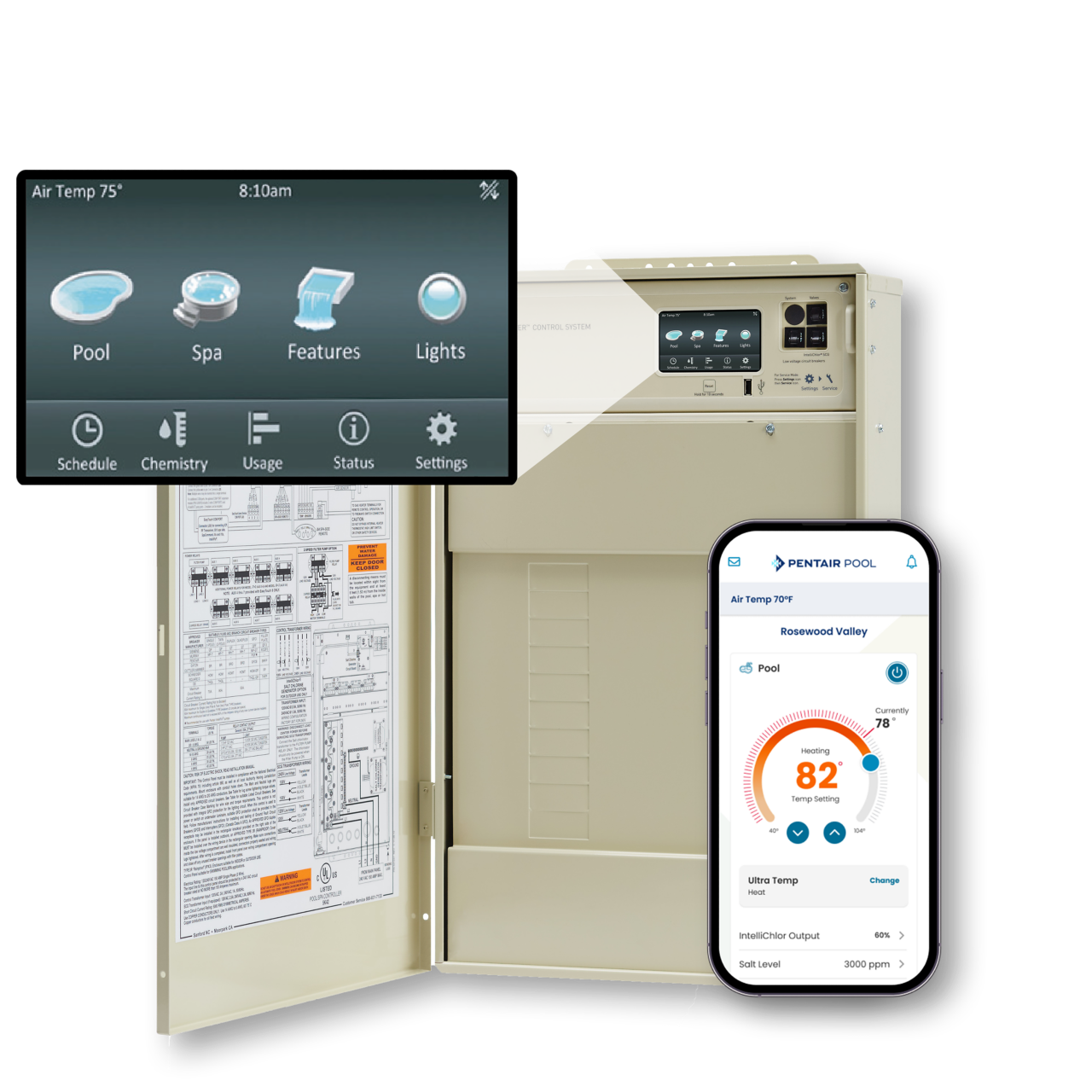
Pool automation is rapidly evolving. Apps like Pentair Intellicenter are adding features such as voice control, energy usage tracking, and better smart home integration. Staying informed about new releases and updates ensures you get the best performance and security from your system.
Manufacturers are also working on AI-powered maintenance suggestions and advanced diagnostics. Soon, your app might alert you to potential problems before you even notice them.
Credit: www.pentair.com
Frequently Asked Questions
Why Does My Pentair Intellicenter App Keep Disconnecting?
Frequent disconnects are usually caused by a weak Wi-Fi signal, network instability, or interference. Move your router closer to the pool controller or consider using a Wi-Fi extender. Assigning a static IP to the controller can also help maintain a stable connection.
How Do I Update My Pentair Intellicenter App And Controller Firmware?
Update the app through the Google Play Store or Apple App Store. For controller firmware, access the menu on the Intellicenter panel, select “Firmware Update,” and follow the on-screen steps. Always back up settings before updating.
What Should I Do If My App Won’t Log In?
First, check your internet connection. If it’s working, try resetting your password using the “Forgot Password” option. If you still can’t log in, there may be a Pentair server issue—wait a while, then try again.
Can Multiple Users Control The Pool System With The App?
Yes, but each user should have their own Pentair account for security and tracking. Assign permissions in the app settings to control access levels.
Is There A Way To Control My Pool If The App Is Not Working?
Yes. Use the manual controls on the pool controller panel. Most critical functions, like turning pumps or heaters on and off, can be done directly from the unit.
Keeping your Pentair Intellicenter app running smoothly requires some basic knowledge, regular updates, and attention to your network setup. Most issues are easy to fix with the right steps. And if you ever get stuck, remember that both the Pentair community and official support are there to help. With a little practice, you’ll spend less time troubleshooting—and more time enjoying your pool.