
If you own a Pentair pool automation system, you probably enjoy the convenience of controlling your pool from your smartphone, tablet, or computer. The ScreenLogic interface is a key part of this experience. However, many pool owners get stuck when their app displays the message: *”Searching for System Controller.”* This situation can be confusing and frustrating—especially if your pool heater, lights, or pump become unresponsive right when you need them. Understanding why this happens, what it means, and how to fix it is essential for a smooth pool management experience.
This article explains everything you need to know about the Pentair ScreenLogic “Searching for System Controller” message. You’ll learn what causes this error, step-by-step troubleshooting, common mistakes, and advanced solutions. If you’re new to pool automation, don’t worry—every step is explained in clear, simple language. By the end, you’ll be ready to solve this issue yourself, avoid future problems, and get back to enjoying your pool.
What Is Pentair Screenlogic?
Pentair ScreenLogic is a system that lets you control your pool and spa equipment using your phone, tablet, or computer. It works with Pentair IntelliTouch, EasyTouch, and IntelliCenter automation systems. With ScreenLogic, you can manage your pool pump, heater, lights, water features, and even chemical levels from anywhere.
The system uses two main parts:
- A Protocol Adapter (a small box that connects to your router and pool automation panel)
- The ScreenLogic app (on your device)
When everything works, the app connects through your home’s Wi-Fi or the internet to the Protocol Adapter, which talks to your pool system. If the connection fails, you may see the message: *”Searching for System Controller.”* This means the app can’t find or talk to your pool’s automation controller.
Understanding The “searching For System Controller” Message
When you see “Searching for System Controller” in the Pentair ScreenLogic app, the app is trying to find your pool automation system but cannot connect. This message can appear on iOS, Android, or the desktop ScreenLogic Connect program.
Common reasons for this message include:
- Network issues (Wi-Fi/router problems)
- Power loss to the Protocol Adapter or pool panel
- Faulty cables or connections
- Software or firmware problems
- Incorrect setup in the app
Most of the time, this isn’t a sign of a major failure—but it does mean something is blocking the connection between your device and your pool system.
How The Screenlogic System Communicates
To solve connection issues, you need to understand how the ScreenLogic system communicates:
- Protocol Adapter connects to your home router with an Ethernet cable.
- Adapter talks to your IntelliTouch or EasyTouch control panel via a special data cable.
- Your ScreenLogic app communicates with the adapter through your home network (when local) or through the internet (when remote).
If any part of this chain is broken, the app can’t find the controller, and you see the “searching” message.
Key Parts Involved
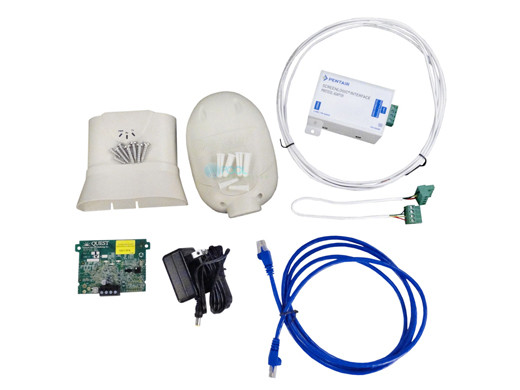
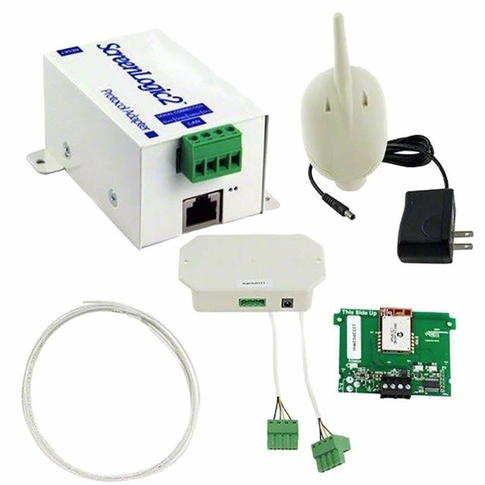
- Protocol Adapter: Converts signals between your network and pool controller.
- Home Router/Network: Allows your device and the adapter to communicate.
- Pool Automation Panel: The “brain” of your pool system.
- ScreenLogic App: Your control interface.
Main Causes Of “searching For System Controller”
Several things can cause the ScreenLogic app to get stuck searching. The most common causes are:
- Network Issues
- Router or Wi-Fi problems
- Adapter not connected to router
- IP address conflicts
- Power Problems
- Protocol Adapter unplugged or no power
- Pool automation panel powered off
- Wiring/Cable Failures
- Loose or damaged Ethernet cable
- Broken data cable between adapter and panel
- Software/Firmware Issues
- Outdated app or adapter firmware
- Bugs in app or controller
- Incorrect Setup
- Wrong system selected in app
- Incorrect IP address or port
- Physical Damage
- Adapter, controller, or panel damaged by weather, animals, or wear
Many beginners only check the app or their phone, missing real problems with the hardware or wiring. It’s essential to check each part of the system, not just your device.
Step-by-step Troubleshooting Guide
Let’s walk through a complete troubleshooting process, starting with the easiest fixes.
1. Check Power To The Protocol Adapter
- Find the Pentair Protocol Adapter (small box, usually near your pool panel or router).
- Confirm the power light is on.
- If not, plug it into a different outlet or check for tripped breakers.
- If the light still does not turn on, the adapter may be faulty.
Tip: Some adapters have a small reset button. Try pressing it to reboot.
2. Confirm Wired Connections
- Look for a solid connection between the adapter and your router (Ethernet cable).
- Check the cable from the adapter to the pool automation panel.
- Gently wiggle cables to see if any are loose.
- Replace any damaged or suspect cables.
Non-obvious insight: Ethernet cables can go bad even if they look fine. Swap with a known good cable for testing.
3. Restart Your Network
- Unplug your router and modem for 30 seconds, then plug back in.
- Wait for all lights to turn on.
- Restart the Protocol Adapter (unplug, wait, replug).
- Open the ScreenLogic app and try to connect.
Why this works: Routers sometimes lose track of connected devices, especially after power outages or storms.
4. Check Your Device’s Wi-fi Or Internet
- Make sure your phone, tablet, or computer is connected to the correct Wi-Fi network.
- Test your internet by loading a website.
- If using cellular data, try switching to Wi-Fi, or vice versa.
5. Open The Screenlogic App And Refresh
- Close and restart the app.
- If your system is listed, tap it.
- If not, try “Add New System” and let the app search again.
6. Use The Desktop Screenlogic Connect Program
- Download from Pentair’s official site.
- Run on a Windows PC connected to the same network.
- This program can sometimes find the system when the app cannot.
- If found, note the system’s IP address and use it in the app.
7. Check For Firmware Updates
- Go to the Pentair website and check for the latest firmware for your controller and Protocol Adapter.
- Update using instructions on the site.
- New firmware can fix bugs that block connections.
8. Verify App And System Settings
- In the app, check for options like “Remote” vs “Local” connection.
- For local, your device must be on the same Wi-Fi as your adapter.
- For remote, make sure the system has internet access and the right port is open (usually 80 or 1443).
Advanced tip: Some routers block ports or change IP addresses. Set a static IP for your adapter in your router settings for best results.
9. Inspect The Pool Automation Panel
- Open the panel (if safe) and check for power.
- Look for blinking or error lights.
- Reset the panel by turning power off for 1 minute, then back on.
- Listen for relays or beeps that indicate normal startup.
10. Try A Manual Connection
If automatic search fails:
- Enter the Protocol Adapter’s IP address in the app.
- You can find this in your router’s device list (look for “Pentair” or “ScreenLogic”).
- Use the address (like 192.168.1.120) in the app’s system setup.
Not obvious: Some users’ adapters change IP after power loss. Always check for a new address if problems appear after a power outage.
11. Rule Out Hardware Failure
- Test the Protocol Adapter at a friend’s house (if possible) or try a new adapter.
- If you have multiple panels, try connecting to a different one.
Comparing Common Causes And Fixes
Sometimes, it helps to see how likely each problem is and how easy it is to fix. Here’s a quick comparison:
| Cause | How Common? | Difficulty to Fix |
|---|---|---|
| Router/Network Issue | Very Common | Easy |
| Protocol Adapter Power | Common | Easy |
| Bad Ethernet Cable | Somewhat Common | Easy-Moderate |
| Firmware Outdated | Less Common | Moderate |
| Panel Issue | Rare | Moderate-Hard |
| Physical Damage | Rare | Hard |
Credit: www.poolsupplyunlimited.com
Advanced Troubleshooting Steps
If you’ve tried all basic steps and still see “Searching for System Controller”, consider these advanced options.
Check Router Settings
- Log in to your router’s admin page.
- Find the list of connected devices.
- Look for the Pentair Protocol Adapter (often called “Pentair”, “ScreenLogic”, or “Protocol”).
- Note the IP address and MAC address.
- Set a static IP reservation to prevent the address from changing.
Open Ports For Remote Access
- Make sure ports 80, 1443, or 3295 (depending on your model) are open.
- Some routers block these ports by default.
- Check your router’s “Port Forwarding” section.
- Forward the correct port to the adapter’s IP address.
Example: If your adapter uses 192.168.1.120, forward port 80 to 192.168.1.120.
Replace Or Upgrade Hardware
- If your adapter is over 5 years old, consider replacing it.
- New adapters often have improved reliability and software.
- If your pool panel is outdated, check if it supports ScreenLogic or if an upgrade is needed.
Factory Reset
- Some adapters and panels have a factory reset button.
- Hold for 10+ seconds (check manual).
- Reconfigure the system from scratch.
Warning: Factory reset erases all settings. Only use if other steps fail.
Consult Pentair Support
- If all else fails, contact Pentair technical support.
- Have your system model, serial number, and firmware version ready.
- Support can guide you through advanced diagnostics or arrange a repair.
Common Mistakes And How To Avoid Them
Many pool owners waste hours on simple mistakes. Here’s what to watch out for:
1. Assuming The App Is The Problem
Most issues are with wiring or network, not the app itself.
2. Ignoring The Protocol Adapter
Always check its lights and connections first.
3. Forgetting Power Cycles
A simple reboot of the router and adapter solves many problems.
4. Overlooking Cables
Even new cables can fail. Always try swapping cables.
5. Not Checking For Firmware Updates
Outdated software causes many hidden bugs.
6. Mixing Up Local And Remote Modes
Make sure your app is set to the correct mode based on your location.
7. Skipping Router Settings
IP conflicts and blocked ports can silently break connections.
8. Not Labeling Cables
Label both ends of each cable for easy future troubleshooting.
Data Table: Quick Reference For Troubleshooting
Here’s a handy quick-reference table for basic troubleshooting steps and expected results:
| Step | What to Check | Expected Result |
|---|---|---|
| 1 | Protocol Adapter Power Light | Solid green or blue light |
| 2 | Ethernet Cable | No visible damage, clicks into place |
| 3 | Router Function | All lights normal, internet works |
| 4 | ScreenLogic App | App finds system in list |
| 5 | Panel Status | No error lights, normal startup sound |
Preventing Future “searching For System Controller” Issues
Fixing the problem is good, but preventing it is even better. Here’s how to keep your ScreenLogic system running smoothly:
- Label and organize all cables. This makes future checks fast and easy.
- Set a static IP for your Protocol Adapter. This prevents address changes after power outages.
- Update firmware twice a year. Check for new versions on the Pentair site.
- Protect hardware from weather and pests. Keep the adapter and panel indoors or in a sealed box.
- Check connections after storms or outages. Many problems start after power events.
- Write down your adapter’s IP and serial number. Keep this info handy for troubleshooting.
- Schedule a yearly checkup. Inspect cables, connectors, and panel for wear.
- Backup your pool settings (if your panel allows). This saves time after a reset.
Advanced tip: Add a small uninterruptible power supply (UPS) to your pool panel and adapter. This keeps the system online during short power cuts and prevents crashes.
Credit: www.pentair.com
The Role Of Firmware And Software Updates
Many users overlook the importance of firmware and software updates. Pentair regularly releases updates that fix connection issues, add new features, and improve stability. Some problems with “Searching for System Controller” disappear after a simple update.
How To Update
- Visit the official Pentair support page.
- Download the latest firmware for your system.
- Follow the update steps carefully—never interrupt the process.
Non-obvious insight: Some updates require a Windows PC and a USB cable. Plan ahead to avoid surprises.
When To Call A Professional
Sometimes, even the best DIY troubleshooting hits a wall. If you notice the following, call a professional pool technician:
- No power to panel or adapter, even after resets
- Visible water damage or corrosion
- Burnt smells or melted connectors
- Frequent “Searching for System Controller” after all fixes
- You’re not comfortable opening electrical panels
A good technician can test with special tools and replace faulty parts safely.
Alternatives To Pentair Screenlogic
If you keep having trouble, or your system is outdated, you might consider other pool automation options:
- Pentair IntelliCenter: Newer, cloud-based control with improved reliability.
- Jandy iAquaLink: Competing brand with strong app support.
- Hayward OmniLogic: Another advanced automation system.
Each system has its own pros and cons. If you upgrade, check compatibility with your pool equipment.
Real-world Example
Linda, a pool owner in California, faced the “Searching for System Controller” error after a power outage. She restarted her router and ScreenLogic adapter, but nothing worked. She found that her Ethernet cable had been chewed by mice. Replacing the cable restored the connection in minutes.
This shows how physical issues—not just software—can be the cause.
Credit: www.hydropool.com
How Screenlogic Compares With Other Pool Automation Apps
Here’s a simple comparison:
| Feature | Pentair ScreenLogic | Jandy iAquaLink | Hayward OmniLogic |
|---|---|---|---|
| Remote Control | Yes (with setup) | Yes (easier) | Yes |
| Firmware Updates | Manual | Automatic | Manual |
| Compatibility | Pentair only | Jandy only | Hayward only |
| Support | Good | Good | Good |
| Hardware Cost | $$ | $$$ | $$$ |
Essential Tips For First-time Screenlogic Users
- Record your adapter’s serial number and IP address during setup.
- Download the latest app version before connecting.
- Test your system locally before trying remote access.
- Read the official Pentair ScreenLogic user guide for detailed steps.
- Don’t skip labeling cables—it saves time if you ever move or upgrade your network.
Where To Get More Help
If you’re still stuck, the best resources are:
- Pentair’s official support page
- Pool owner forums (like Trouble Free Pool)
- Your local pool service company
For official manuals and updates, see the Pentair Support site.
Frequently Asked Questions
Why Does My Pentair Screenlogic Keep Saying “searching For System Controller”?
This message means the app cannot find or connect to your pool’s automation system. It’s usually caused by network issues, power loss, or bad cables. Follow the troubleshooting steps above to find and fix the problem.
How Do I Find The Protocol Adapter’s Ip Address?
Log in to your home router’s admin page (usually at 192. 168. 1. 1 or 192. 168. 0. 1). Look for connected devices. The adapter may appear as “Pentair”, “ScreenLogic”, or show its MAC address. Write down the IP address for manual entry in the app.
Can I Fix The “searching For System Controller” Issue Without Calling A Technician?
Yes, in most cases. Checking power, cables, and restarting your router solves most problems. If you see visible damage or are uncomfortable with electrical work, call a professional.
Will Updating Firmware Help With Connection Issues?
Often yes. Firmware updates fix bugs and improve reliability. Check for updates on the Pentair support site and follow their instructions carefully.
Is There A Way To Prevent This Problem In The Future?
Yes. Set a static IP for your Protocol Adapter, label all cables, keep hardware protected from weather, and update firmware regularly. These steps prevent most recurring connection problems.
Getting stuck with the “Searching for System Controller” message is frustrating, but with careful steps, you can almost always restore your Pentair ScreenLogic system. With the right setup and regular checks, you’ll enjoy easy, reliable pool control all season long.