
If you own a Pentair pool automation system, you may have heard about ScreenLogic Connect. This tool lets you control your pool from your phone, tablet, or computer. It gives you easy access to pool settings, schedules, temperatures, and more. But sometimes, users see the message: “Searching for System Controller.” This can be frustrating, especially if you’re not sure what it means or how to fix it. In this article, you’ll learn everything about Pentair ScreenLogic Connect searching for system controller — what causes it, how to solve it, and how to keep your system running smoothly.
What Is Pentair Screenlogic Connect?
Pentair ScreenLogic Connect is a software interface for Pentair pool automation systems like IntelliTouch and EasyTouch. It allows pool owners to manage their pool and spa settings remotely. You can turn on pumps, adjust lights, set schedules, and monitor chemical levels from anywhere. The app works on Windows, Mac, iOS, and Android devices.
One of the main benefits is that you don’t have to be home to check or change your pool’s status. For example, if you are at work and want your spa heated by the time you get home, you can start it with a few taps.
Or, if you’re on vacation and want to check your pool’s temperature or turn off a light someone left on, you can do it from your phone.
The heart of ScreenLogic Connect is the System Controller, which is the main control board in your pool equipment area. This controller communicates with your devices through a network, usually via Wi-Fi or Ethernet. If the app cannot find the controller, it shows the “Searching for System Controller” message. This is a signal that the app and hardware are not talking to each other, which can have a few different causes.
Understanding The “searching For System Controller” Message
When ScreenLogic Connect says “Searching for System Controller,” it means the app cannot connect to your pool’s control system. This is not an error itself, but it shows that something is blocking communication. It’s important to understand why this happens so you can find the right solution.
Many users worry that this message means something is seriously broken, but in most cases, it’s a minor issue. For example, sometimes your phone may have switched to mobile data instead of your home Wi-Fi, or your router might have restarted during the night.
Even simple things like a loose power cord can cause this message to appear.
Common Causes
- Network issues: Poor Wi-Fi, disconnected cables, or router problems. Sometimes the Wi-Fi signal is weak in the pool equipment area, or the router has assigned a new IP address to the adapter.
- Hardware faults: Broken wires, damaged adapters, or failed control panels. Physical damage from weather, rodents, or age can break connections.
- Software bugs: Outdated app, corrupt firmware, or wrong settings. If the app or firmware is not updated, new features may not work, and old bugs may cause disconnects.
- Configuration errors: IP address conflicts, firewall blocks, or wrong login details. Sometimes, settings get changed accidentally during home network upgrades, or a new device uses the same IP as your adapter.
Many beginners assume this message means the controller is broken, but often it’s just a simple connection problem. For example, if you recently changed your Wi-Fi password and forgot to update the adapter, the app can’t find the controller.
Credit: www.hydropool.com
How Screenlogic Connect Works
To fix issues, you need to know how the system operates. ScreenLogic Connect relies on several parts working together:
- System Controller: The main Pentair board that manages all pool equipment.
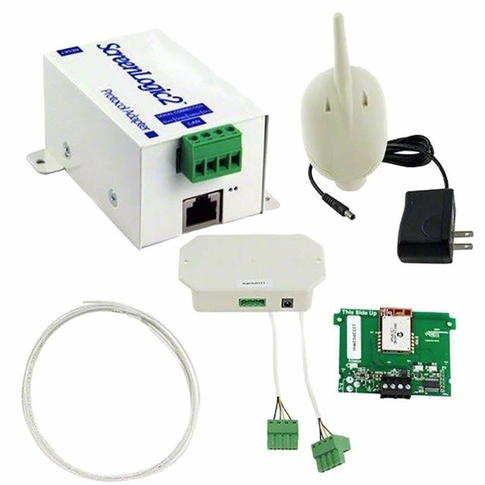
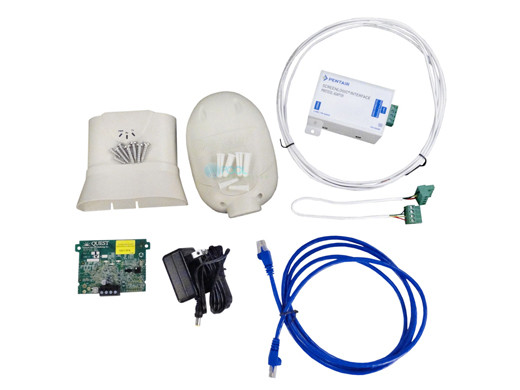
- ScreenLogic Interface Adapter: This device acts as a translator, connecting your pool’s controller to your home network.
- Router/Wi-Fi: Sends signals between devices, allowing communication with your phone, tablet, or computer.
- Mobile or Desktop App: Lets you view and change settings, giving you control over your pool from anywhere.
The adapter can be wired (Ethernet) or wireless. Wireless adapters are more common now, but both types have similar functions. The connection from the controller to the adapter is usually direct, while the adapter links to your home network.
Here’s a basic workflow:
- You open ScreenLogic Connect on your device.
- The app looks for the adapter on your network.
- The adapter talks to the controller.
- The app shows your pool status.
If any part fails, the app will keep searching for the system controller. For example, if the router reboots or the Ethernet cable is loose, communication breaks down. Also, if you have many smart devices on your network, interference or overload can block the adapter’s signals.
Knowing how these parts connect helps you troubleshoot. For instance, if your lights and pumps still work from the manual control panel, but not through the app, the problem is likely in the adapter or network, not the controller itself.
First Steps When You See “searching For System Controller”
When the message appears, stay calm. Most problems are easy to fix. Here are the first things to check:
- Restart the app: Close and reopen ScreenLogic Connect. Sometimes, apps freeze or fail to refresh network connections.
- Check your Wi-Fi: Make sure your device is connected. If you’re using mobile data or on a guest network, the app can’t reach your controller.
- Power cycle the adapter: Unplug the adapter, wait 30 seconds, plug it back in. This can clear minor glitches and force the adapter to reconnect.
- Verify controller power: Ensure the pool system is running and not in a power outage. Check the main breaker for your pool equipment.
- Update the app: Download the latest version from Pentair. New updates fix bugs and improve connection stability.
These steps solve over 50% of cases, especially for beginners. Many users skip the restart or don’t check Wi-Fi, which leads to unnecessary stress. For example, after a thunderstorm, your router might have restarted and changed network settings, and a simple reboot of devices restores everything.
If you have guests or kids using your pool, sometimes they unplug devices to use outlets, accidentally disconnecting the adapter.
Deeper Troubleshooting Steps
If basic steps don’t help, move to more advanced checks. These steps will help you narrow down the cause.
Checking Network Connections
- Make sure the adapter is connected to your router. For wired adapters, check the Ethernet cable is fully plugged in and not damaged. For wireless adapters, check that they are within signal range.
- Test another device on the same network to rule out router issues. If your phone or laptop can’t connect to Wi-Fi either, the router may be at fault.
- Look for blinking lights on the adapter (most Pentair adapters have LED indicators). A steady or blinking green light usually means the adapter has power and is trying to connect.
If the adapter’s lights are off, it’s not getting power. If they blink, it’s trying to connect. If you see a red light, there may be a hardware issue.
Verifying Ip Addresses
Sometimes, the app cannot find the adapter due to IP conflicts. This happens when two devices use the same IP address, causing confusion on the network.
- Log into your router and check connected devices. Most routers have a page called “Device List” or “Connected Devices.”
- Find the ScreenLogic adapter’s IP address. It may be labeled as “Pentair” or similar.
- Enter the IP manually in the ScreenLogic Connect app. This can help if automatic discovery isn’t working.
If you see multiple devices with the same IP, change one to avoid conflict. Assigning a static IP to your adapter can prevent future conflicts. Many users overlook this step, but it makes your system more stable.
Adapter And Controller Reset
- Hold the reset button on the adapter for 10 seconds. This restores default settings and can fix stubborn connection issues.
- Wait for the adapter to reboot.
- Restart the controller if you know how (usually by flipping a breaker). Give it a minute to power up before reconnecting.
Resetting often solves stuck connections. Just remember to reconfigure any custom settings after a reset.
Firmware Updates
Outdated firmware can cause problems, especially after you update your app or phone’s operating system.
- Check Pentair’s website for the latest firmware.
- Follow instructions for updating.
- Only update firmware if you are comfortable — mistakes can cause bigger issues.
If you’re unsure, ask a pool professional for help. Firmware updates sometimes add important security fixes or new features, so keeping up to date is wise.
Comparing Wired Vs. Wireless Screenlogic Adapters
Many users want to know if wired or wireless adapters are better. Here’s a comparison:
| Feature | Wired Adapter | Wireless Adapter |
|---|---|---|
| Reliability | Very High | Moderate |
| Setup Complexity | Medium | Low |
| Interference Risk | Low | High |
| Maintenance | Rarely needed | Occasional |
| Range | Limited by cable | Flexible |
For homes with stable Wi-Fi, wireless adapters are fine. If you have many devices or thick walls, wired may be better.
A practical tip: If your pool equipment is far from your router and Wi-Fi signal is weak, a wired connection will save you many headaches. However, if running a cable is too hard or expensive, consider a Wi-Fi range extender to boost the signal.
Credit: www.pentair.com
Screenlogic Adapter Placement Tips
Where you place your adapter matters. Here are some tips:
- Keep adapters away from metal objects. Metal blocks Wi-Fi signals and can cause poor connections.
- Place near your router if possible. A shorter distance means stronger signals.
- Avoid areas with lots of electrical noise (motors, pumps). Electrical interference can disrupt signals.
- For wireless, keep within 30 feet of your router.
Many beginners place adapters in the pool equipment area, which often has poor Wi-Fi. Try moving the adapter closer to your home router.
If you must place the adapter in the equipment area, consider using a plastic weatherproof box instead of metal. This small change can improve wireless performance a lot.
Also, don’t hide adapters behind large objects or inside cabinets. Airflow helps keep electronics cool and reliable.
Common Mistakes That Cause Connection Issues
Pool owners often make these mistakes:
- Wrong Wi-Fi password: Double-check for typos. One character off will prevent connection.
- Adapter plugged into the wrong port: Use the correct Ethernet or power slot. Some adapters have multiple ports for different uses.
- Firewall blocks: Some routers block traffic by default. You may need to allow UDP traffic for the adapter.
- Ignoring firmware updates: Old firmware can break connections, especially after app updates.
- Overlooking power supply issues: Adapters need steady power. Unstable power can cause random disconnects.
If you avoid these mistakes, your ScreenLogic Connect system will work more reliably.
Another common error is using guest networks or network isolation features on your router. These settings block devices from talking to each other. Always connect your adapter and mobile device to the same main network.
Advanced Troubleshooting For Persistent Problems
Sometimes, problems are more complex. Here are steps for advanced users:
Checking Router Settings
- Make sure your router allows UDP traffic (used by Pentair). Some routers block this by default.
- Check for network isolation or guest mode — these can block adapters. Devices on guest networks can’t see main devices.
- Disable “AP Isolation” if enabled. This setting isolates devices on Wi-Fi from each other.
If you recently changed your router or added a mesh Wi-Fi system, some advanced settings may block your adapter.
Using Port Forwarding
If you want to connect from outside your home, set up port forwarding.
- Open your router settings.
- Forward the correct ports (consult Pentair manual). Usually, you need to forward a specific port for the adapter.
- Use a secure password.
Port forwarding exposes your controller to the internet, so use caution. Enable only the ports you need and always use strong passwords.
Diagnosing Adapter Faults
If you suspect the adapter is broken:
- Try using another Ethernet cable. Cables can fail after years in the sun or heat.
- Swap adapters if you have a spare. Borrow from a friend or ask a pool service company to test.
- Contact Pentair support for warranty service.
Adapters rarely fail, but it happens. If your adapter is over five years old, it may need replacement.
In some climates, extreme heat or cold can shorten electronics’ life. Look for signs of corrosion or water damage, especially in outdoor installations.
Software And Firmware Compatibility
ScreenLogic Connect relies on compatible software and firmware versions. Here’s a comparison of common versions:
| Component | Recommended Version | Notes |
|---|---|---|
| ScreenLogic Connect App | Latest | Download from Pentair |
| System Controller Firmware | 2.010 or newer | Check using Pentair app |
| Adapter Firmware | Current release | Update as needed |
Always update both app and firmware together for best results.
Sometimes, users only update the app and forget the controller. This can cause new features to break. Schedule regular checks at the start of each pool season.
Real-world Examples
Let’s look at two real cases:
Case 1: A homeowner installed a new router. After setup, ScreenLogic Connect showed “Searching for System Controller.” The problem was the adapter not reconnecting to the new Wi-Fi network. Solution: Re-pair the adapter by following Pentair’s instructions. After re-entering the Wi-Fi password on the adapter, everything worked again.
Case 2: Another user had frequent disconnects. The adapter was in a metal equipment box, blocking Wi-Fi signals. Moving the adapter to a plastic box fixed the issue. The signal went from weak to strong, and disconnects stopped.
Extra Example: A pool owner upgraded their phone and could not connect anymore. The old app version was not compatible with the latest phone software. Updating the app solved the issue, showing the importance of keeping all software current.
These examples show that simple changes often solve big problems. Often, it’s not a hardware failure but a small oversight.
Preventing Future Connection Issues
To keep your system running well:
- Update your app and firmware regularly. Set reminders to check for updates.
- Use surge protectors to prevent power spikes. Power surges can damage sensitive adapters.
- Place adapters in open, dry areas. Moisture can cause corrosion and failures.
- Check cables for damage once a year. Look for cracks, cuts, or rodent damage.
- Back up your settings before major changes. This makes recovery easy if you need to reset.
Most problems are preventable with regular maintenance. Spend a few minutes each season checking connections and updates — it can save hours of frustration later.
Credit: www.poolsupplyunlimited.com
How Pentair Support Can Help
If you try all steps and still see “Searching for System Controller,” Pentair support is your best option. They offer phone, email, and live chat help. Before contacting them:
- Write down your adapter’s model and firmware version.
- Note any error messages.
- Describe your troubleshooting steps.
This helps support solve your issue faster. Pentair can also guide you through advanced diagnostics that aren’t in the manuals.
Support teams are trained to spot patterns and may know of recent bugs or outages that affect many users.
Comparing Screenlogic Connect With Other Pool Automation Apps
Pentair is not the only company offering pool automation. Here’s a comparison with two other brands:
| Feature | Pentair ScreenLogic Connect | Hayward OmniLogic | Jandy iAquaLink |
|---|---|---|---|
| Remote Access | Yes | Yes | Yes |
| Ease of Setup | Medium | Easy | Medium |
| Reliability | High | High | Moderate |
| Customization | Advanced | Medium | Basic |
| Support | Strong | Strong | Moderate |
Pentair’s app is powerful but sometimes harder for beginners. Hayward is easier to use, but with fewer features.
Another advantage of Pentair is its integration with other smart home platforms, such as Amazon Alexa or Google Home (in select models). This can be useful if you want to control your pool by voice or automate with other smart devices.
Non-obvious Insights For Beginners
Many new users don’t realize these points:
- Wi-Fi channels matter: If your router is crowded, change channels for better performance. Overlapping channels can cause interference, especially in busy neighborhoods.
- Static IP is safer: Assign a static IP to your adapter to avoid conflicts. Dynamic IPs can change after router reboots, breaking connections.
- Adapter placement affects signal: Even a few feet can change connection quality. Try moving your adapter around and test the app each time.
Another tip: If your home network uses both 2.4 GHz and 5 GHz Wi-Fi, make sure your adapter is on the 2.4 GHz band. Many smart devices only work on this frequency.
When To Replace Your Adapter Or Controller
Adapters and controllers last many years, but after 5–7 years, they may fail. Signs it’s time to replace:
- Frequent disconnects even after troubleshooting.
- No lights on the adapter.
- Controller not responding to manual commands.
If your system is older, consider upgrading to newer hardware for better reliability. New models often support faster speeds, improved apps, and better security.
The Importance Of Security
Because ScreenLogic Connect allows remote control, security matters. Here’s how to stay safe:
- Use strong passwords for your Pentair account. Avoid simple or default passwords.
- Change default router passwords. Default settings are easy targets for hackers.
- Keep firmware updated to patch vulnerabilities.
- Avoid sharing your network with guests. Set up a separate guest network if needed.
Security is often ignored, but a simple password change can protect your pool system.
If you enable remote access, use secure cloud features and avoid opening unnecessary ports on your router.
Getting The Most From Screenlogic Connect
To maximize your system:
- Learn how to use advanced schedules. Automate heating, lighting, and cleaning for energy savings.
- Set up alerts for temperature or chemical changes. Get notified before problems occur.
- Use the app to monitor energy usage. Track pump and heater run times.
- Connect with smart home systems if supported. Automate pool settings as part of your morning routine.
ScreenLogic Connect is more than just an on/off switch — it can help you save money and keep your pool healthy. Spend time exploring advanced features to get the most value.
What To Do If Screenlogic Connect Never Finds The System Controller
If you see “Searching for System Controller” for hours, try these last steps:
- Reinstall the app: Uninstall and reinstall on your device. Sometimes, app files get corrupted.
- Try another device: Sometimes phone or tablet settings block connections. Try a laptop or second phone.
- Factory reset adapter: Follow Pentair’s guide for a clean reset.
- Check for hardware damage: Look for signs of water, heat, or age damage.
- Contact support: If all else fails, professionals can help.
Sometimes, a fresh start is the fastest fix, especially after major changes to your network or devices.
Useful External Resources
For detailed guides, visit the Pentair official site at Pentair Support. They provide manuals, troubleshooting steps, and firmware downloads.
Frequently Asked Questions
Why Does Screenlogic Connect Keep Searching For The System Controller?
This usually means the app cannot find your pool’s control board. Common reasons include Wi-Fi issues, wrong IP settings, outdated firmware, or adapter faults. Start by checking your network and updating your app.
Can I Use Screenlogic Connect If My Pool Controller Is Offline?
No. The app needs a live connection to the system controller. If your controller is offline or not powered, ScreenLogic Connect cannot work.
How Do I Update Screenlogic Connect Firmware?
Visit Pentair’s website for firmware files and instructions. Connect your adapter to your computer, follow the update steps, and make sure you have a backup of your settings before updating.
What Is The Best Location For The Screenlogic Adapter?
Place your adapter in a dry, open area near your router. Avoid metal boxes or areas with electrical interference. For wireless adapters, keep within 30 feet of your router for best performance.
Are There Alternative Apps To Screenlogic Connect For Pentair Systems?
No. Pentair ScreenLogic Connect is the official app for their pool automation systems. Other apps may exist, but they do not support Pentair hardware directly.
Managing your pool system with ScreenLogic Connect should be easy and reliable. If you see “Searching for System Controller,” follow the steps above. Most problems are simple to fix, and with the right knowledge, you can keep your pool running smoothly all year.
If you need more help, Pentair support is always ready to assist. Remember, regular updates and careful adapter placement prevent most issues. Enjoy your smart pool with confidence!