
If you own a pool with automation, you may have heard about ScreenLogic. It’s a system by Pentair that lets you control your pool from your phone, tablet, or computer. But sometimes, when opening the app, you see a message: “Searching for System Controller.” This message can be confusing and frustrating, especially if you want to adjust your pool’s temperature or turn on the spa. Why does this happen? What does it mean? And more importantly, how can you fix it?
This guide will explain everything you need to know about ScreenLogic searching for system controllers. Whether you’re new to pool automation or have used ScreenLogic for years, you’ll find clear explanations, practical steps, and solutions that work. Let’s dive in and make your pool control simple again.
What Is Screenlogic And How Does It Work?
ScreenLogic is a control system designed by Pentair. It connects to your pool’s automation panel (like an IntelliTouch or EasyTouch system) and lets you manage everything from pool lights to pumps—right from your device. You can change settings from inside your home or even miles away if you have internet access.
The core parts of the system include:
- The ScreenLogic Interface Protocol Adapter (often called the “brick”)
- The automation panel (main controller by the pool equipment)
- Your phone, tablet, or computer running the ScreenLogic app
When everything works, you open the app, and it quickly finds your system controller. You can see pool status, change schedules, or turn on features. But if communication fails, the app will show “Searching for System Controller. ”
What Does “searching For System Controller” Mean?
This message appears when the app cannot find or connect to your pool’s main controller. Think of it as your phone not finding Wi-Fi—it keeps searching but can’t connect.
It usually means one of these things:
- The controller is powered off or not communicating
- The network connection (Wi-Fi or Ethernet) is down
- The protocol adapter is offline or has issues
- Your mobile device isn’t on the same network (for local control)
- There’s a software or firmware mismatch
Understanding this message is the first step to fixing it.
Common Causes: Why Screenlogic Can’t Find The System Controller
Many pool owners experience this problem, and several reasons can trigger it. Let’s look at the most common causes, with details to help you pinpoint your issue.
1. Power Issues
The automation panel or protocol adapter may not have power. If the controller is off, nothing will work. Check if the pool panel shows any lights or display activity. If not, a breaker may be tripped or the power supply may have failed.
2. Network Connection Problems
ScreenLogic depends on your home network. If the Wi-Fi is down, or the protocol adapter is unplugged from your router, the app cannot find the controller.
A few things to check:
- Is your router working for other devices?
- Is the Ethernet cable from the adapter connected and solid?
- Are you on the same Wi-Fi network as the controller?
3. Faulty Protocol Adapter
The protocol adapter is a small box that translates signals between your pool controller and your network. If it’s not powered or is damaged, communication stops. Look for solid lights on the adapter—blinking or off lights can mean trouble.
4. Device Network Differences
When using local control, your phone or tablet must be on the same network as the pool system. If your phone is on mobile data or a different Wi-Fi, it won’t find the controller.
5. Firmware Or Software Incompatibility
Sometimes, ScreenLogic app updates or controller firmware versions don’t match. If your app is too new or too old compared to the controller, they might not “speak” the same language.
6. Ip Address Changes
Home networks can change device addresses (called DHCP). If the protocol adapter’s IP address changes, the app may look for the old one and get stuck searching.
7. Firewall Or Security Block
Some routers or firewalls block devices from talking to each other. If you’ve recently changed router settings, this can block ScreenLogic’s traffic.
8. Faulty Cables Or Connectors
Bad Ethernet cables, loose wires, or corroded connectors can break communication. Physical checks are important, especially in outdoor pool environments.
9. Recent Power Outages Or Surges
A power outage can scramble the controller or the adapter. After an outage, sometimes a system reboot is needed to restore connections.
10. App Or Device Glitches
Like any software, the ScreenLogic app or your phone/tablet can have bugs. Restarting the app or device sometimes solves temporary glitches.
Non-obvious insight: Even if your Wi-Fi works for other devices, a pool controller on a distant or outdoor outlet may lose power or signal separately. Always check both home and pool equipment power.
Step-by-step Solutions For “searching For System Controller”
Fixing this problem can be quick or take a bit of detective work. Here’s a practical guide to walk you through step by step.
Step 1: Basic Power And Cable Checks
- Go to your pool equipment area.
- Look at the automation panel. Are lights on? Is the display working?
- Find the protocol adapter (“Pentair brick”). Is the power light on?
- Check all cables—especially Ethernet cables. Reseat connectors by unplugging and plugging them back.
Tip: If you see no power, check the circuit breaker labeled for “pool” or “equipment.”
Step 2: Restart Everything
- Power cycle the automation panel (turn off, wait 30 seconds, turn on).
- Unplug the protocol adapter, wait 10 seconds, and plug back in.
- Restart your router if you suspect network issues.
- Restart your phone, tablet, or computer.
Why this helps: Many communication errors are cleared by a full reset.
Step 3: Confirm Network Connection
- Make sure your phone/tablet is on the same Wi-Fi network as the protocol adapter.
- Log in to your router admin page. Can you see the protocol adapter as a connected device?
- Try connecting from another device (if possible).
Non-obvious insight: Some routers create multiple Wi-Fi “bands” (2.4GHz and 5GHz). Pool equipment often works only on 2.4GHz. Try connecting your device to the same band.
Step 4: Check Protocol Adapter Status Lights
- Solid green lights usually mean good connection.
- Blinking or red lights indicate trouble.
- If all lights are off, the adapter needs power.
If you see unusual lights, consult the manual or Pentair’s support site for specific light codes.
Step 5: Re-add The System In The App
- Open the ScreenLogic app.
- Remove any old or saved systems.
- Let the app scan for available controllers.
- If it finds your system, re-add it.
This step helps if the IP address or network has changed.
Step 6: Update Firmware And App
- Check for updates for both your ScreenLogic app and the automation panel firmware.
- Visit Pentair’s official support site for downloads.
- Updating may require a USB stick or a laptop for the panel.
Important: Always follow Pentair’s instructions for firmware updates. Wrong updates can cause more problems.
Step 7: Address Ip Conflicts
If the protocol adapter’s address has changed, the app may not find it. You can:
- Reserve a static IP for the adapter in your router settings.
- Use the ScreenLogic Config utility on a Windows PC to “find” and set the correct address.
Step 8: Check Firewall And Security Settings
- If you use advanced home security, make sure the router allows communication between devices.
- Some routers have “isolation” settings that block devices from talking. Disable this for the pool network.
Step 9: Replace Faulty Hardware
If you’ve tried all else, and lights don’t come on or the adapter is old, consider replacing the protocol adapter. These are available from pool supply stores or Pentair dealers.
Example: A pool owner spent hours troubleshooting before finding a chewed Ethernet cable (squirrels!). Simple cable replacement restored control instantly.
Step 10: Contact Professional Help
If you still see “Searching for System Controller,” it may be time to call a pool automation specialist or Pentair support. Some wiring or board faults require expert tools and knowledge.
How Screenlogic Connects: Local Vs Remote Control
Understanding local and remote control is important for troubleshooting.
- Local control: Your device connects directly to the controller over your home Wi-Fi.
- Remote control: You access your pool from outside your home, using Pentair’s server as a bridge.
If local control works but remote does not, the problem is often with your internet or Pentair’s remote service. If neither works, focus on your home network and equipment.
Here’s a simple comparison:
| Feature | Local Control | Remote Control |
|---|---|---|
| Connection | Direct (Wi-Fi) | Via Internet (Pentair server) |
| Speed | Faster | Slower (depends on internet) |
| Typical Problems | Wi-Fi, IP address, power | Internet, firewall, Pentair cloud |
| Use Case | At home | Away from home |
Tip: Always test both local and remote modes to narrow down where the problem is.
Real-world Scenarios And How To Respond
Let’s look at some common situations and what to do.
Scenario 1: Screenlogic Works On Some Devices, Not Others
This often means a network or device issue. Try switching Wi-Fi bands, updating the app, or restarting the problematic device.
Scenario 2: After Power Outage, App Shows “searching For System Controller”
Power surges can cause the protocol adapter to lose settings. Unplugging and replugging the adapter usually solves this. If not, a full system reboot (panel + adapter + router) may be needed.
Scenario 3: App Finds Controller But Cannot Control Pool
If you see the controller but can’t control the pool, firmware mismatch is likely. Update both app and panel firmware.
Scenario 4: “searching For System Controller” Only When Away From Home
Remote access uses different paths. Check if your home internet is up, and make sure remote access is enabled in your system settings.
Scenario 5: Everything Looks Fine, But Still No Connection
This is rare, but sometimes, interference, hardware aging, or obscure software bugs can block connections. Try relocating the protocol adapter, using a wired Ethernet connection, or factory resetting the system as a last resort.
Preventive Steps: How To Avoid Future Issues
You can avoid many ScreenLogic headaches by following these habits.
- Label Your Pool Breakers and Outlets: Know which breaker controls the pool equipment and protocol adapter.
- Use Surge Protectors: Protect your protocol adapter and panel from power surges.
- Check for Firmware Updates Twice a Year: Keeping all parts up to date prevents compatibility issues.
- Reserve Static IP Addresses: This prevents the protocol adapter from “moving” on your network.
- Inspect Cables and Connections Every Season: Outdoor environments cause wear and tear—catch problems before they become failures.
- Document Your System Setup: Take photos and notes about wiring, adapters, and router settings. This helps if you need support.
- Test Local and Remote Control Regularly: Don’t wait for a problem—test both ways to catch issues early.
Non-obvious insight: Many “mystery failures” happen after lightning storms, even if no direct strike hits. If you’re in a storm-prone area, check equipment after every storm.
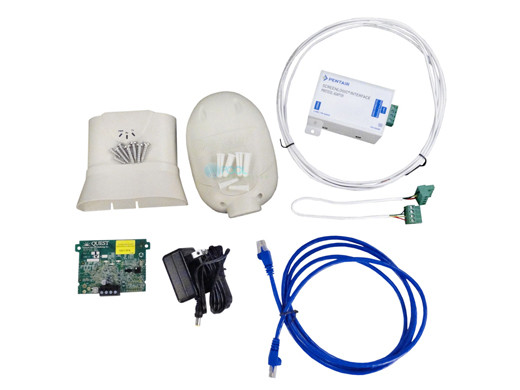
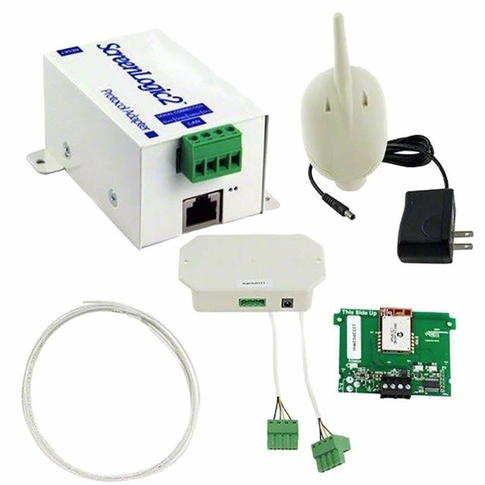
Screenlogic Protocol Adapter: Key Details
Understanding your protocol adapter is important for solving many problems.
- Model: Most common is the black “Pentair brick.”
- Connections: Power (usually a small barrel plug), Ethernet (to router), and a data cable (to pool controller).
- Indicators: Lights show status—refer to the sticker or manual for meanings.
- Placement: Keep the adapter in a dry, protected spot, not exposed to direct weather.
If you need to replace the adapter, always match the model to your pool controller (IntelliTouch or EasyTouch).
Credit: www.poolsupplyunlimited.com
When Should You Replace Equipment?
Not all connection problems mean you need new gear. But you should consider replacing:
- Protocol adapters older than 8-10 years
- Equipment with water damage or corrosion
- Adapters with flickering or dead lights, even after power checks
Modern adapters are more reliable and offer better network compatibility.
Troubleshooting Decision Guide
Here’s a quick reference to help decide what to check first:
| Symptom | First Check | Second Check | Likely Solution |
|---|---|---|---|
| No lights on adapter | Power outlet | Breaker | Restore power or replace adapter |
| App finds old system, not new one | IP address | App settings | Re-add system, set static IP |
| Works locally, not remotely | Internet connection | Remote access setting | Check internet, enable remote |
| Lights blink on adapter | Ethernet cable | Panel connection | Replace cable or check wiring |
Credit: www.hydropool.com
Comparing Screenlogic To Other Pool Automation Systems
Some pool owners consider switching to other systems if they have frequent problems. Here’s how ScreenLogic stacks up:
| Feature | Pentair ScreenLogic | Jandy iAquaLink | Hayward OmniLogic |
|---|---|---|---|
| App Control | Yes | Yes | Yes |
| Local + Remote | Yes | Yes | Yes |
| Firmware Updates | Manual (with PC) | Automatic/Manual | Automatic |
| Protocol Adapter | Wired | Wi-Fi/Wired | Wi-Fi/Wired |
| Typical Issues | Network, power | App bugs, Wi-Fi drops | Compatibility, cloud outages |
Insight: ScreenLogic is reliable but can be less “plug and play” than newer Wi-Fi-based systems. If you want to avoid adapters and wiring, some competing systems are easier but may cost more.
Do You Need A Professional Or Can You Diy?
Most ScreenLogic “Searching for System Controller” issues can be fixed by homeowners with basic troubleshooting. You’ll need:
- Access to your router’s admin page
- Willingness to check cables and power
- Ability to update apps or panel firmware
Call a pro if:
- You see signs of water damage or corrosion
- The system still fails after all basic steps
- Wiring or internal board work is required
Pro tip: Document everything you try. If you need help later, notes will speed up professional diagnosis.
Credit: www.pentair.com
The Importance Of Keeping Software And Firmware Updated
Software and firmware updates are not just for new features—they fix bugs and improve security. Outdated software is a common cause of connection failures.
- Check Pentair’s support page every few months.
- Follow update instructions carefully.
- Keep both your app and the pool panel firmware current.
If you’re unsure, ask a pool tech or visit the Pentair Support page.
Key Takeaways For Pool Owners
- “Searching for System Controller” means the app can’t find or connect to your pool’s main automation controller.
- Most problems are caused by power, network, or adapter issues.
- Step-by-step troubleshooting (power, cables, network, app) solves most cases.
- Keeping equipment updated and protected prevents many failures.
- If all else fails, professional help is available.
Understanding your ScreenLogic system puts you in control—not just of your pool, but of your whole outdoor living experience.
Frequently Asked Questions
Why Does My Screenlogic App Keep Saying “searching For System Controller”?
The app can’t find or connect to your pool’s main controller. This is usually due to power issues, network problems, or a faulty protocol adapter. Check all equipment, cables, and network settings.
How Do I Know If My Protocol Adapter Is Working?
Look for lights on the adapter. Solid green lights mean it’s powered and connected. Blinking or no lights suggest power or hardware problems.
Can I Fix “searching For System Controller” Myself?
Yes, most causes can be fixed at home. Check power, cables, and network connections. Restart all devices, and update your app and firmware. If you’re unsure, professional help is available.
What Should I Do If Updating Firmware Doesn’t Help?
If updates don’t solve the problem, check for hardware issues, bad cables, or network settings. As a last resort, factory reset the system or replace the protocol adapter.
Is Screenlogic Better Than Other Pool Control Systems?
ScreenLogic is reliable and widely used, but it relies on adapters and wired connections. Newer systems may offer easier setup and Wi-Fi, but ScreenLogic is trusted by many pool owners for its strong features.
Taking the time to understand and maintain your ScreenLogic system ensures smooth pool operation and more time to relax. If you ever get stuck, remember that help—from Pentair, local pool pros, or the wider pool community—is just a call or click away.