
Crock Pots have become a kitchen staple for busy families and food lovers alike. Their simple, “set it and forget it” design allows home cooks to make soups, stews, and roasts with minimal effort. But what happens when your Crock Pot malfunctions, freezes on a program, or displays an error message?
Many people feel stuck when their slow cooker won’t respond as usual. Fortunately, most Crock Pot issues can be solved with a reset. Understanding how to reset your Crock Pot can save you time, money, and the frustration of ruined meals.
This guide will walk you through everything you need to know about resetting a Crock Pot. You’ll learn what causes common problems, how to safely reset your device, and tips to prevent future issues. We’ll cover different Crock Pot models, key differences from Instant Pots and other brands, and answer the most common questions.
By the end, you’ll be equipped to handle nearly any Crock Pot error with confidence.
Why Resetting A Crock Pot Matters
Most slow cookers are built to be reliable, but like any electronic device, they can experience glitches. Sometimes, a power surge, a programming bug, or even a simple user error can cause your Crock Pot to stop working properly. Resetting is often the easiest way to clear these issues.
Here are key reasons why knowing how to reset your Crock Pot is important:
- Restores normal function: After a glitch or error, resetting can help your device work like new again.
- Prevents wasted ingredients: If your Crock Pot stops mid-cook, a reset can save your meal.
- Avoids unnecessary repairs: Many issues that seem serious are fixed with a simple reset.
- Increases appliance lifespan: Regular resets can reduce wear on the electronics over time.
Understanding Crock Pot Models And Controls
Before you reset your Crock Pot, it’s important to know which type you have. Not all slow cookers are the same. Some have basic dial controls, while others feature digital displays and smart programming. The reset process can vary depending on the model.
Key Types Of Crock Pot Controls
1. Manual Dial Models
These are the simplest. They have a knob that switches between settings like Off, Low, High, and Warm. There is no digital display.
2. Digital Programmable Models
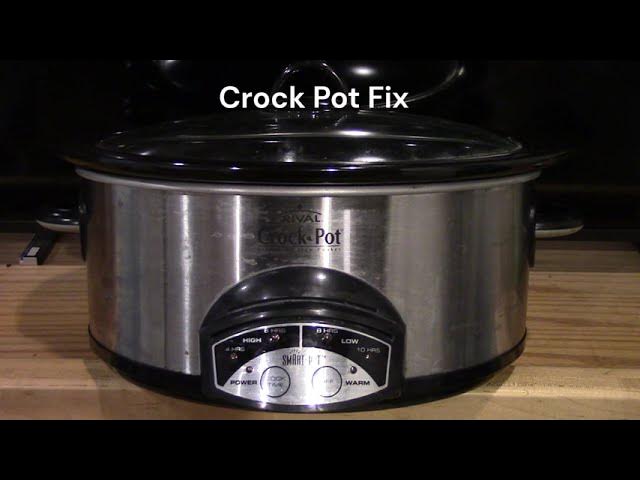
These have buttons for time, temperature, and sometimes special programs. They often display numbers or error codes on a screen.
3. Wi-fi Enabled Or Smart Models
These can connect to your smartphone or voice assistants. They may have touch screens and more complex settings.
Example Models
- Crock-Pot 7-Quart Manual Slow Cooker: Simple dial, no screen.
- Crock-Pot Express Crock Multi-Cooker: Digital display, multiple functions.
- Crock-Pot 6-Quart Programmable Cook & Carry: Digital controls, travel-friendly.
Knowing your model helps you find the right reset method. If you’re not sure, check the label on the bottom or back of your device, or look up the user manual online.
Common Reasons You Need To Reset A Crock Pot
Crock Pots are sturdy, but they’re not immune to problems. Here are some common reasons you might need to reset your slow cooker:
- Frozen or unresponsive display: The screen won’t change, or buttons don’t work.
- Error codes: You see codes like “E1” or “Err” on the display.
- Stopped heating: The unit turns on, but doesn’t heat up.
- Program won’t start: You can’t set the timer or cooking mode.
- Interrupted cycle: Power outage or surge interrupts cooking.
- Wi-Fi issues: Smart models lose connection or won’t sync.
Not all problems need a reset. For example, if your Crock Pot is not plugged in or the outlet isn’t working, resetting won’t help. Always check the basics first.
Safety Precautions Before Resetting
Resetting a Crock Pot is generally safe, but it’s important to follow these steps to protect yourself and your appliance:
- Unplug the unit first: Always disconnect from power before troubleshooting.
- Let it cool: If you’ve been cooking, wait until the Crock Pot is cool to the touch.
- Dry your hands: Never handle plugs or electronics with wet hands.
- Clear the area: Make sure the surface around your Crock Pot is dry and free of clutter.
Taking these steps helps prevent electrical shocks and accidental damage.
How To Reset A Crock Pot: Step-by-step Guide
Resetting your Crock Pot may sound technical, but it’s usually simple. The process depends on whether you have a manual, digital, or smart model. Follow the steps that match your device.
For Manual Dial Models
Manual Crock Pots have no electronic memory, so they rarely need a true “reset.” However, if the unit is stuck or not heating:
- Turn the dial to Off.
- Unplug the Crock Pot from the wall outlet.
- Wait at least 5 minutes. This allows any residual electricity to discharge.
- Plug the Crock Pot back in.
- Set your desired temperature (Low, High, or Warm).
Most issues with manual models are caused by power supply problems. If your Crock Pot still doesn’t work, check the outlet or try a different socket.
For Digital Programmable Models
Digital models can freeze like computers. Here’s how to reset them:
- Press and hold the Stop/Cancel button (if available) for 3–5 seconds. This often clears the current program.
- Turn the unit off using the Power button or by switching to Off.
- Unplug the Crock Pot from the wall.
- Wait at least 5–10 minutes. This gives the internal computer time to reset.
- Plug it back in and turn it on.
- Re-enter your cooking program.
If your Crock Pot displays an error code, refer to the user manual for code meanings. Resetting as above usually clears most codes.
For Smart Or Wi-fi Enabled Models
Smart Crock Pots have extra features, but the reset process is similar:
- Turn off or unplug the unit.
- Wait 10 minutes to ensure all electronics reset.
- Plug back in and restart.
- If problems persist, reset Wi-Fi settings by following instructions in your user manual or app.
- Reconnect to your network and test with a simple cook program.
If your smart Crock Pot still won’t connect or respond, check for app or firmware updates.
Factory Reset (for Supported Digital/smart Models)
Some newer Crock Pots support a full factory reset, which restores original settings:
- Find the Reset button or menu option (often in the settings menu).
- Select or press and hold Reset for 5–10 seconds.
- Confirm the reset if prompted.
- Wait for the device to restart.
Factory reset erases custom programs and Wi-Fi info. Use only if basic reset doesn’t solve your problem.
What To Do After Resetting Your Crock Pot
Once you’ve reset your Crock Pot, test it before cooking a meal:
- Run a short test cycle (10–15 minutes on High) with water in the pot.
- Check for heating: The sides should get warm.
- Monitor the display (if digital): Make sure it counts down or stays steady.
- Listen for clicks or beeps: Some models make sounds when starting up.
If everything works, you’re ready to cook again. If problems return, there may be a deeper issue.

Credit: www.reddit.com
Troubleshooting Crock Pot Problems That Resetting Doesn’t Fix
Sometimes, resetting isn’t enough. Here are common issues that may need more attention:
Crock Pot Won’t Heat Up
- Check the power cord: Look for visible damage.
- Test the wall outlet: Plug in another device to confirm it works.
- Inspect the fuse or breaker: Crock Pots can trip breakers if there’s a power surge.
Display Still Shows Error Codes
- Consult the user manual: Each code means something specific.
- Contact customer service: They can guide you on advanced fixes or warranty options.
Lid Or Seal Problems
- Check for cracks or warping: These can affect cooking but aren’t fixed by resetting.
- Order replacement parts: Most Crock Pot lids and seals are replaceable.
Persistent Wi-fi Or App Issues
- Update the app: Old software can cause connection problems.
- Restart your router: Network issues may be the cause.
If your Crock Pot still doesn’t work after trying these steps, it may need professional repair or replacement.
Comparing Crock Pot To Other Slow Cookers: Reset And Error Handling
Crock Pot is the most popular slow cooker brand, but other brands like Instant Pot, Hamilton Beach, and Cuisinart use similar technology. However, the reset process can differ.
Here’s a comparison to highlight key differences:
| Brand | Reset Method | Error Code Display | Common Issues |
|---|---|---|---|
| Crock Pot | Unplug & Wait / Button Reset | Yes (on digital models) | Frozen display, E1/E2 codes |
| Instant Pot | Unplug & Wait / Factory Reset (menu) | Yes (e.g., C6, C7) | Lid sensor errors, no heat |
| Hamilton Beach | Unplug & Wait | Some models only | No power, stuck program |
| Cuisinart | Unplug & Wait / Reset button | Yes | Heating errors |
As you can see, unplugging and waiting is a universal reset step. However, the presence of reset buttons and error codes can vary.
Preventing Future Crock Pot Problems
Resetting your Crock Pot can fix most problems, but prevention is even better. Here are practical tips to keep your slow cooker running smoothly:
1. Use The Right Power Source
Avoid using extension cords or power strips, which can cause surges.
2. Keep The Heating Base Dry
Never submerge the base in water. Wipe with a damp cloth only.
3. Don’t Overfill The Pot
Stay below the “Max” line. Overfilling can cause spills and short circuits.
4. Clean Buttons And Controls Regularly
Food debris can cause buttons to stick or malfunction.
5. Update Software On Smart Models
Outdated firmware can cause glitches.
6. Let The Unit Cool Between Uses
Quickly restarting after cooking can sometimes confuse the electronics.
7. Check The Power Cord Often
Replace if you see fraying or damage.
By following these habits, you’ll minimize the need for resets and extend the life of your appliance.
Real-life Examples: When Resetting Saved The Day
Sometimes, a simple reset can turn a kitchen disaster into a success. Here are two examples from actual Crock Pot users:
Case 1: The Unresponsive Display
Mary was making chili for a family gathering. Halfway through cooking, her Crock Pot’s digital display froze. Buttons wouldn’t respond. She unplugged the unit, waited 10 minutes, and plugged it back in. The display reset, and she was able to finish her meal on time.
Case 2: Error Code Nightmare
James owns a smart Crock Pot. One morning, he woke up to an “E1” error code. After checking the manual, he learned this meant a power issue. He reset his Crock Pot by unplugging it, waited 15 minutes, and tried again.
The error was gone. He later found that his kitchen had a brief power surge overnight.
These stories show that knowing how to reset your Crock Pot can save both your meal and your mood.
What To Avoid When Resetting Your Crock Pot
It’s easy to make mistakes when you’re in a hurry. Here are common errors to avoid:
- Don’t use sharp objects to press buttons or open the case.
- Never pour water on the base or electronics.
- Don’t force the dial or buttons if they’re stuck.
- Avoid using a wet cloth on the display or plug.
- Don’t ignore repeated errors: If resetting doesn’t solve the issue, seek help.
Remember, safety comes first. For persistent problems, contact Crock Pot customer service or a qualified appliance technician.
The Role Of Warranty And Customer Support
Many Crock Pots come with a one-year limited warranty. If your slow cooker is still under warranty, don’t attempt repairs that could void it. Here’s what you should do:
- Keep your proof of purchase: You’ll need it for warranty claims.
- Contact customer support: They can offer troubleshooting tips or arrange repairs.
- Register your product: This makes warranty claims easier.
- Follow official reset instructions: Using the wrong steps can sometimes void your warranty.
For more details on Crock Pot warranties, visit the official Crock-Pot Warranty Support page.

Credit: www.amazon.com
Key Differences: Crock Pot Reset Vs. Instant Pot Reset
Many people confuse Crock Pots with Instant Pots. Both are kitchen appliances, but their reset processes and issues can differ. Here’s a side-by-side comparison:
| Feature | Crock Pot | Instant Pot |
|---|---|---|
| Primary Function | Slow Cooking | Pressure Cooking & More |
| Typical Reset Method | Unplug & Wait, Button Reset | Menu Factory Reset, Unplug |
| Common Error Codes | E1, E2, Err | C6, C7, LID |
| Special Features | Wi-Fi (some models) | Sous Vide, Yogurt, etc. |
Both brands recommend unplugging as a basic reset, but Instant Pots often have a menu-based factory reset for advanced settings.
Non-obvious Insights Most Beginners Miss
- Resetting doesn’t fix physical damage: Many people try to reset their Crock Pot when the lid is cracked or the heating element is visibly damaged. Resets only solve electronic or software issues.
- Error codes often mean a simple power issue: New users may panic when they see “E1” or “Err” on the display. In most cases, these codes mean the Crock Pot lost power briefly or needs a simple unplug-and-wait reset.
- Wi-Fi model resets can affect app settings: If you reset a smart Crock Pot, you may need to re-pair it with your phone or home network. Some users forget this step and think their device is still broken.
- Testing with water prevents ruined meals: After a reset, always run a test with water before cooking food. This avoids wasting ingredients if the problem isn’t fixed.
- Power surges are a hidden cause: Many Crock Pot errors are caused by a power surge or brownout, not a problem with the appliance itself. Using a surge protector can help.
Frequently Asked Questions
How Do I Know If My Crock Pot Needs A Reset?
If your Crock Pot is unresponsive, stuck on a program, shows an error code, or fails to heat, a reset is a good first step. Always check your power source and try a reset before seeking repairs.
Is It Safe To Reset My Crock Pot While Food Is Inside?
Yes, but it’s best to let the Crock Pot cool slightly before handling. Unplugging with food inside won’t hurt the appliance, but avoid touching hot surfaces. After resetting, restart the cooking program as soon as possible to keep food safe.
What Should I Do If Resetting Doesn’t Fix My Crock Pot?
If problems persist after a reset, check your outlet, cord, and fuse. Consult the user manual for error code meanings. If you still have issues, contact customer support or a certified repair service.
Will Resetting Erase My Crock Pot’s Memory Or Settings?
Basic unplug-and-wait resets will clear any current programs, but factory resets on smart models may erase custom settings and Wi-Fi info. Read the manual before doing a factory reset.
Can I Reset My Crock Pot Too Often?
There’s no harm in resetting as needed, but frequent resets may signal a deeper issue like a faulty cord, outlet, or internal component. If you find yourself resetting every use, have your Crock Pot checked by a professional.
Final Thoughts
A malfunctioning Crock Pot doesn’t have to ruin your meal or your day. Most problems can be solved with a simple reset, saving you time and stress. By understanding your model, following the right steps, and practicing good maintenance, you’ll enjoy reliable slow cooking for years to come.
Remember, when in doubt, always consult your user manual or reach out to official support for help. Your kitchen should make life easier—and with these reset tips, your Crock Pot will always be ready for the next recipe.
Credit: www.youtube.com