
Setting the clock on your Samsung microwave might sound simple, but it can become confusing if you’ve never done it before or if you’ve lost your user manual. A microwave with the wrong time can cause more trouble than you might expect.
You might miss the start of your favorite show, or worse, your cooking schedule could go off track. In this guide, you’ll learn exactly how to set the clock on different Samsung microwave models, understand why the clock matters, and discover useful tips that even seasoned users often overlook.
Many people think setting the clock is the same for every microwave, but that’s not true. Samsung has released many models over the years, each with slight differences. This article guides you step by step, and explains what to do if something goes wrong.
You’ll also find answers to common questions and learn how to keep your microwave clock accurate for years to come.
Why The Clock On Your Samsung Microwave Matters
You might wonder, “Does the clock really matter?” The answer is yes, and here’s why. The microwave clock is more than just a way to check the time in your kitchen. It serves as a reference for timed cooking programs, delayed start features, and power-saving modes. If the time is wrong, these features won’t work as intended.
For example, many Samsung microwaves have an Eco Mode or Power Save feature, which uses the clock to manage energy efficiently. Some advanced models even let you schedule cooking or use the clock as a kitchen timer. If your clock is wrong, you might accidentally cook your food at the wrong time or lose track of your meal schedule.
Identifying Your Samsung Microwave Model
Before you start, you need to know your microwave’s model. Why? Because button layouts and menu options can change from one model to another. Setting the clock on a Samsung MG23K3513AK will not be the same as on a Samsung ME21M706BAS.
Where To Find The Model Number
- Open the microwave door.
- Look for a sticker on the inside frame or along the door.
- The model number will be a mix of letters and numbers, such as ME19R7041FS or MS23K3513AW.
Knowing your model helps you follow the right instructions. If you can’t find it, check your purchase receipt or the box. You can also search for your model on the official Samsung website.
Understanding Samsung Microwave Control Panels
Samsung uses three main types of control panels in their microwaves:
1. Touchpad (membrane) Panel
Flat and buttonless, you press the icons directly.
2. Mechanical Dial Panel
Uses rotary dials for time and power. Less common in recent models.
3. Button Panel With Digital Display
Physical push-buttons under a digital screen.
Here’s a quick comparison of these panel types:
| Panel Type | Common Models | Typical Clock Setting Method |
|---|---|---|
| Touchpad | ME21K7010DS, MS23K3513AW | Press Clock, set time, confirm |
| Mechanical Dial | MS23F301TAK | Usually no clock feature |
| Button Panel | MG23K3513AK, ME19R7041FS | Press Clock, use numbers, select AM/PM |
Some microwaves do not have a clock at all, especially basic or compact models. If you cannot find a “Clock” or “Time” button, check your manual or model specs.
Basic Steps To Set The Clock On Most Samsung Microwaves
Most Samsung microwaves with a digital display follow a similar process. Here are the general steps:
- Press the Clock or Clock/Time button.
- Use the Number Pad to enter the current time.
- Select AM/PM if needed (on 12-hour models).
- Press Start or Clock again to confirm.
Let’s break down these steps in detail so you don’t miss anything.
Step 1: Find The Clock Button
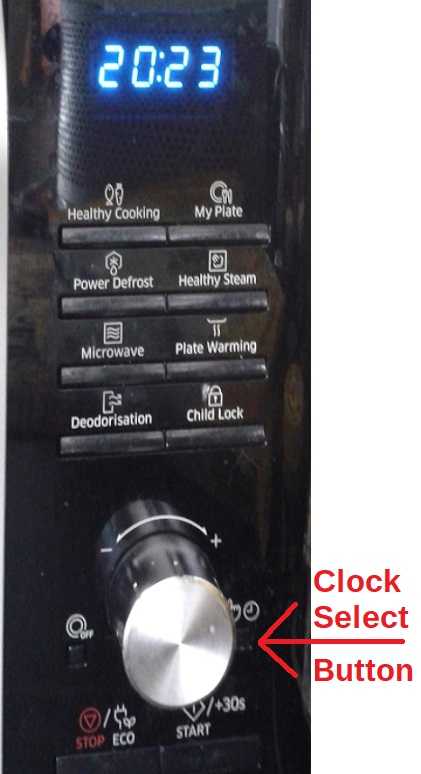
Look for a button labeled Clock, Clock/Time, or a small clock icon. On some models, you might need to press Options or Settings to access the clock menu.
Step 2: Enter The Time
Use the number pad (0-9) to type the current time. For example, to set 8:15, press 8, 1, 5.
Step 3: Select Am Or Pm
If your microwave uses a 12-hour format, you’ll see an option to select AM or PM. Press the appropriate button, or sometimes, you need to press the Clock button again to toggle between AM and PM.
Step 4: Confirm
Press Start, Clock, or Enter to save the time. The display should return to the current time.
Non-obvious insight: Some Samsung microwaves require you to press and hold the Clock button for 3 seconds to start the setting process. If a quick press does nothing, try holding it down.
Setting The Clock On Specific Samsung Microwave Models
Different models have unique clock-setting methods. Here’s a detailed look at the most popular ones.
For Models With A “clock” Button (e.g., Ms23k3513ak, Me19r7041fs)
- Press the Clock button once.
- Enter the time using the number pad.
- Press Clock again to confirm.
(on Some, You Might Need To Press Start.)
Tip: On some models, the display will blink until you finish setting the time. If you wait too long, you’ll need to start over.
For Models With An “options” Or “settings” Button (e.g., Me21m706bas)
- Press Options or Settings until you see “Clock” on the display.
- Press Enter or Clock to select.
- Use the number pad to enter the time.
- Press Enter or Start to confirm.
Non-obvious insight: Some advanced models allow you to switch between 12-hour and 24-hour time formats. To do this, hold the Clock button for 3 seconds, then choose the format before setting the time.
For Touchpad Only Models (e.g., Me21k7010ds)
- Touch the Clock icon on the panel.
- Enter the time using the touch keypad.
- Press the Clock icon again or Start to confirm.
For Mechanical Dial Models
Most Samsung microwaves with only dials do not have a built-in clock. If you can’t find a digital display, there’s usually no clock to set.
Common Issues And How To Fix Them
Sometimes, setting the clock does not work as expected. Here are common problems and how to solve them.
The Clock Button Does Not Respond
If pressing the Clock button does nothing:
- Make sure the microwave is plugged in and has power.
- Try pressing and holding the Clock button for 3 seconds.
- Check if your model uses a different button (Options, Settings).
The Display Shows “err” Or “error”
An error message can appear if you enter an invalid time (like 25:00). Only valid times (00:00 to 23:59 or 12:59 with AM/PM) are allowed.
The Clock Resets After Power Outage
Most microwaves lose the clock setting when unplugged or after a power cut. You’ll need to set the clock again each time the power returns.
The Time Is Not Saving
If the time resets every time you close the door or use the microwave:
- The main control board might have a fault.
- There could be a problem with the power supply.
- Try a full reset by unplugging for 1 minute, then set the clock again.

Credit: www.wikihow.com
Step-by-step Example: Setting The Clock On A Samsung Me19r7041fs
Let’s walk through a real-world example using the popular Samsung ME19R7041FS.
- Press the Clock button once. The display will blink.
- Enter the time. For 7: 30, press 7, 3, 0.
- Press Clock again to choose AM or PM.
- Press Start to confirm.
If you want to switch from 12-hour to 24-hour time:
- Press and hold Clock for 3 seconds until the format changes.
- Set the time as above.
Switching Between 12-hour And 24-hour Formats
Some people prefer a 24-hour clock. Here’s how to change it if your model supports this:
- Press and hold the Clock button for 3 seconds.
- The display will show “12Hr” or “24Hr.”
- Press Clock to toggle between formats.
- Press Start to confirm.
- Enter the time and save as usual.
Not all Samsung microwaves have this option. If you don’t see the format change, your model is 12-hour only.
What To Do If You’ve Lost Your Microwave Manual
Many people lose their user manual, but you can still find instructions:
- Visit the official Samsung website.
- Search for your microwave model number.
- Download the manual in PDF.
Here’s a comparison of where to find clock-setting instructions in typical Samsung microwave manuals:
| Manual Type | Section Name | Page Range |
|---|---|---|
| Standard Microwave | Setting the Clock | 6-7 |
| Combination Microwave | Basic Features | 5-6 |
| Advanced Models | Additional Functions | 9-10 |
If you still can’t find the manual, search for your model’s clock setting on trusted forums or ask Samsung customer support.
Keeping The Clock Accurate
It’s easy to forget about your microwave’s clock. However, a few habits will keep it accurate:
- Update the clock after daylight saving time changes.
- Reset the clock after any power outage.
- Double-check the clock if you notice timed cooking is off.
A useful trick: when you reset your wall clocks, do your microwave at the same time.
Special Features Related To The Clock
Some Samsung microwaves use the clock for more than just showing the time.
Delayed Start
Certain models let you set a delayed cooking time. The microwave will start automatically at the set time. This is handy for meal prep but only works if your clock is correct.
Kitchen Timer
The clock can also be used as a kitchen timer, letting you count down for other tasks while you cook.
Power Save Or Eco Mode
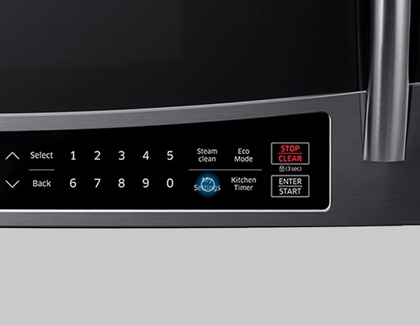
Eco Mode reduces standby power usage. When activated, the display (including the clock) may turn off to save energy. Press any button to show the clock again.
Tip: If you cannot see the clock, check if Eco Mode is on.
Troubleshooting: When The Clock Keeps Resetting
If your microwave clock resets often, here’s what you should check:
- Unstable power supply: Power surges or flickers can reset the clock.
- Loose plug: Make sure your microwave is firmly plugged in.
- Old home wiring: Fluctuations in older wiring can cause resets.
- Defective control board: Rare, but possible if nothing else works.
If the problem persists, contact Samsung service.
When To Call Samsung Support
You should contact Samsung support if:
- The clock cannot be set despite following all steps.
- The display is blank or flickers.
- You see error codes that won’t clear.
Have your model number ready. Support can guide you through advanced troubleshooting or arrange repairs.
Practical Tips Most People Miss
- Clean the control panel: Sometimes greasy fingers can make touchpads unresponsive. Wipe gently with a soft cloth before setting the clock.
- Avoid setting the clock during a power surge: If your home has unstable power, wait for it to stabilize before setting the clock.
- Teach everyone in the house: Show other family members how to set the clock. This avoids confusion after power outages.
- Use your phone as a reference: Set your phone alarm to remind you to check and update the microwave clock after daylight saving changes.
Credit: www.satsig.net
How Samsung Microwaves Compare To Other Brands
Samsung microwaves are known for their user-friendly interfaces and reliable clock functions. Compared to other brands, Samsung usually makes it easier to set and adjust the clock, but there are some differences.
Here is a basic comparison:
| Brand | Clock Setting Steps | 12/24-Hour Option | Common Issues |
|---|---|---|---|
| Samsung | 2-4 steps | On select models | Resets after power loss |
| Panasonic | 2-5 steps | Rarely available | Button confusion |
| LG | 2-3 steps | Available | Touchpad sensitivity |
If you move from another brand to Samsung, you’ll likely find the process straightforward.
Safety Tips When Setting The Clock
- Never set the clock while the microwave is running. Wait until the microwave is idle.
- Do not press the buttons with wet hands. This can damage the electronics.
- If the display is not working, unplug the microwave before checking for problems.
When The Clock Is Not Needed
Some people prefer to turn off the clock display entirely, especially if they find the bright display distracting at night. On Samsung models with Eco Mode, you can turn off the display. Just remember, you’ll need to press a button to see the time again.
Saving Your Clock Settings During Power Outages
Most Samsung microwaves do not have a battery backup for the clock. This means you’ll have to set the time after every power loss. However, connecting your microwave to a UPS (Uninterruptible Power Supply) can help in areas with frequent outages. This is not common, but some users do it.
Understanding Error Codes Related To The Clock
If you see error codes like SE, 5E, or C-d0, these usually refer to stuck keys or a control panel problem rather than a clock error. If the clock won’t set due to these codes, try:
- Unplugging the microwave for 1-2 minutes.
- Cleaning the keypad.
- If the error returns, contact support.
You can learn more about error codes at the official Samsung Support portal.
Updating Your Microwave Firmware
Some smart Samsung microwaves allow firmware updates. If you have a Wi-Fi-enabled model, check the manual for instructions. Sometimes, a firmware update can fix bugs related to the clock or display.
How To Read The Display
Samsung microwaves use a digital display to show the clock. Here’s how to interpret what you see:
- Blinking time: The microwave expects you to set the clock.
- Blank display: Eco Mode may be on, or the microwave is unplugged.
- Wrong time: The clock needs to be reset.
If the display is hard to read, adjust the kitchen lighting or check for display brightness settings.
What To Do If The Clock Runs Fast Or Slow
If your microwave’s clock gains or loses time regularly, this is usually a sign of:
- Electrical interference from other appliances.
- Aging control board in older models.
Unfortunately, there’s no easy fix for this except a service call. Most modern Samsung microwaves keep accurate time if the power supply is stable.
Credit: www.samsung.com
Making The Most Of Your Samsung Microwave’s Clock
Remember, the microwave clock is a tool. Use it to:
- Time your meals perfectly.
- Schedule delayed starts.
- Coordinate with other kitchen appliances.
A well-set clock means fewer mistakes and better meal planning.
Frequently Asked Questions
How Often Should I Set The Clock On My Samsung Microwave?
You only need to set the clock when you first install the microwave, after a power outage, or if you want to switch between 12-hour and 24-hour formats. Regular clock checks are helpful after daylight saving time changes.
My Samsung Microwave Clock Keeps Resetting. What Can I Do?
Check for unstable power connections, make sure the plug is secure, and avoid using the microwave during power surges. If the problem continues, you may need a technician to check for internal faults.
Can I Turn Off The Clock Display On My Samsung Microwave?
Yes, if your microwave has Eco Mode or Power Save, you can turn off the clock display to save energy. Remember, the time will still be set, but the display will be blank until you press a button.
What Should I Do If The Buttons Don’t Work When Setting The Clock?
Clean the control panel, check for locked controls (child lock), and make sure your hands are dry. If nothing works, try unplugging the microwave for a minute. For persistent issues, contact Samsung support.
Where Can I Find My Samsung Microwave’s Model Number?
Open the microwave door and look for a sticker along the door frame or inside wall. The model number is a combination of letters and numbers (like ME19R7041FS). This number is key for finding the right instructions and troubleshooting.
Setting the clock on your Samsung microwave is an easy job once you know your model and follow the right steps. With the tips and troubleshooting advice above, you can keep your kitchen running smoothly and avoid common mistakes. If you run into trouble, help is always available from Samsung and reliable online resources.