
If you own a pool with a Jandy iQPump01 controller, you probably love the convenience of controlling your pump from your smartphone or tablet. But what if one day, your Jandy iQPump01 won’t connect to WiFi? Suddenly, you lose the ability to monitor and manage your pool from anywhere. This problem is more common than you might think, and it can be extremely frustrating.
You might see a blinking WiFi light, constant dropouts, or the iAquaLink app refusing to find your device. Maybe you’ve tried rebooting everything, but nothing works. While the solution isn’t always obvious, understanding what causes these connection issues—and how to fix them—can save you time, money, and stress. This in-depth guide walks you through every possible reason your Jandy iQPump01 won’t connect to WiFi, step-by-step solutions, common mistakes, and expert troubleshooting tips.
By the end, you’ll have a clear action plan for getting your pool pump back online, plus practical advice to prevent future WiFi headaches. Whether you’re a pool owner, installer, or just starting out, this article offers practical help in simple language.
Let’s dive in.
Why Wifi Matters For Jandy Iqpump01
The Jandy iQPump01 allows you to control your pool pump using the iAquaLink app. This means you can adjust schedules, monitor pump status, and get alerts—all from your phone. The device connects to your home’s WiFi network, linking your pump to the cloud.
If the WiFi connection fails:
- You lose remote access and scheduling features
- Automation routines may stop working
- Firmware updates can’t be installed
- Service professionals cannot access diagnostics remotely
That’s why fixing WiFi problems quickly is critical for a smooth pool experience.
How The Jandy Iqpump01 Connects To Wifi
The iQPump01 creates a bridge between your pump and the internet. Here’s how it works:
- WiFi Setup Mode: On first use, the device creates its own WiFi network. You connect your smartphone to this network to enter your home WiFi details.
- Joining Your Network: Once credentials are entered, iQPump01 attempts to join your home’s wireless network.
- Cloud Registration: If successful, the device registers with the iAquaLink cloud, allowing remote control through the app.
If any step fails, the device won’t show up in the app, or you’ll see error messages.
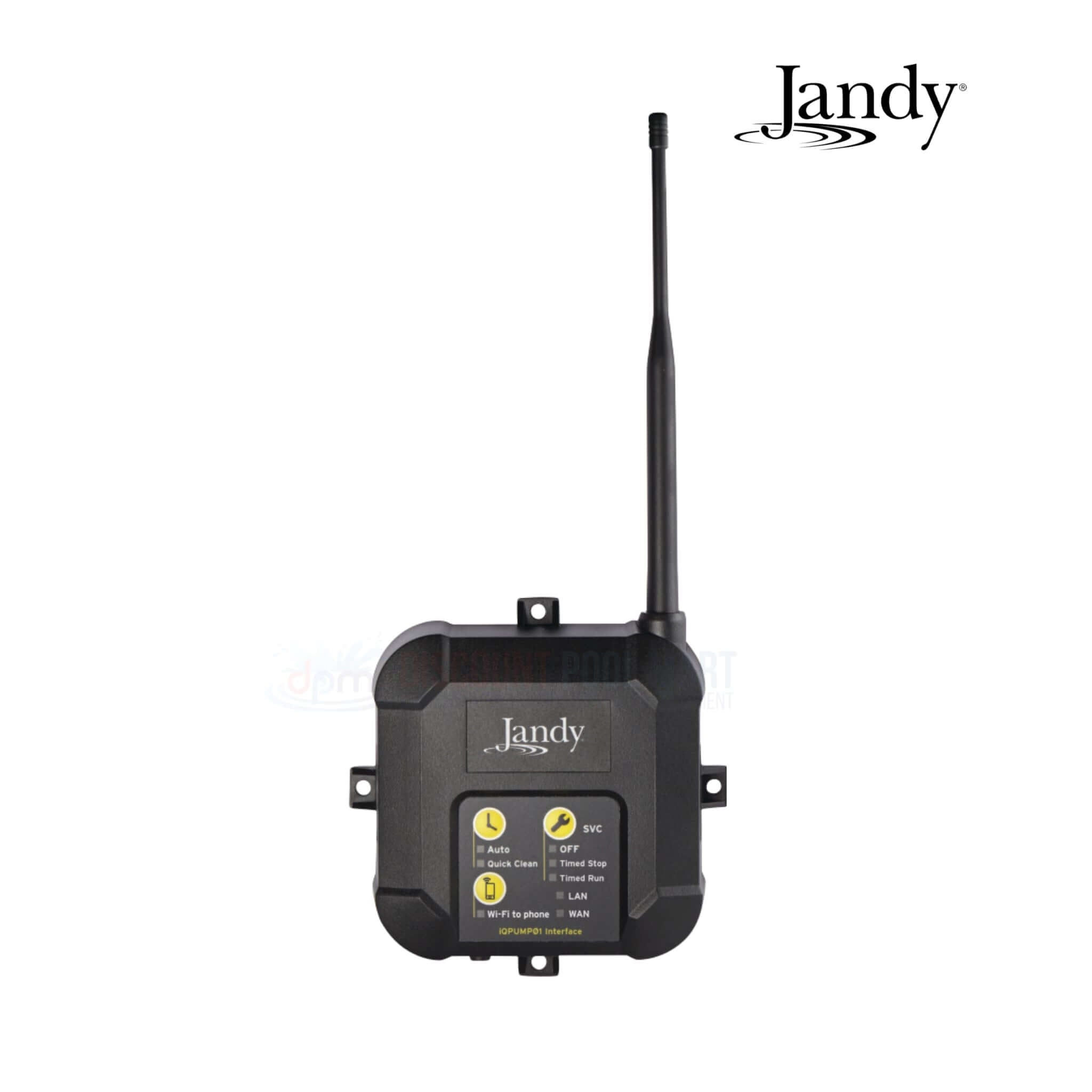
Credit: discountpoolmart.com
Common Signs Of Wifi Connection Problems
You may notice several symptoms when your Jandy iQPump01 isn’t connecting properly:
- The WiFi status light blinks or stays red
- The iAquaLink app cannot find your device
- You receive “Device Offline” notifications
- Scheduled events don’t trigger as expected
- You see error codes related to network issues
Recognizing these signs helps you diagnose the problem faster.
Main Causes Of Jandy Iqpump01 Wifi Issues
Most connection problems with the iQPump01 fall into a few categories. Understanding these helps target your troubleshooting.
1. Incorrect Wifi Credentials
Entering the wrong WiFi password or network name during setup is a common issue. The device cannot join your network if the credentials don’t match exactly.
2. Weak Or Unstable Wifi Signal
If your pool equipment is far from your router, the WiFi signal may be too weak. Obstructions like concrete walls, metal boxes, or interference from other electronics can worsen the problem.
3. Incompatible Wifi Networks
The iQPump01 supports only 2.4 GHz WiFi. Many newer routers use 5 GHz by default or combine both bands into one network name (SSID), causing confusion.
4. Network Security Settings
Advanced router settings like WPA3 security, MAC address filtering, or firewalls may block the iQPump01 from connecting.
5. Firmware Or Software Bugs
Older device firmware or app versions can have bugs that prevent proper WiFi setup or operation.
6. Power Or Hardware Issues
Power surges, loose cables, or faulty hardware can disrupt the WiFi module inside the controller.
7. Internet Outages
If your home internet is down, the iQPump01 can’t reach the cloud—even if it connects to your local network.
8. Device Overload Or Ip Conflicts
Too many devices on your WiFi, or two devices sharing the same IP address, can block new connections.

Credit: bestpoolshop.com
Step-by-step Troubleshooting Guide
Let’s break down the most effective way to get your Jandy iQPump01 back online. Start with the easiest checks and move to advanced solutions.
1. Check Basic Power And Connections
Before diving into WiFi settings, make sure:
- The iQPump01 is securely plugged in and powered on.
- All cables are properly connected, and the pump is receiving power.
- The device’s lights are on (refer to your manual for normal light patterns).
A surprising number of issues come from loose connections or power problems.
2. Confirm Your Home Wifi Is Working
Use your phone or laptop to connect to your home WiFi near the pool equipment. If you can browse the web, your network is up. If not:
- Reboot your router and modem.
- Wait for all lights to turn green before retrying.
- Check with your internet provider if there’s a known outage.
3. Move Closer To The Router
If possible, temporarily move the iQPump01 closer to your WiFi router to test the connection. If it works near the router, weak signal is likely the culprit. Consider a WiFi extender or mesh system for better coverage.
4. Double-check Wifi Credentials
During setup, the app asks for your WiFi network name (SSID) and password. Make sure:
- You enter the SSID exactly as it appears (case-sensitive).
- The password is correct (no extra spaces or typos).
- You are not trying to connect to a “guest” network with restrictions.
If you’ve changed your WiFi password recently, update it in the iQPump01.
5. Ensure You’re Using 2.4 Ghz Wifi
The iQPump01 does not support 5 GHz. If your router combines both bands into a single name, separate them:
- Access your router’s admin page (usually at 192.168.1.1 in your browser).
- Assign different names to the 2.4 GHz and 5 GHz networks.
- Connect your iQPump01 to the 2.4 GHz network.
Refer to your router manual or manufacturer’s website for step-by-step instructions.
6. Reduce Wifi Interference
Keep the iQPump01 away from:
- Large metal objects
- Electrical panels
- Other WiFi devices
If possible, position your router so there are fewer walls between it and the pool equipment.
7. Restart Everything
Sometimes, a simple power cycle fixes glitches:
- Unplug the iQPump01 for 30 seconds, then plug it back in.
- Restart your WiFi router and modem.
- Wait until all devices are fully powered before retrying the app.
8. Update Firmware And App
Outdated software can cause compatibility problems. Check for updates:
- In the iAquaLink app, look for firmware update prompts.
- Visit the Jandy website for the latest downloads.
- Update the iAquaLink app from your device’s app store.
Up-to-date software is more stable and secure.
9. Adjust Router Security Settings
If your router uses advanced security, try:
- Setting WiFi encryption to WPA2-PSK (AES), which is widely compatible.
- Disabling MAC address filtering or whitelisting the iQPump01.
- Temporarily turning off firewalls during troubleshooting (don’t forget to turn them back on).
Some routers default to WPA3, which may not work with older smart devices.
10. Limit Connected Devices
If your network has more than 20-30 devices, try disconnecting a few. Each device uses resources, and too many can slow down the network or prevent new connections.
11. Assign A Static Ip
Rarely, the iQPump01 may struggle with automatic IP assignment (DHCP). Assign a static IP through your router’s admin page:
- Reserve an IP address for the iQPump01’s MAC address.
- Enter this IP in the device’s network settings if possible.
This avoids IP conflicts.
12. Factory Reset The Iqpump01
If all else fails, a factory reset can clear corrupted settings:
- Press and hold the reset button (see manual) for 10-15 seconds.
- Release and wait for the device to reboot.
- Repeat the setup process in the app.
Be aware: this will erase all previous settings and schedules.
Wifi Range And Signal Strength: What Really Matters
A strong, stable WiFi signal is critical for devices like the Jandy iQPump01. Here’s what affects range and strength:
- Distance from router: Signal weakens with each foot.
- Obstacles: Concrete, brick, and metal block WiFi more than wood or glass.
- Interference: Microwaves, cordless phones, and other WiFi devices can disrupt signals.
Use your phone’s WiFi indicator near the pool equipment. If you see less than two bars, consider a booster.
How Signal Strength Impacts Performance
| Signal Strength (dBm) | Connection Quality | Recommended Action |
|---|---|---|
| -30 to -50 | Excellent | No action needed |
| -51 to -67 | Good | Stable operation |
| -68 to -75 | Fair | Consider extender |
| -76 to -90 | Poor | Move router/booster closer |
Most smartphones show signal in bars, but you can find the exact dBm in WiFi settings on Android or with special apps.
Comparing 2.4 Ghz Vs. 5 Ghz Networks
Some users unknowingly try to connect their pool equipment to the wrong WiFi band. Here’s why it matters:
| Feature | 2.4 GHz | 5 GHz |
|---|---|---|
| Range | Longer (better for outdoors) | Shorter |
| Speed | Slower | Faster |
| Compatibility | Works with most smart devices | May not work with older devices |
| Interference | More (crowded band) | Less |
Always choose the 2.4 GHz network for the iQPump01.
Examples Of Real-world Setup Problems
Let’s look at a few common situations that trip up even experienced pool owners.
Example 1: Dual-band Router Confusion
A user sets up their new mesh WiFi system. Both bands (2.4 GHz and 5 GHz) use the same name. During setup, the iQPump01 cannot find the network, or the app gives a timeout error. Solution: Temporarily separate the bands, connect the iQPump01, then merge them again if desired.
Example 2: Hidden Ssid
Some users hide their WiFi network for security. The iQPump01 cannot see or join hidden networks during setup. Solution: Unhide the SSID, connect the device, then hide it again if you wish.
Example 3: Guest Networks With Isolation
Trying to connect to a “guest” WiFi network often fails, because these networks block communication between devices. Solution: Always use your main home network.
Avoiding Common Mistakes
Many connection problems come from small oversights. Here’s what to avoid:
- Typing errors: Even a single wrong letter in the SSID or password will fail.
- Trying to use 5 GHz: The iQPump01 is 2.4 GHz only.
- Forgetting to restart devices: Always reboot after changing settings.
- Ignoring firmware updates: Old software can cause bugs.
- Skipping router settings: Some routers need security or band adjustments.
Not everyone realizes that guest networks and hidden SSIDs often block smart devices.
Firmware And App Updates: Why They Matter
Regular updates fix bugs, improve security, and add features. Pool equipment is no exception. If your iAquaLink app or iQPump01 firmware is outdated, you may run into:
- Incompatibility with newer phones or routers
- Security holes
- Missing features or schedules
Check for updates at least twice a year or whenever you notice problems.
Advanced Networking Solutions
For more stubborn cases, try these expert-level fixes.
Use A Dedicated Access Point
Install a cheap, dedicated WiFi access point near your pool equipment. Only connect your smart devices to this network, reducing interference and congestion.
Vlans And Network Isolation
On advanced routers, create a VLAN (virtual LAN) just for smart devices. This increases security and reliability. You may need help from a networking professional.
Check For Ip Address Conflicts
If you have multiple Jandy or smart devices, make sure each one has a unique IP address. Use your router’s admin panel to see connected devices and resolve conflicts.
When To Call For Professional Help
Some issues require a certified technician:
- Damaged hardware (water, pests, or power surges)
- Frequent disconnects even after all troubleshooting
- Complex networking situations (large properties, commercial pools)
Don’t waste hours if the device is physically broken or if your home network setup is unusually complicated.

Credit: www.youtube.com
Preventing Future Wifi Problems
Once your Jandy iQPump01 is back online, a few habits can keep it working smoothly:
- Write down your WiFi credentials and keep them in a safe place.
- Avoid changing your router’s SSID or password often.
- Check for firmware updates every few months.
- Keep your router’s firmware up-to-date.
- Use a surge protector for all pool equipment to prevent electrical damage.
- If you upgrade your router, remember to reconnect the iQPump01.
Pro tip: If you’re planning a major home network upgrade, disconnect your iQPump01 first, then re-add it after the new system is set up.
How Jandy Iqpump01 Compares To Other Pool Controllers
You might wonder if these WiFi issues are unique to Jandy. Most smart pool controllers face similar challenges, but some brands handle setup or WiFi compatibility differently.
| Feature | Jandy iQPump01 | Pentair IntelliConnect | Hayward OmniHub |
|---|---|---|---|
| WiFi Band Support | 2.4 GHz only | 2.4 GHz only | 2.4 GHz only |
| App Used | iAquaLink | Pentair Home | OmniLogic |
| Setup Complexity | Moderate | Simple | Moderate |
| Firmware Updates | Via app | Via app | Via web |
Almost all require 2. 4 GHz and may need special setup for mesh networks.
Two Insights Most Pool Owners Miss
- Mesh WiFi Isn’t Always Simple: Many people assume modern mesh systems solve all signal problems. But these often use “band steering” or switch devices between 2.4 and 5 GHz, confusing older smart devices like the iQPump01. Temporarily separating the bands during setup can be essential.
- Network Changes Break Connections: Upgrading your router, changing SSID, or enabling new security features often requires you to re-add the iQPump01 from scratch. Always plan for a quick setup after any major network change.
Useful Resources
For more technical help, visit the official Jandy support site or check pool owner forums. The Zodiac/Jandy iQPump01 page offers manuals, troubleshooting guides, and contact info for service professionals.
Frequently Asked Questions
Why Won’t My Jandy Iqpump01 Show Up In The Iaqualink App?
This usually means the iQPump01 is not connected to your home WiFi or hasn’t registered with the cloud. Double-check your WiFi credentials, make sure you’re on a 2. 4 GHz network, and restart the device. If it still doesn’t show, try a factory reset and repeat the setup process in the app.
Does The Jandy Iqpump01 Work With Mesh Wifi Systems?
Yes, but setup can be tricky. Some mesh systems combine 2. 4 GHz and 5 GHz bands, which confuses the iQPump01. If you have trouble, temporarily split the bands or use a dedicated 2. 4 GHz access point near your pool equipment for setup.
Can I Use A Wifi Extender To Improve Signal?
Absolutely. A WiFi extender or mesh node placed closer to your pool equipment can boost signal strength and reliability. Just make sure the extender supports 2. 4 GHz and is set up before connecting the iQPump01.
What Do The Lights On The Iqpump01 Mean?
The lights indicate power, network status, and operation. A blinking WiFi light usually means the device is searching for a network. Solid green means connected. Refer to your manual for exact light codes, as they can vary by model and firmware.
Will Changing My Router Settings Affect My Iqpump01?
Yes. If you change your network’s SSID, password, or security type, you’ll need to reconnect the iQPump01. Always write down your network settings and follow the setup steps again after making changes.
Getting your Jandy iQPump01 connected to WiFi doesn’t have to be a mystery. With a careful, step-by-step approach, most connection problems can be solved quickly—often without professional help. The keys are understanding your network, following setup instructions closely, and making sure your WiFi environment is friendly to smart devices. With these tips, you can enjoy full remote control of your pool and avoid future headaches. Dive in with confidence, knowing your pool automation is back online and working its best.