
The Instant Pot has changed how many people cook at home. This modern pressure cooker can make rice, yogurt, stews, and more—all with the push of a button. But sometimes, things go wrong. Maybe your display freezes, an error code pops up, or you simply want to start fresh after changing settings.
Knowing how to reset your Instant Pot is essential for keeping it working smoothly and safely.
If you’ve ever felt confused about what “reset” really means for your Instant Pot, you’re not alone. This guide will walk you through every method—soft reset, factory reset, fixing errors, and more. You’ll also learn how to handle common problems, tips to prevent future issues, and what to do if your pot just won’t cooperate.
Whether you’re a new user or have cooked hundreds of meals, understanding how to reset your Instant Pot is a skill every home cook needs.
What Does “resetting” An Instant Pot Mean?
When people say they want to “reset” their Instant Pot, they might mean a few different things. Let’s clear up what each type involves.
Soft reset means stopping the current program or turning the pot off and on. This fixes small glitches or frozen screens. A soft reset does not affect your saved settings or programs, making it the safest first step if you’re unsure about a problem.
Factory reset erases custom settings and returns the pot to its original state, just like when you first bought it. This is useful if you made several changes or tried custom programs and want to start over from scratch. It can also help if the Instant Pot behaves strangely after many adjustments.
Error reset is about clearing error codes from the display so you can start cooking again. Sometimes, an error code gets stuck even after the issue is fixed. Resetting tells the Instant Pot to check again if the problem still exists.
Physical reset involves unplugging the Instant Pot or even opening it up to check the hardware (rarely needed). This is generally only for serious issues, such as if the pot won’t turn on at all or there’s a suspected hardware fault.
Each type has a different purpose. Sometimes, you just need to cancel a cooking program. Other times, you need a deeper reset because the pot isn’t working as expected. Choosing the right reset saves time and helps you avoid more serious problems.
Extra detail: Many users confuse a “soft reset” with a “factory reset,” thinking both will restore the pot to new. In reality, a soft reset just restarts the device, while factory reset wipes out all your personalized settings.
When Should You Reset Your Instant Pot?
Resetting isn’t always the answer, but it’s helpful in many situations:
- Frozen display – Buttons don’t respond or the screen is stuck. This can happen after long cooking sessions or if moisture gets into the buttons.
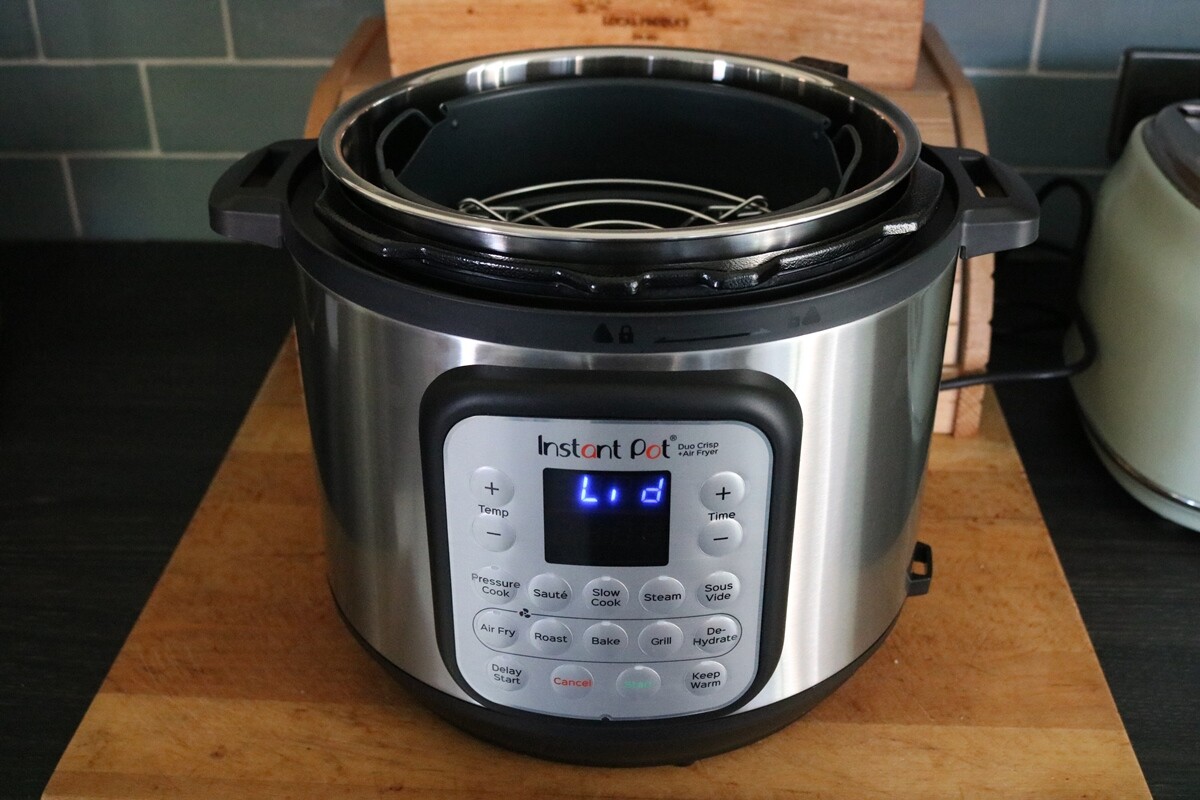
- Error codes – E.g., “C6,” “burn,” or “Lid” won’t go away. Sometimes, the error code can stay even after the problem is fixed, and a reset is needed to clear it from memory.
- Strange behavior – The pot won’t start, or acts differently than usual. For example, the display might flicker, or the pot might cycle between modes for no reason.
- Custom settings gone wrong – You changed settings and want to return to default. Maybe you tried a new program or changed the temperature, and now cooking doesn’t work as expected.
- After a power outage – The Instant Pot may need a fresh start. Power surges can confuse the microchip, and a reset helps clear any leftover errors.
- Before troubleshooting – Resetting can solve problems before you try repairs. It’s always wise to try a reset before assuming something is broken.
It’s important not to reset for every little thing. If your Instant Pot is working normally, there’s no need to reset.
Non-obvious insight: If your pot is slow to heat or build pressure, a reset can sometimes fix minor software hiccups that aren’t showing as error codes.

Credit: www.youtube.com
Different Instant Pot Models And Their Reset Features
Instant Pot has released many models, such as the Duo, Lux, Ultra, Viva, Duo Plus, and Max. While the basic reset steps are similar, some models have extra buttons or screens.
Here’s a comparison of popular models and their reset options:
| Model | Soft Reset | Factory Reset | Error Reset | Special Features |
|---|---|---|---|---|
| Duo | Yes | No | Yes | Manual buttons |
| Ultra | Yes | Yes | Yes | Digital screen, program dial |
| Lux | Yes | No | Yes | Basic functions |
| Duo Plus | Yes | Yes | Yes | More programs |
| Max | Yes | Yes | Yes | Touch screen, advanced features |
Non-obvious insight: Not all Instant Pot models let you do a factory reset. If your model doesn’t, you’ll need to reset settings manually.
Always check your user manual for your model’s exact steps, but the guides below cover what most users need.
Extra explanation: Some higher-end models, like the Max, allow you to reset individual functions (like just the rice program), while others only offer a full reset. If you use a lot of custom settings, this can make a big difference in how you maintain your pot.
How To Do A Soft Reset (basic Restart)
A soft reset is the simplest way to fix small problems. It doesn’t erase any custom settings or programs.
Steps For A Soft Reset
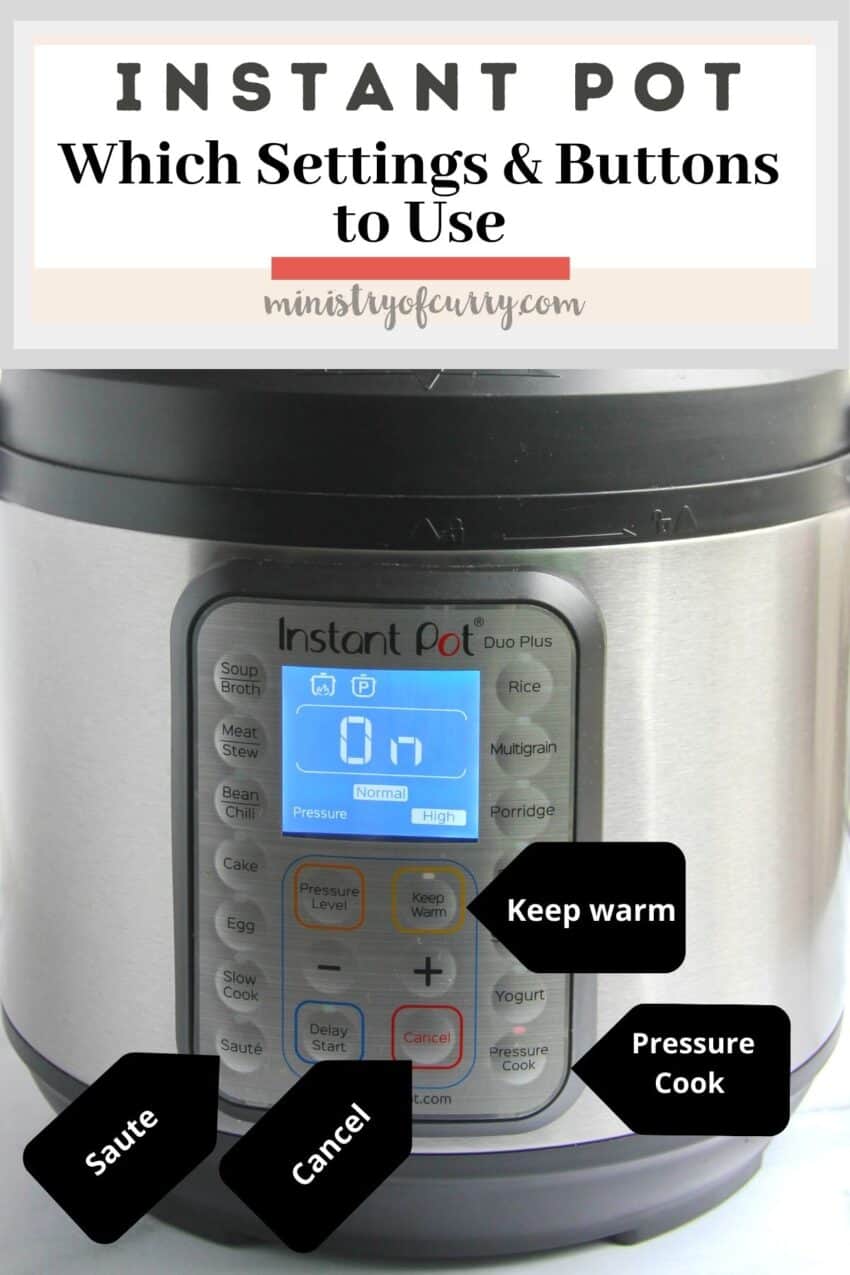
- Cancel current program: Press the Cancel button. The display should return to standby mode. If the pot was in the middle of cooking, all cooking will stop immediately.
- Turn off the Instant Pot: Press the Keep Warm/Cancel button if available, or unplug the power cord. For some models, there may be a dedicated power button.
- Wait 30 seconds: Give the pot a short break. This allows any residual electricity to leave the circuits, which can help clear software glitches.
- Plug in and restart: Plug it back in and turn it on. The Instant Pot should boot up as usual.
This often solves issues like a frozen display or unresponsive buttons. It’s a safe first step before deeper resets.
Extra tip: If your Instant Pot is beeping or making noises, a soft reset can also stop the sounds.
Example: Let’s say you’re trying to set a program but nothing happens when you press the buttons. A soft reset can often make the controls responsive again.
Practical note: On some models, if you use the “Delay Start” feature, a soft reset will cancel the timer, so you’ll need to set it again after restarting.
Factory Reset: Returning To Default Settings
Some Instant Pot models (like Ultra, Duo Plus, and Max) let you erase all custom settings. This is helpful if you changed settings and want to start fresh.
How To Factory Reset Different Models
- Ultra/Duo Plus/Max: Press and hold the Cancel button for about 3-5 seconds. The screen will show “factory reset” or beep twice. All settings go back to default.
- Older models (Duo, Lux): These don’t have a factory reset button. You must change each setting back manually.
What Does A Factory Reset Erase?
- All custom cooking programs
- Time and temperature changes
- Delay start, keep warm, or memory settings
Note: Factory reset does not delete your Instant Pot’s software or cause data loss. It only affects user settings.
Non-obvious insight: If you use the Delay Start or Keep Warm features often, remember to re-set them after a factory reset.
Practical example: If you adjusted the pressure cook time for beans or rice and saved it as a custom program, a factory reset will erase those changes. After the reset, you’ll need to set your favorite times again.
Extra tip: Write down your most-used custom programs before doing a factory reset. That way, you can quickly re-enter them after resetting.
How To Reset Error Codes
Error codes can stop your cooking. They usually mean something is wrong with the pot’s sensors, lid, or internal hardware. Common codes include C6, Lid, burn, and noPr.
Steps To Reset Most Error Codes
- Cancel the program: Press the Cancel button to stop all functions.
- Unplug the Instant Pot: Wait at least 30 seconds. This clears the electronic memory.
- Check the pot: Look for any obvious problems, like a stuck lid, uneven sealing ring, or burned food at the bottom. Sometimes, even a small piece of food stuck in the sealing ring can cause repeated errors.
- Fix the cause: Clean or fix what’s wrong before restarting. For example, if you see the “burn” error, remove any burned food and add more liquid.
- Plug in and restart: The error code should be gone. If not, try the steps again or consult your user manual for model-specific advice.
If the code returns, check your user manual. Some errors need repairs.
Common Instant Pot Error Codes And What They Mean
| Error Code | Meaning | How to Fix |
|---|---|---|
| burn | Food stuck to bottom, overheating | Release pressure, open lid, clean pot, add liquid |
| noPr | Pot isn’t building pressure | Check sealing ring, add water, close lid properly |
| C6 | Sensor or hardware error | Try soft reset, contact support if not fixed |
| Lid | Lid not detected | Check lid position, clean lid sensor |
| C5 | Temperature too high | Check for burned food, add liquid, let cool |
Extra tip: If you see the same error repeatedly, don’t keep resetting. There may be a real hardware problem that needs repair.
Further explanation: Some errors, like “C6,” can be caused by a loose or wet connector inside the pot. If you recently washed the lid or housing, let it dry fully before retrying.
Resetting After A Power Outage
Power outages can confuse your Instant Pot, especially if it loses power in the middle of cooking. Here’s what to do:
- Unplug the pot after power returns. This ensures the electronics get a fresh start.
- Wait 1 minute before plugging it back in. This is especially helpful if you live in an area with unstable power, as quick surges can cause more confusion.
- Check the display. If the program was interrupted, you’ll need to start it again. The Instant Pot does not always remember where it left off.
- Inspect the food. Make sure it’s safe to continue cooking. If it was left at unsafe temperatures, consider starting over to avoid foodborne illness.
- Start a new program as needed.
If your Instant Pot won’t turn back on after a power outage, try plugging into a different outlet. If it still doesn’t work, contact customer support.
Non-obvious insight: If you experience frequent power cuts, using a surge protector can help protect your Instant Pot’s circuit board and reduce the chance of needing resets.
Resetting Custom Cooking Programs
Some Instant Pots let you save your own cooking programs. If you want to erase one or all custom programs, follow these steps:
- Select the program you want to reset.
- Hold the program button for 3-5 seconds until the display beeps or flashes.
- Release the button. The program returns to default.
If you want to erase all custom programs, do a factory reset (if your model allows).
Example: If you saved a custom rice program but now want the original rice setting, use this reset method.
Extra explanation: On models with app control (like some Wi-Fi enabled pots), you may need to reset custom programs from the app itself as well.
Credit: instantpoteats.com
Manual Reset For Older Instant Pots
Older models like the Lux don’t offer automatic resets. You need to change each setting back to its original value.
How To Manually Reset Settings
- Cooking times: Use the “+” or “-” buttons to adjust to default. Most programs default to 30 minutes or similar.
- Pressure level: Switch from “High” to “Low” or vice versa, as needed.
- Keep Warm: Turn off or on as you prefer. Some models have a dedicated button; others need you to hold a button for a few seconds.
- Sound: Some models let you mute or unmute beeps. Check for a small speaker icon or “Sound” setting.
This process is slower but works for basic models.
Non-obvious insight: Take a photo of your usual settings before changing them, so you can restore them if needed.
Extra tip: If you can’t remember default times, check the user manual or look up your model online for a quick reference chart.
What To Do If Resetting Doesn’t Work
Sometimes, even after resetting, the Instant Pot stays frozen or shows error codes. Here’s what to try next:
- Check the power cord and outlet. Try a different outlet to rule out electrical issues. Sometimes, the outlet itself is the problem.
- Look for water or debris inside the pot’s housing. Moisture can cause short circuits or prevent the pot from starting.
- Inspect the lid and sealing ring. A bad seal can stop the pot from working. Remove and re-seat the ring or try a different ring if you have a spare.
- Try a longer unplug. Leave the pot unplugged for 10-15 minutes before restarting.
- Contact customer support if the problem continues.
If your Instant Pot is under warranty, repairs or replacements may be free.
Further explanation: If you see flashing lights or hear unusual noises after trying all resets, unplug the pot immediately and do not use it until checked by a professional.
Preventing The Need For Frequent Resets
Resetting is sometimes necessary, but you can prevent many problems with good habits.
Practical Prevention Tips
- Always use enough liquid. Pressure cookers need steam to work. Too little liquid can cause overheating or “burn” errors.
- Clean the sealing ring and lid after every use. Leftover food or grease can interfere with sensors and cause errors.
- Don’t overload the pot. Follow the max fill line. Overfilling can block the pressure release valve or prevent proper sealing.
- Use the right power outlet. Avoid extension cords. Extension cords can cause voltage drops, which confuse the electronics.
- Update firmware if your model supports Wi-Fi or Bluetooth. Firmware updates can fix software bugs that cause errors.
Extra tip: Keep the user manual handy or bookmark the manufacturer’s support site for quick troubleshooting.
Non-obvious insight: Replacing your sealing ring every 12–18 months can prevent many common pressure errors and smells.
Common Mistakes When Resetting An Instant Pot
Many users make the same errors when trying to reset their pot. Avoid these to save time and stress.
- Resetting too often – Not every issue needs a reset. Sometimes, simply adjusting the lid or adding liquid will solve the problem.
- Skipping the unplug step – Some resets require unplugging for at least 30 seconds. This is important because it fully clears the electronics.
- Ignoring error codes – Resetting without fixing the cause leads to repeated errors. Always check for blockages, stuck food, or incorrect lid position.
- Forgetting custom settings – A factory reset erases your saved programs. Take notes or photos before resetting.
- Not checking the manual – Models differ; one reset method doesn’t fit all.
Extra explanation: Some users try to reset while the Instant Pot is still hot. Letting the pot cool down before resetting can help, especially for errors related to overheating.
Credit: ministryofcurry.com
When To Call For Professional Help
If you have tried all reset methods and the pot still fails, it may have a hardware problem. Signs you need expert help:
- Repeated C6 or C5 errors
- No power or dead display
- Burnt smell or visible damage
- Buttons completely unresponsive
Contact Instant Pot customer service or an authorized repair shop. Don’t open the pot yourself if you’re not trained—it could be dangerous.
For more detailed troubleshooting, the official Instant Pot website is a good resource: Instant Pot Support.
Non-obvious insight: If your Instant Pot is still under warranty, opening it yourself can void the warranty. Always check with support first.
Quick Reference: Which Reset Should You Use?
Here’s a summary for fast decision-making:
| Problem | Best Reset Method | Extra Steps? |
|---|---|---|
| Frozen screen | Soft reset | Unplug for 30 sec |
| Error code (burn, C6) | Error reset | Fix root cause |
| Changed settings | Factory reset | Reprogram custom options |
| After power outage | Soft reset | Restart program |
| Old model (no reset) | Manual reset | Change each setting |
Extra tip: When in doubt, always try a soft reset first before attempting more advanced resets.
Frequently Asked Questions
How Do I Know Which Instant Pot Model I Have?
Check the sticker on the back or bottom of your Instant Pot. It lists the model name (like Duo, Lux, Ultra). You can also find this in the user manual. This helps you follow the right reset steps.
Extra explanation: If the model sticker is faded, compare your pot’s button layout to pictures online to match your model.
Will Resetting My Instant Pot Erase Saved Recipes?
A factory reset will erase all custom programs you saved, but not the built-in cooking options. If you want to keep your settings, avoid factory reset and only do a soft reset.
Why Does My Instant Pot Keep Showing The “burn” Error Even After Resetting?
The burn error usually means food is stuck to the bottom or there isn’t enough liquid. Resetting the pot alone won’t fix it—you need to clean the pot and add more liquid before starting the program again.
Non-obvious insight: Thick sauces like tomato or cheese can trigger the burn error more easily. Layer liquids under sauces and avoid stirring before cooking.
Is It Safe To Unplug My Instant Pot To Reset It?
Yes, unplugging is a safe and common way to reset. Wait 30 seconds before plugging back in. This won’t damage the Instant Pot or erase important data.
Extra tip: Always let the pot cool down before unplugging if it’s been cooking at high pressure to avoid burns from steam.
Where Can I Find Official Reset Instructions For My Instant Pot?
Visit the official support page at Instant Pot Support for model-specific guides and troubleshooting help.
Resetting your Instant Pot doesn’t have to be stressful. With these steps, you can fix most problems quickly and get back to cooking. Remember to always fix the cause of errors, not just clear the codes. Regular cleaning and careful use can help you avoid many common issues—so your Instant Pot stays reliable for years to come.