
A Samsung dishwasher can make life easier—until it starts acting up. Maybe the lights blink strangely, or it won’t start or finish a cycle. When this happens, you might feel frustrated, especially if you’re not sure what to do. But resetting your Samsung dishwasher can solve many common problems. In this guide, you’ll learn exactly how to reset your Samsung dishwasher, step by step. You’ll also discover what causes errors, how to avoid mistakes, and what to do if the reset doesn’t work. Whether you’re a new owner or have used your dishwasher for years, you’ll find clear answers and practical advice here.
Why Resetting A Samsung Dishwasher Matters
Modern dishwashers are like small computers. They use sensors and electronic boards to control water, heat, and cycles. Sometimes, these systems get confused—maybe after a power outage, or if a button is pressed at the wrong time. When this happens, the dishwasher may stop working or show error codes.
A reset often clears the confusion, helping the machine return to normal.
Resetting is not just for fixing problems. It can also help after maintenance, such as cleaning filters or replacing parts. Sometimes, a reset is needed when you change settings or install the dishwasher in a new kitchen. Understanding this basic step can save you time, money, and stress.
Common Reasons To Reset Your Samsung Dishwasher
There are several situations where a reset can help:
- Error Codes on Display: Codes like “LC,” “4C,” or “HE” often signal an electronic glitch. A reset can clear these codes.
- Dishwasher Won’t Start: If the buttons don’t respond or the cycle won’t begin, a reset can fix the issue.
- Stuck Cycle: Sometimes, the dishwasher gets stuck mid-wash and won’t move forward.
- Power Outages: After a blackout or surge, the dishwasher may freeze or behave strangely.
- Unusual Noises or Lights: Blinking lights, strange beeps, or unexpected sounds can mean the internal computer needs a restart.
- After Repairs or Maintenance: Resetting ensures the machine recognizes new parts or clean filters.
Understanding Samsung Dishwasher Error Codes
Before you reset, it’s smart to check what the dishwasher is telling you. Samsung dishwashers often show error codes that point to specific problems. Not every code means you need a reset—some require repairs.
Here are a few common codes and what they mean:
- LC: Leak sensor detected water where it shouldn’t be.
- 4C: Water supply error—check if the water is turned on.
- 5C: Drain error—water isn’t draining as it should.
- HE: Heater error—problem with water temperature.
- OC: Too much water—maybe a stuck float switch.
If you see one of these, try checking the water line, drain, or filter first. If everything looks normal, a reset can help clear the code.
How To Reset A Samsung Dishwasher (step-by-step)
Resetting your dishwasher is usually simple, but it’s important to follow the correct method for your model. There are two main ways: using the power button or unplugging the unit. Let’s look at both.
1. Using The Power Button
Many modern Samsung dishwashers have a power button or a “Start/Reset” option.
- Press and Hold: Find the power or reset button (often labeled “Start/Reset” or “Power”).
- Hold for 3-5 Seconds: Press and hold the button until the lights turn off or the display goes blank.
- Wait: Leave the dishwasher off for about 1 minute.
- Turn It Back On: Press the power button again to restart the dishwasher.
This method works for most models made after 2016.
2. Unplugging The Dishwasher
If your dishwasher doesn’t have a reset button, you can use the “hard reset” method.
- Turn Off Power: Unplug the dishwasher from the wall outlet. If you can’t reach the plug, turn off the circuit breaker for your kitchen.
- Wait 1-5 Minutes: Leave the dishwasher completely off for at least one minute. For stubborn errors, wait up to five minutes.
- Restore Power: Plug the dishwasher back in or turn on the circuit breaker.
- Start a New Cycle: Run a short cycle to see if the problem is gone.
This method works for nearly all Samsung dishwashers, new or old.
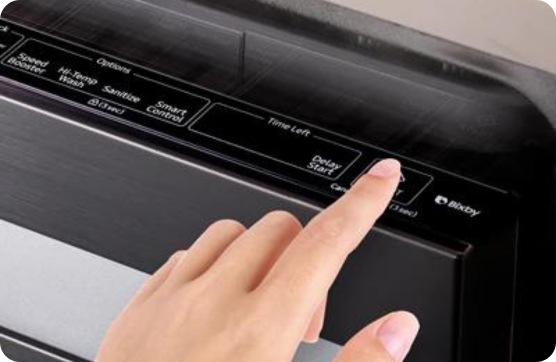
3. Using The Control Panel (for Select Models)
Some newer Samsung dishwashers have a touch control panel with a specific reset function.
- Open the Door: Make sure the dishwasher is not running.
- Press “Cancel/Drain”: On some models, press and hold the “Cancel/Drain” button for 3 seconds.
- Wait for Pump to Finish: The pump will start to drain any water left inside. Wait until it stops.
- Close the Door and Restart: Try to start a new cycle.
Check your user manual to see if your model supports this method.
4. Resetting After Power Outage Or Surge
Sometimes, a power surge or outage can cause the dishwasher’s computer to freeze.
- Turn Off Power at Breaker: Flip the kitchen circuit breaker off for 1-2 minutes.
- Turn On Power: Restore power and wait for the control panel to light up.
- Test the Dishwasher: Start a quick cycle to see if it works.
5. How To Reset Child Lock Or Control Lock
If buttons are not responding, the child lock might be activated.
- Press and Hold the Lock Button: Usually, you need to hold the “Child Lock” or “Heated Dry” button for 3 seconds.
- Wait for the Lock Icon to Disappear: The control panel should become active again.

Credit: www.youtube.com
Different Samsung Dishwasher Models And Their Reset Methods
Samsung offers several dishwasher lines, each with different controls. Let’s compare popular models and their reset steps:
| Model Series | Reset Method | Special Notes |
|---|---|---|
| DW80R5060 Series | Power button (hold 3 sec) or unplug | Has touch control panel |
| DW80J9945 Series | Cancel/Drain button (hold 3 sec) or unplug | Drains water before reset |
| StormWash Series | Unplug or use power button | Check for “Smart Control” features |
| Older Models (pre-2015) | Unplug or turn off breaker | No reset button; must use hard reset |
Always check your user manual for model-specific instructions. If you lost your manual, you can often find it on the official Samsung website.
What To Do If The Reset Doesn’t Work
Most issues are fixed by a simple reset. But if your Samsung dishwasher still has problems, you’ll need to dig deeper.
1. Check Power Supply
A dishwasher needs stable electricity. A loose plug, tripped breaker, or faulty outlet can stop it from working. Try plugging in another device to test the outlet.
2. Inspect Water Connection
Make sure the water supply is turned on and the hose isn’t bent or blocked. A dishwasher without water can show error codes or stop mid-cycle.
3. Clean Filters And Drains
Blocked filters or drains can cause problems. Remove and clean the filters under the lower spray arm. Clear any debris or food from the drain area.
4. Look For Leaks
Many error codes are caused by leaks under the dishwasher. Check for water on the floor or inside the base. Fix any leaks before restarting.
5. Test The Door Latch
If the door is not closed tightly, the dishwasher won’t start. Open and close the door, listening for a “click. ” Some models won’t run with a broken latch.
6. Call For Service
If you see the same error code after a reset, or if the dishwasher won’t turn on at all, there may be a bigger problem. Contact Samsung support or a certified repair technician.
Precautions Before Resetting
While resetting is safe, always follow these steps:
- Turn off and unplug the dishwasher before touching any electrical parts.
- Don’t force buttons or pry open the panel—this can cause damage.
- Dry your hands before handling plugs or breakers to avoid shock.
- Read the manual for your model’s unique features.
Resetting won’t fix broken parts or serious leaks. If your dishwasher keeps needing resets, there may be a deeper issue.
Common Mistakes To Avoid When Resetting
Many users make simple errors during the reset process. Here’s how to avoid them:
- Not Waiting Long Enough: Unplug the dishwasher for at least 1 minute. Some errors need up to 5 minutes to clear.
- Forgetting to Check Water and Power: Make sure both are connected before resetting.
- Ignoring Child Lock: If the control panel is locked, reset won’t work until you unlock it.
- Skipping Filter Cleaning: Dirty filters can cause repeated errors.
- Not Noting Error Codes: Write down any error codes before resetting—they help technicians diagnose problems.
- Resetting Too Often: If you reset more than once a month, call for service. Frequent resets signal a bigger issue.
How To Keep Your Samsung Dishwasher Running Smoothly
Resetting is helpful, but regular maintenance prevents many problems. Here’s what you can do:
- Clean the filter every 2-4 weeks, or more often if you use the dishwasher daily.
- Check the spray arms for clogs. Remove and rinse them under running water.
- Inspect the door seal for food or debris. Wipe with a damp cloth to prevent leaks.
- Use the right detergent. Too much soap causes extra suds and may trigger errors.
- Run hot water in the sink before starting the dishwasher. This helps get the dishes cleaner.
Advanced Troubleshooting: When Reset Isn’t Enough
Some issues need more than a reset. Here’s how to handle advanced problems:
1. Electronic Control Board Problems
If your dishwasher often freezes or shows random codes, the control board may be failing. This part controls all functions. Replacing it usually requires a technician.
2. Sensor Failures
The water level sensor or leak sensor can fail, showing codes like “LC” or “OC.” If resetting and cleaning don’t help, the sensor may need replacement.
3. Wiring Issues
Loose or broken wires inside the door or base can stop the dishwasher from running. If you’re comfortable with small repairs, you can check for disconnected wires. Otherwise, call a professional.
4. Software Updates
Some smart Samsung dishwashers get updates through Wi-Fi. If your model has this feature, check the app for updates after a reset.
Real-world Example: Resetting A Samsung Dw80r5060
Let’s walk through a real reset.
- Dishwasher Won’t Start: The display shows “4C” and doesn’t run.
- Check Water Supply: Water is on and hose is straight.
- Try Power Button Reset: Press and hold the “Power” button for 3 seconds. The lights go off.
- Wait 2 Minutes: Leave the dishwasher off.
- Turn Back On: Press “Power.” The display is clear.
- Start a Cycle: The dishwasher starts washing.
If the problem returned, cleaning the filter and checking the drain would be the next steps.
Comparing Samsung Reset To Other Brands
How Does Resetting A Samsung Dishwasher Compare To Other Brands?
| Brand | Reset Method | Special Features |
|---|---|---|
| Samsung | Power button, unplug, or control panel | Touch controls, error codes, Wi-Fi on some models |
| Bosch | Press “Start” for 3 sec or unplug | Self-drain before reset, error code display |
| LG | Turn off breaker or unplug | Smart Diagnosis via app |
| Whirlpool | Press combination of buttons or unplug | Manual reset sequence, less common error codes |
Samsung’s reset process is user-friendly but depends on the model. Always check the manual for special instructions.
Non-obvious Insights For Owners
Most guides tell you to “just reset” your dishwasher. But there are a few things many users—and even technicians—often miss.
1. Wait For The Click
After unplugging and plugging back in, listen for a soft “click. ” This means the control board has reset. If you don’t hear it, wait a bit longer.
2. Record Error Patterns
If you see the same error code several times, write down when it happens and what you were doing. Sometimes, issues only appear with heavy loads or certain cycles. This helps technicians diagnose rare problems.
3. Use A Surge Protector
Power surges are a common cause of electronic errors. Using a surge protector for your dishwasher (if allowed by your local code) can prevent future resets.
4. Don’t Ignore Small Leaks
Even a little water under the dishwasher can trigger “LC” errors. Fix leaks quickly, even if they seem minor.
5. Reset After Big Loads
Running a very full dishwasher or lots of pots and pans can sometimes confuse the sensors. If you notice odd behavior after a heavy load, try a reset.
When To Call A Professional
If a reset does not fix your Samsung dishwasher, and you’ve checked power, water, and filters, it’s time to call for help. Here are signs you need a technician:
- The display is blank and won’t turn on
- Error codes won’t clear after a reset
- There is water under or around the dishwasher
- The door latch is broken or loose
- You hear loud noises or see sparks
Trying to fix electrical or plumbing issues yourself can be risky. Always call a certified technician for complex problems.
Credit: www.samsung.com
Tips For Preventing Future Problems
A little care goes a long way. Here are some practical habits:
- Wipe the door seal every week
- Run an empty cycle with a cup of vinegar once a month—this cleans out soap and minerals
- Check the drain hose for kinks every few months
- Don’t overload the racks—let water reach every dish
- Use rinse aid if you have hard water
These simple steps help your dishwasher last longer and reduce the need for resets.
Frequently Asked Questions
How Do I Know If My Samsung Dishwasher Needs A Reset?
If your dishwasher is not responding, shows blinking lights, or displays an error code, a reset can often fix the issue. If normal operation does not return after checking power and water supply, try a reset.
Can I Reset My Samsung Dishwasher Without Unplugging It?
Yes, many newer models have a power or reset button you can press and hold for 3-5 seconds. If your model does not have this, unplugging or turning off the breaker is the best way.
Will Resetting Erase My Custom Settings?
A basic reset will not erase settings like wash cycles or delay start. However, some advanced resets (such as factory reset via Wi-Fi models) may clear user preferences. Always check your manual for details.
Why Does My Dishwasher Keep Needing To Be Reset?
Frequent resets mean there may be an ongoing issue—such as a dirty filter, faulty sensor, or power supply problem. If you need to reset your dishwasher more than once a month, have a technician inspect it.
Where Can I Find More Detailed Support For My Model?
The official Samsung website has downloadable manuals and troubleshooting guides for all dishwasher models. You can also find help at Samsung Support.
Taking the time to learn how to reset your Samsung dishwasher—and understanding when to call for help—will keep your kitchen running smoothly. With these steps, you’ll handle most problems quickly and with confidence.

Credit: www.youtube.com