
Setting the clock on your Samsung stove may seem like a small detail, but it plays an important role in your kitchen routine. A properly set clock ensures cooking times are accurate, helps you keep track of meal schedules, and even allows advanced features like delayed start or Sabbath mode to work as intended.
For many people, especially those who are not used to digital appliances or have not read through the manual, adjusting the clock can be confusing. If you’ve ever wondered why your stove’s time keeps blinking or why your oven doesn’t start when you want it to, setting the clock correctly is the key.
This guide will give you clear, step-by-step instructions for how to set the clock on a Samsung stove. You’ll learn not just the basics, but also how to troubleshoot common problems, understand the differences between stove models, and use extra features related to the clock. Whether you have a new Samsung stove or an older model, you’ll find practical tips and solutions here. We’ll also answer common questions and include useful tables to make information easy to compare.
Understanding The Clock On A Samsung Stove
Before you start pressing buttons, it helps to know why the clock matters and what types of displays you might find.
Why The Clock Matters
The stove clock does more than just show the time. Many Samsung stoves use the clock to control other features, like timers, delayed cooking, and child lock functions. If the clock is wrong or not set, some features may not work at all.
For example, if you want to use the delayed start function, the stove relies on the current time to begin cooking later. If the clock is blinking or set to the wrong time, your meal might not cook as expected.
Different Display Types
Samsung stoves come with different display types:
- Digital LED display: Most common, shows time in bright numbers.
- Touchscreen display: Found on newer or higher-end models.
- Knob with clock button: Rare, but some models use a knob combined with buttons.
The process for setting the clock is similar, but small differences matter. Always check your model number for specifics.
Getting Ready: Find Your Samsung Stove Model
Not all Samsung stoves are identical. Small differences between gas, electric, and induction stoves can change the button layout or steps.
Where To Find The Model Number
Look for the model number on a sticker inside the oven door, on the frame, or at the back of the stove. Knowing your model helps you find the exact instructions in the manual or online. For most users, the basic steps below will work, but if you run into trouble, knowing your model is the first step to solving it.
Why The Model Matters
Some older Samsung stoves may use different button names (like “Clock” vs “Time Set”). Newer models may have smart features or WiFi setup that affect the clock.

Credit: www.youtube.com
Step-by-step: How To Set The Clock On A Samsung Stove
Now, let’s walk through the main ways to set the clock, based on the most common Samsung stove designs.
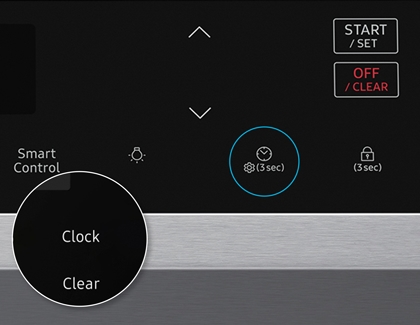
Method 1: Using The ‘clock’ Or ‘time’ Button
Most Samsung stoves have a dedicated button for setting the clock.
- Locate the Clock Button: Look for a button labeled Clock, Time, or a small clock icon.
- Press and Hold: Press and hold the button for 3 seconds until the time display blinks.
- Set the Time: Use the + and – buttons or the number pad to set the correct time. For example, to set 3:45, press 3, 4, 5 if you have a number pad.
- Confirm: Press the Clock or Start/Set button again to save the time.
If your stove has an AM/PM option, make sure to select the correct one. Some stoves use 24-hour (military) time.
Method 2: Setting The Clock On A Touchscreen Model
Newer Samsung ranges have touchscreens instead of physical buttons.
- Wake the Screen: Tap the display to wake it up.
- Find Settings: Look for a gear icon or a menu that says Settings.
- Select Clock: Tap on Clock or Set Clock.
- Adjust Time: Use the on-screen up and down arrows, or tap numbers, to set the correct time.
- Save: Tap OK or Save.
Touchscreen models often let you choose between 12-hour and 24-hour formats.
Method 3: Using Wifi Or Smartthings App
Some Samsung stoves can connect to WiFi and be controlled with the SmartThings app.
- Download SmartThings: Install the app from the App Store or Google Play.
- Connect Your Stove: Follow the app’s instructions to add your stove.
- Find Clock Settings: In the app, navigate to your stove’s settings.
- Set the Time: Adjust the time in the app, then confirm.
This method is useful if your stove’s display is hard to read or buttons are not working.
Special Case: No ‘clock’ Button
If your Samsung stove does not have a clock button, you may need to use a combination of other buttons, like Timer and Start/Set. Check your manual for your model’s unique method.
Non-obvious insight: On some stoves, you must press and hold the Timer button for 3 seconds to enter clock-setting mode.
Common Issues When Setting The Clock
Even with clear instructions, things can go wrong. Here’s how to fix the most common problems.
The Clock Won’t Stop Blinking
A blinking clock usually means the time is not set. This happens after a power outage or if the stove was unplugged.
Solution: Repeat the clock-setting steps. If it keeps blinking, check if you confirmed the time by pressing Start/Set.
Buttons Not Responding
Sometimes, buttons are locked or unresponsive.
- Child Lock: If the stove is in child lock mode, the buttons won’t work. Look for a padlock icon.
- How to unlock: Press and hold the Child Lock or Start button for 3 seconds (varies by model).
- Dirty or Stuck Buttons: Clean with a damp cloth. Do not use too much water.
Power Outages Reset The Clock
All Samsung stoves lose their clock settings during a power outage.
Tip: After power returns, always set the clock before using the oven or timer features. Some models will not allow cooking until the clock is set.
Can’t Set Am Or Pm
Some stoves default to 24-hour time. If you can’t find AM/PM, set the time in 24-hour format (e.g., 14:30 for 2:30 PM).
Pro tip: If you prefer 12-hour time, check the settings menu. Many newer models let you switch formats.

Credit: www.youtube.com
Differences Between Gas, Electric, And Induction Samsung Stoves
Not all Samsung stoves are the same. Here’s how the clock setup may vary by type.
| Stove Type | Clock Setup | Common Features |
|---|---|---|
| Gas Stove | Usually physical buttons | Simple LED display |
| Electric Stove | Physical or touch buttons | May offer delay start |
| Induction Range | Often uses touchscreen | Advanced features, WiFi |
Non-obvious insight: The clock setup steps often change after a major model update. For example, Samsung’s slide-in induction ranges after 2020 use a different menu system.
Using The Clock For More Than Just Time
The clock on your Samsung stove is important for more than knowing the hour. Here’s how it helps with other features.
Cooking Timers
Many people mix up the timer and the clock. The timer counts down your cooking time, but it needs the clock to be set first.
- If the clock isn’t set, you may see an error or the timer won’t start.
- Set the clock before using timer functions for baking, roasting, or boiling.
Delayed Start Cooking
If your stove has delayed start or “cook later” features, the clock tells the stove when to start.
- Set the clock first.
- Choose your cooking settings and select a start time in the future.
Sabbath Mode
Some Samsung stoves have Sabbath Mode, which changes how the oven works during certain times.
- Setting the clock is necessary to use this mode.
- If the time is wrong, Sabbath Mode may not function as intended.
Automatic Oven Shut-off
Ovens may shut off after a certain time for safety. The clock helps track this period.
Step-by-step: Setting The Clock After A Power Outage
Every time your home loses power, your Samsung stove’s clock will reset. Here’s what to do:
- Wait for Power: When electricity returns, the stove display will usually blink or show “12:00.”
- Set the Clock: Follow the steps for your model (see above).
- Check Other Settings: Timers, delayed cook, and Sabbath Mode will need to be reset.
- Test a Feature: Set a short timer or start the oven to confirm the clock is correct.
Tip: Write down your clock-setting steps and keep them near the stove for easy access after a blackout.
Changing Between 12-hour And 24-hour Format
Many Samsung stoves let you choose between 12-hour (AM/PM) and 24-hour (military) time. Here’s how to switch:
- Find the Settings Menu: On touchscreens, tap the gear icon. On button models, look for Options or Settings.
- Select Clock Format: Choose between 12H or 24H.
- Confirm: Press OK or Start/Set.
Some older models do not offer this option.
What If You Lost The Manual?
Don’t worry if you can’t find your Samsung stove’s manual. There are ways to get the instructions you need.
- Online Manuals: Visit the Samsung official support site to download a PDF of your model’s manual.
- Model Number Search: Enter your model number to get exact steps.
- YouTube Tutorials: Many users upload video guides for setting the clock on popular Samsung models.
Comparing Clock Setting Methods On Popular Samsung Stoves
To make things clearer, here’s a comparison of clock-setting methods on three popular Samsung stove types.
| Model | Button Type | Clock Setting Steps | Special Features |
|---|---|---|---|
| NX58H5600SS (Gas) | Physical Buttons | Press Clock, set time, press Clock again | Timer, Delay Start |
| NE59M4320SS (Electric) | Physical + Touch | Press Clock, use pad, press Start/Set | Child Lock, 12/24H |
| NE63T8711SS (Induction) | Touchscreen | Settings > Clock > Set > Save | WiFi, SmartThings, Sabbath Mode |
Practical Tips For Accurate Timekeeping
Here are helpful tips to keep your Samsung stove clock accurate and easy to use.
- Check After Storms: Always set the clock after storms or power cuts.
- Use a Reference: Set the stove clock using your phone’s time for accuracy.
- Regularly Update: Some stoves drift a few minutes over months—adjust as needed.
- Avoid Accidental Changes: Teach family members how to set the clock properly to avoid accidental resets.
- Clean Buttons Gently: Sticky or greasy buttons can cause wrong entries.
Troubleshooting Advanced Problems
Sometimes, setting the clock does not work even after following all the steps. Here’s how to troubleshoot deeper issues.
Display Is Dead Or Dim
- Check Power: Make sure the stove is plugged in and the circuit breaker is on.
- Inspect the Display: If the display is dim or off, it may be a power supply issue.
Software Glitches
- Reset the Stove: Unplug for 1 minute, then plug back in.
- Update Firmware: For smart models, check the SmartThings app for updates.
Clock Won’t Hold Time
- Internal Battery Issue: Some older stoves have a small battery that maintains the clock. If it’s dead, the clock will reset often.
- Professional Repair: For battery or electronic failures, call Samsung support.
Safety Reminders When Setting The Clock
It’s easy to get focused on the clock and forget about safety. Here are reminders:
- Do not set the clock with wet hands.
- Do not press too hard on touchscreens.
- If buttons stick, clean gently—never use sharp objects.
- If you smell gas or see sparks, stop and unplug the stove before touching any buttons.
How To Use The Clock For Meal Planning
A correctly set Samsung stove clock can help you plan meals better.
- Set reminders: Use the timer for prep or resting dough.
- Track multiple dishes: When cooking several items, use the clock to stagger start times.
- Keep a kitchen routine: A visible clock helps coordinate with other appliances, like a microwave or dishwasher.
When To Call For Help
If you’ve tried all the steps and your Samsung stove clock still won’t set, it may be time to ask for help.
- Samsung Support: Call or chat with support for your model.
- Professional Repair: If the display or buttons are broken, a technician can replace them.
- Warranty Service: If your stove is under warranty, repairs are often free.
Environmental Factors That Affect The Clock
Did you know that environmental issues can affect your stove clock?
- Frequent Power Surges: Can reset or damage the clock electronics.
- High Humidity: May cause sticky buttons or slow response.
- Extreme Cold/Heat: Can affect electronic displays, especially in poorly insulated kitchens.
Practical tip: Use a surge protector if your home has unstable power.
Keeping Your Clock Accurate Over Time
Unlike your phone, most stoves do not update time automatically for daylight saving or after a power outage. Here’s how to stay on track:
- Set reminders on your phone to adjust the stove clock twice a year for daylight saving.
- Check the clock monthly against a reliable source.
How Clock Issues Affect Other Features
If the clock isn’t set or is wrong, you may notice:
- Delayed start won’t work
- Oven timer won’t count down
- Sabbath mode may activate at the wrong time
- Preheat reminders may be missed
Always check the clock first if any feature isn’t working as expected.
Comparing Samsung Stove Clock Features To Other Brands
How does Samsung’s clock system compare to other popular stove brands? Here’s a quick comparison:
| Brand | Clock Setup | Smart Features | Unique Functions |
|---|---|---|---|
| Samsung | Button, Touch, or App | WiFi, SmartThings | Sabbath Mode, Delay Start |
| LG | Button or Touch | ThinQ App | Self-diagnosis |
| GE | Physical Buttons | WiFi Connect | Chef Connect |
| Whirlpool | Button or Knob | Scan-to-Cook | Frozen Bake |
Samsung offers some of the most flexible clock-setting options, especially with smart home integration.
Frequently Asked Questions
How Do I Set The Clock On A Samsung Stove After A Power Outage?
After a power outage, your Samsung stove’s clock will usually blink or show “12:00.” To set it, press the Clock or Time button, enter the correct time using the number pad or arrow keys, then press Clock or Start/Set again to confirm. On touchscreen models, use the settings menu to adjust the time.
Why Does My Samsung Stove Clock Keep Resetting?
If your clock resets often, the most likely reason is power interruption—from outages or unplugging the stove. On older models, a failing internal battery can also cause this. If the problem happens daily and you have not lost power, contact Samsung support to check for a hardware issue.
Can I Set The Samsung Stove Clock Using My Smartphone?
Yes, if your Samsung stove supports WiFi and works with the SmartThings app. Download the app, connect your stove, and find the clock settings in the app menu. Set the time and confirm—your stove’s display will update automatically.
What Should I Do If My Stove’s Clock Buttons Don’t Work?
First, check if the Child Lock is on—look for a padlock icon and hold the lock button for 3 seconds to unlock. If the buttons are dirty, clean them gently. If they are still unresponsive, there may be a hardware problem, and you should contact Samsung customer service.
Is It Possible To Change Between 12-hour And 24-hour Time Format On My Samsung Stove?
Yes, most newer Samsung stoves allow you to switch between 12-hour and 24-hour (military) time. Go to the clock settings menu (gear icon or Options button), select your preferred format, and confirm. If you don’t see this option, your model may not support it.
Setting the clock on a Samsung stove is a small task, but it’s essential for making the most of your appliance. With these steps, comparisons, and tips, you should be able to set and maintain your stove’s clock with confidence—keeping your kitchen running smoothly and your meals on time.
Credit: www.samsung.com