
Many pool owners love the convenience of controlling their pool systems from their smartphones. The iAquaLink system promises easy, remote management for everything from pumps to lights. But when iAquaLink is not connecting to WiFi, that convenience quickly turns into frustration. This is a surprisingly common issue, but the good news is that most WiFi connection problems with iAquaLink have clear solutions.
This article explains why iAquaLink sometimes fails to connect to WiFi, how to fix it step-by-step, and ways to avoid future headaches. You’ll find real-world examples, practical troubleshooting, and advice that goes beyond the basics. Whether you’re a new pool owner or have used iAquaLink for years, you’ll get the guidance you need to restore your smart pool control.
Why Iaqualink Needs A Reliable Wifi Connection
Your iAquaLink system works like a bridge between your pool equipment and your phone or tablet. Without a strong, stable WiFi connection, you lose the ability to control your pool remotely. This means you can’t turn on the heater before you get home, adjust lighting at night, or monitor water features when you’re away.
A reliable WiFi connection is not just about comfort; it’s about security and energy savings. For example, if you’re on vacation and a storm comes, being able to shut off equipment remotely can prevent damage. Or, if your pool pump runs longer than needed, you can turn it off from your phone—saving money and reducing wear.
Common Reasons Iaqualink Won’t Connect To Wifi
Understanding why iAquaLink is not connecting is the first step. Several factors can block or interrupt the WiFi link:
- Weak WiFi Signal: The pool equipment is often far from the home’s WiFi router. Walls, metal, and distance all weaken the signal.
- Wrong WiFi Password: Entering an incorrect password during setup will always cause failure.
- Network Frequency Issues: Many WiFi routers have two bands—2.4 GHz and 5 GHz. IAquaLink only works with 2.4 GHz.
- Old Router Firmware: Outdated routers may have bugs or compatibility problems.
- IP Address Conflicts: Sometimes, devices on the network compete for the same address, causing connection drops.
- WiFi Network Name (SSID) Problems: Unusual characters or long names can confuse the iAquaLink.
- Router Settings (AP Isolation): Advanced settings like AP Isolation can block devices from talking to each other.
- Electrical Interference: Other electronics can create “noise” that disrupts WiFi.
- Physical Obstructions: Concrete, metal doors, and even water can block signals.
- Device Firmware Issues: The iAquaLink device itself may need an update.
Two insights often missed: Many users forget that pool equipment enclosures are usually metal, which blocks WiFi, and that a pool’s water surface itself can reduce signal strength if the device is mounted low.

Credit: www.youtube.com
How To Diagnose Iaqualink Wifi Connection Problems
Before fixing, you need to figure out where the problem is. Here are effective steps:
1. Confirm Power And Device Status
- Check that your iAquaLink device is powered and its indicator lights are on.
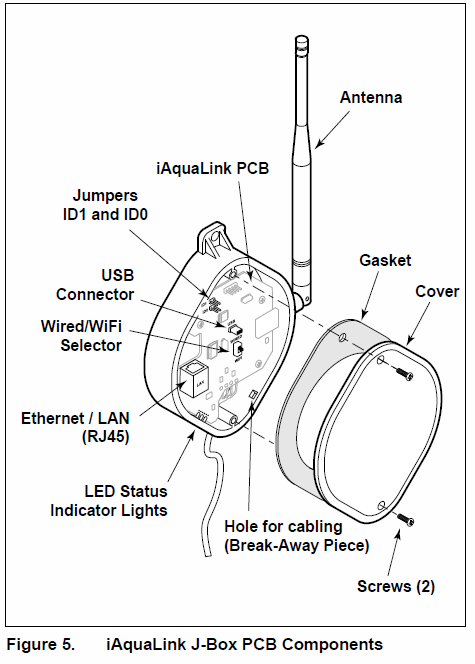
- Look for status LEDs: Usually, a blinking or solid red means trouble, while green means good connection.
2. Check The Wifi Signal Strength
- Use your phone to test WiFi near your pool equipment. If your signal is weak (less than two bars), iAquaLink may not connect.
- Consider moving closer to the device or checking signal with a free WiFi analyzer app.
3. Review The Error Message
- If you get a specific error code on the iAquaLink app or device, note it down.
- Some common error codes include: “Connection Failed,” “Authentication Error,” or “No Network Found.”
4. Test Other Devices On The Same Wifi
- Try connecting a phone or tablet to the same WiFi, near the pool equipment.
- If those devices also can’t connect, the problem is likely with the WiFi network, not iAquaLink.
5. Restart Everything
- Power cycle the router, iAquaLink device, and your phone. Many connection issues are fixed with a simple restart.
- Wait two minutes after turning off the router before switching it back on.
6. Check Wifi Network Settings
- Ensure your WiFi is set to 2.4 GHz.
- Make sure network names (SSIDs) and passwords are simple and contain only standard letters and numbers.
7. Review Router Settings
- Log in to your router’s admin page. Look for settings like AP Isolation, MAC filtering, or firewall rules that might block new devices.
8. Update Firmware
- Both your router and iAquaLink may need firmware updates. Check the manufacturer’s website for instructions.
A non-obvious tip: Sometimes, hidden WiFi networks or guest networks have restrictions that block iAquaLink from connecting. Always use the main home network.
Step-by-step Solutions For Iaqualink Wifi Connection Issues
Now, let’s go through the best ways to fix your iAquaLink connection.
1. Move The Router Or Use A Wifi Extender
If your pool equipment is far from your router, signal strength will be low. Here are your options:
- Move your router closer to the pool area, if possible.
- Buy a WiFi extender or mesh system to boost coverage outside.
- Place the extender as close as possible to the pool equipment, but still within the main router’s range.
Tip: Avoid placing the extender inside a metal pool equipment box. Put it in a nearby shed, window, or wall facing the pool.
2. Ensure You’re Using 2.4 Ghz Wifi
iAquaLink does not support 5 GHz networks. Many modern routers broadcast both signals. Here’s what to do:
- Check your router’s WiFi settings. Make sure 2.4 GHz is enabled.
- If the SSIDs for 2.4 GHz and 5 GHz are the same, separate them (rename one).
- When connecting iAquaLink, choose the 2.4 GHz network.
3. Double-check Wifi Password And Ssid
- Make sure you’re entering the correct WiFi password. Even one wrong character will fail the connection.
- Simplify your SSID if needed. Avoid special characters like $, %, or spaces.
4. Reduce Interference
Many household devices can create WiFi interference:
- Keep the iAquaLink device and WiFi extender away from large appliances like refrigerators, microwaves, or cordless phones.
- Turn off other wireless devices temporarily and try again.
5. Update Firmware On All Devices
- Visit your router’s and iAquaLink’s support pages for the latest firmware.
- Follow instructions carefully; a failed update can cause more problems.
6. Reset The Iaqualink Device
A factory reset can resolve software bugs:
- Find the reset button on the iAquaLink module (usually inside the unit).
- Hold it for 10-15 seconds until the LED blinks.
- Reconnect to WiFi using the setup instructions.
Caution: A reset deletes all saved settings. You’ll need to reconfigure your device.
7. Change Wifi Channel
Routers in crowded neighborhoods often use the same channel, causing interference.
- Log in to your router’s admin page.
- Change the 2.4 GHz channel to 1, 6, or 11 (these don’t overlap).
- Save changes and try connecting iAquaLink again.
8. Check For Ip Address Conflicts
Sometimes, devices fight for the same network address. To fix:
- Assign a static IP address to your iAquaLink device in your router’s DHCP settings.
- This ensures the device always gets the same address.
9. Check For Ap Isolation
Access Point (AP) Isolation is a setting that prevents devices on WiFi from talking to each other. If it’s on, iAquaLink can’t communicate with your phone.
- Log in to your router and disable AP Isolation.
- Save changes and reboot the router.
10. Remove Physical Barriers
If your iAquaLink device is inside a metal box or behind concrete, consider these steps:
- Move the device outside the enclosure, if possible.
- Drill a small hole for the antenna to stick out, if allowed by the manufacturer.
Pro Tip: Even a few inches of movement outside metal barriers can make a big difference.
11. Try A Wired Ethernet Connection
Some iAquaLink models support a wired Ethernet connection:
- If possible, run an Ethernet cable from your router to the device.
- Wired connections are more stable and immune to WiFi issues.
12. Contact Support
If you’ve tried everything and iAquaLink still won’t connect, contact Jandy support or a licensed pool technician. Sometimes, hardware problems or hidden settings are to blame.
Real-world Example: Troubleshooting An Iaqualink Setup
Let’s look at a real case. Maria installed iAquaLink for her backyard pool. The system worked for a few days, then stopped connecting. She tried restarting her router and the device, but nothing changed.
She checked signal strength and found only one bar near the pool. Maria bought a WiFi extender and placed it in a window facing her pool. After reconnecting iAquaLink to the new network, the system worked perfectly.
Later, Maria upgraded her router. The iAquaLink dropped its connection again. She realized the new router had merged the 2. 4 GHz and 5 GHz networks under one name. After separating them and choosing the 2. 4 GHz for iAquaLink, the problem was solved.
This story shows that both signal strength and network frequency are critical, and changing one part of your home network can break the connection.
Comparing Different Wifi Extender Options
Choosing the right WiFi extender is important for reliable iAquaLink performance. Here’s a comparison of popular options:
| Model | Range | Max Speed | Setup Difficulty | Price Range |
|---|---|---|---|---|
| TP-Link RE220 | ~1200 sq ft | 433 Mbps | Easy | $30-40 |
| Netgear EX3700 | ~1000 sq ft | 750 Mbps | Medium | $45-55 |
| Google Nest Wifi Point | ~1600 sq ft | 1200 Mbps | Easy | $80-100 |
For most pool owners, an entry-level extender like TP-Link RE220 is enough, but if your pool is far from the house, a mesh system (like Google Nest) gives more coverage.
Comparing 2.4 Ghz Vs 5 Ghz Wifi Bands For Iaqualink
Some users wonder why iAquaLink only uses 2.4 GHz. Here’s a quick comparison:
| Feature | 2.4 GHz Band | 5 GHz Band |
|---|---|---|
| Range | Longer (good for outdoors) | Shorter (weak through walls) |
| Speed | Slower | Faster |
| Device Support | Works with most devices | Some devices not supported (like iAquaLink) |
| Interference | More crowded (microwaves, etc.) | Less crowded |
The 2.4 GHz band is better for long-range outdoor connections, which is why iAquaLink uses it.
Router Settings That Can Affect Iaqualink Connection
Routers have many settings that can block iAquaLink, sometimes by accident. Here are the key ones:
- AP Isolation: Prevents devices from communicating; should be off.
- MAC Filtering: Only allows specific devices to connect. Add iAquaLink’s MAC address to the allowed list.
- Guest Networks: Often block device-to-device communication. Use the main network.
- Firewall Settings: Too strict firewalls may block iAquaLink. Try relaxing rules or adding exceptions.
- DHCP Lease Time: If too short, devices lose their address often. Set to at least 24 hours for reliability.
A practical example: A user found that their router’s firewall was blocking new devices by default. After adding the iAquaLink’s MAC address to the allowed list, the device connected instantly.
Credit: www.troublefreepool.com
The Role Of Firmware Updates
Both router and iAquaLink firmware need regular updates:
- Fix security bugs that can block connections.
- Add new compatibility for devices.
- Sometimes, updates change WiFi behavior (e.g., new security protocols).
Always back up your router settings before updating. If the update fails, you may have to reset everything.
When To Use A Wired Connection
If you’ve tried all wireless solutions and still have problems, a wired connection is the gold standard:
- No interference from walls, weather, or other electronics.
- Faster and more stable.
- Not all iAquaLink models support Ethernet, so check your manual.
Installing Ethernet outside can be tricky. Use outdoor-rated cables and weatherproof junction boxes to avoid water damage.
Preventing Future Wifi Problems With Iaqualink
Once your iAquaLink is online, a few habits can help avoid problems:
- Label Your Networks: Give clear names to your 2.4 GHz and 5 GHz networks so you know which is which.
- Write Down Passwords: Keep your WiFi passwords in a safe place.
- Update Regularly: Set reminders to check for firmware updates every few months.
- Place Your Router Wisely: Keep it high, central, and away from large metal objects.
- Reboot Monthly: Restart your router and iAquaLink device occasionally to clear up small bugs.
A little planning goes a long way. Most connection issues come back after a power outage, router reset, or home renovation—so document your setup for easy troubleshooting.
What To Do If Iaqualink Connects, But Doesn’t Work Remotely
Sometimes, the device connects to WiFi, but your app says the system is offline or can’t control the pool. This is usually a problem with internet access or cloud communication:
- Make sure your home internet is working (test on another device).
- Check if the iAquaLink app needs an update.
- Confirm that the iAquaLink’s server status is up (check the manufacturer’s site for outages).
- Temporarily disable firewalls or parental controls that might block the connection.
- Try logging out and back into your iAquaLink account in the app.
If you can control the pool from your home network but not from your phone’s data connection, it’s almost always a firewall or port forwarding issue.

Credit: www.reddit.com
When To Call A Professional
If you have tried all these steps and iAquaLink still will not connect, it may be a hardware failure or advanced network problem. Signs include:
- No lights or incorrect lights on the device.
- Device never appears in the app, even after reset.
- Other WiFi devices connect fine in the same spot.
A qualified pool technician or network professional can test for faulty hardware, bad wiring, or incompatible equipment.
Useful Resources For Iaqualink Owners
For more advanced troubleshooting and setup guides, visit the official Jandy iAquaLink support site at Jandy iAquaLink Support. Here you’ll find manuals, firmware downloads, and community forums.
Frequently Asked Questions
Why Does My Iaqualink Keep Dropping The Wifi Connection?
There are several possible causes. The most common are weak signal, electrical interference, or router settings that change after a power outage. Try moving your router or extender closer, updating firmware, and checking for IP conflicts.
Can I Use Iaqualink With 5 Ghz Wifi?
No, iAquaLink only supports 2.4 GHz WiFi. Most routers offer both 2.4 and 5 GHz; make sure you select the 2.4 GHz network during setup. Mixing both under one name can cause problems.
Is It Safe To Update My Router Firmware When Using Iaqualink?
Yes, and it’s recommended. Updates fix bugs and improve security. However, back up your settings first, as a failed update can reset your network and disconnect your iAquaLink.
What Does A Red Or Blinking Led Mean On My Iaqualink Device?
A red or blinking LED usually means the device can’t connect to WiFi or is not getting an IP address. Check your WiFi settings, reboot all devices, and review your router’s log for blocked connections.
How Can I Make My Iaqualink Connection More Reliable?
- Use a WiFi extender or mesh system for better signal.
- Set a static IP for iAquaLink.
- Avoid placing the device inside metal boxes or behind concrete.
- Update firmware regularly.
- Keep your network passwords and settings in a safe place.
A stable WiFi connection for iAquaLink transforms your pool experience from stressful to simple. With the right troubleshooting steps and a bit of planning, you can enjoy reliable, remote control of your pool year-round. If you ever get stuck, don’t hesitate to reach out to the manufacturer’s support or a professional for help.