
If you own an iAquaLink 2.0 pool automation system, you probably enjoy controlling your pool from your phone or tablet. But nothing is more frustrating than when your iAquaLink 2.0 is not connecting to WiFi. Suddenly, the smart features disappear, and you’re back to manual controls. This problem is common, but it’s also solvable. Whether you’re troubleshooting for the first time or you’ve tried before without success, this guide will help you step by step.
In the next sections, we’ll cover 20 specific reasons why your iAquaLink 2.0 might not connect to WiFi and how to fix each one. You’ll learn practical solutions, common mistakes to avoid, and a few tips that even experienced users often miss. By the end, your iAquaLink 2.0 should be back online—or at least, you’ll know exactly what to do next.
1. Incorrect Wifi Password
One of the most basic reasons your iAquaLink 2.0 won’t connect is an incorrect WiFi password. It’s surprisingly easy to mistype or forget the password, especially if it was changed recently. Double-check the password you’re entering during setup. Remember, passwords are case-sensitive, so “mypoolwifi” is different from “MyPoolWiFi.” Also, avoid copying and pasting from apps, which can add hidden spaces.
If you’re not sure, log in to your WiFi with another device to confirm the password works. If needed, reset your router’s password and update all your devices. This simple step fixes connection problems more often than you might think.
2. Weak Wifi Signal At The Iaqualink Location
Even if your phone or laptop connects to WiFi, your iAquaLink 2.0 might be too far from the router. Pool equipment is often installed outside, in a basement, or in a metal box—all places where WiFi signals get weak.
To check, stand near your iAquaLink with your phone and look at the WiFi bars. If you see only one or two bars, your signal is weak. Solutions include:
- Moving your router closer to the iAquaLink
- Installing a WiFi extender between your router and the equipment
- Using a mesh WiFi system for better coverage
A strong signal is crucial for reliable smart pool control.
3. 2.4 Ghz Vs 5 Ghz Network Confusion
The iAquaLink 2.0 only supports 2.4 GHz WiFi networks. Many modern routers create both 2.4 GHz and 5 GHz networks, sometimes with similar names. If you try to connect your iAquaLink to a 5 GHz network, it simply won’t work—even though your phone or laptop can use both.
When connecting, make sure to select the 2. 4 GHz network. You can often see “2. 4G” or “5G” in the network name. If you’re not sure, log in to your router settings and check which network is which.
4. Router Security Settings Blocking The Device
Some routers have security features (like MAC address filtering, firewalls, or “guest mode”) that prevent new devices from joining. The iAquaLink 2.0 may be blocked by these settings.
To solve this, log in to your router’s admin page and:
- Turn off MAC address filtering (or add your iAquaLink’s MAC address to the allowed list)
- Make sure “guest networks” allow device-to-device communication
- Lower firewall settings temporarily to test
Always turn security features back on after testing for safety.
5. Outdated Iaqualink Firmware
Like any smart device, the iAquaLink 2.0 needs firmware updates to work with new routers and WiFi standards. If your system is running old firmware, it might not connect, or it could disconnect often.
To update, check the iAquaLink app or website for firmware updates. Sometimes, you need to connect the device to the internet with an Ethernet cable first, just for the update. Always follow the official instructions to avoid damaging your system.
6. Recent Router Or Internet Provider Change
If you’ve changed routers or switched internet providers, your iAquaLink 2.0 won’t recognize the new network. It’s still trying to connect to the old one.
You’ll need to:
- Reset the iAquaLink WiFi settings (usually by pressing a button on the device)
- Go through the setup process again, entering the new network name and password
Remember, any device that was programmed for the old WiFi needs to be reconfigured.
7. Too Many Devices On The Network
Home WiFi networks can only handle so many connections at once. If you have lots of smart devices, phones, and computers, your router might be overloaded. When that happens, the iAquaLink 2. 0 can’t connect.
Some routers let you see how many devices are connected. Try disconnecting a few unused devices and see if your iAquaLink connects. If you have a large smart home, consider upgrading to a router designed for many devices.
8. Incorrect Wifi Encryption Type
The iAquaLink 2.0 works best with WPA2-PSK (AES) encryption. If your router uses a different type, like WPA3 or WEP, the device may not connect.
Log in to your router settings and check your WiFi encryption. Change it to WPA2-PSK (sometimes called WPA2 Personal) if needed. After changing, reconnect all your devices, as the encryption update will disconnect them temporarily.
9. Physical Obstructions Between Router And Iaqualink
Physical barriers—like thick walls, metal doors, or pool equipment cabinets—can weaken or block WiFi signals. Even if your router is close, these obstructions can stop the iAquaLink from connecting.
A simple test: move your router and iAquaLink closer together, just for setup. If it connects, physical barriers are the problem. Solutions include:
- Repositioning the router
- Drilling a small hole for the antenna
- Adding a WiFi repeater outside
10. Iaqualink Antenna Not Installed Correctly
The iAquaLink antenna picks up the WiFi signal. If it’s loose, disconnected, or installed inside a metal box, the signal might not reach.
Check that the antenna is:
- Firmly connected
- Positioned upright
- Outside any metal enclosures
Antenna installation often gets overlooked, but it’s crucial for good WiFi reception.
11. Interference From Other Wireless Devices
Devices like cordless phones, baby monitors, and even microwaves can interfere with 2. 4 GHz WiFi signals. If your iAquaLink 2. 0 is near these devices, it might struggle to connect or stay connected.
Try moving the iAquaLink or the interfering device to a different location. If possible, change your WiFi channel in the router settings to a less crowded one (like channel 1, 6, or 11).
Here’s a quick comparison of common sources of WiFi interference:
| Device | Interference Risk | Recommended Action |
|---|---|---|
| Microwave Oven | High | Move device or router farther apart |
| Cordless Phone | Medium | Change WiFi channel |
| Bluetooth Speaker | Low | Turn off when not needed |
| Wireless Camera | High | Separate frequency band if possible |
12. Network Name (ssid) Is Hidden
Some people hide their WiFi network name (SSID) for security. However, the iAquaLink 2.0 struggles to connect to hidden networks. When you set up the device, you have to manually enter the SSID exactly, including uppercase and lowercase letters.
If you can, temporarily unhide the network until the iAquaLink connects. After setup, you can hide it again. This step often helps when other solutions fail.

Credit: www.thepoolsupplywarehouse.com
13. Power Supply Issues
It might sound simple, but if your iAquaLink 2. 0 isn’t getting steady power, it can’t connect to WiFi. Check that all power cables are secure and undamaged. Power fluctuations or outages can also cause the device to lose connection.
If your pool equipment is on a timer, make sure the iAquaLink gets power when you need to use it. Consider plugging it into a surge protector for extra safety.
14. Faulty Or Damaged Iaqualink Hardware
Sometimes, the problem isn’t WiFi—it’s the device itself. Water damage, lightning strikes, or just old age can cause the iAquaLink’s WiFi radio to fail.
Signs of hardware problems include:
- Lights on the device not working
- No response to button presses
- Device won’t reset or update
If you suspect hardware failure, contact the manufacturer for repair or replacement. These issues can’t be fixed by software or WiFi changes.

Credit: www.reddit.com
15. Iaqualink Device Not In Setup Mode
For the iAquaLink 2.0 to connect to a new WiFi network, it needs to be in setup mode. If you miss this step, the device won’t show up in your app or WiFi list.
Usually, you enter setup mode by pressing and holding a button (check your manual for the exact steps). Watch for blinking lights that indicate setup mode is active. If the device times out, repeat the steps.
16. Software Or App Glitches
Sometimes, the problem is with the iAquaLink app or the smart home platform you’re using. Bugs, outdated apps, or cache problems can stop the device from connecting.
Try these steps:
- Restart the app
- Clear the app cache (in your phone settings)
- Uninstall and reinstall the app
- Check for app updates in the App Store or Google Play
If you use a smart home system, restart your hub as well. These simple fixes solve more problems than you might think.
17. Router Firmware Outdated
Routers also need regular firmware updates. Old firmware might not support newer devices or WiFi features. Log in to your router’s admin page and look for a firmware update section. Most routers can update automatically, but some require you to download a file.
An up-to-date router is more secure and reliable—important for all your smart devices, not just iAquaLink.
18. Incorrect Time Or Date Settings
Many people overlook the time and date settings on their router or iAquaLink device. If these are wrong, the device might fail to authenticate or connect to the internet. This is especially true if your network uses advanced security.
Check both your router and iAquaLink system to ensure the date and time are correct. Set them to update automatically if possible.
19. Isp (internet Service Provider) Restrictions
Some ISPs use special settings or block certain devices for security reasons. This is rare, but possible—especially with business internet or advanced parental controls.
If none of the other solutions work, call your ISP and ask if they block smart home devices. They might need to “whitelist” your iAquaLink or adjust network settings for you.
20. Incomplete Setup Process
Finally, sometimes the iAquaLink 2. 0 setup process is interrupted—maybe by closing the app too soon, losing power, or a WiFi drop. If setup isn’t completed, the device won’t save your WiFi info.
Restart the setup from the beginning and follow every step, watching for confirmation messages. Avoid multitasking during setup to prevent mistakes.
Here’s a quick side-by-side comparison of common setup mistakes and their solutions:
| Setup Mistake | Result | Solution |
|---|---|---|
| Closing app too soon | Device not configured | Restart setup, wait for confirmation |
| Wrong WiFi network selected | No connection | Choose correct 2.4 GHz network |
| Skipping firmware update | Outdated features | Update device before setup |
Extra Tips For Reliable Iaqualink Wifi Connection
- Label your WiFi networks clearly (like “Home2.4G” and “Home5G”) to avoid confusion.
- Keep your router’s firmware updated for better device compatibility.
- Test your WiFi speed near the iAquaLink location using your phone. If it’s below 5 Mbps, signal strength could be the problem.
- For permanent setups, consider using wired Ethernet if your iAquaLink supports it. Wired connections are immune to WiFi issues.
When To Call A Professional
If you’ve tried all 20 solutions and your iAquaLink 2.0 still won’t connect, it might be time to contact a pool professional or the manufacturer’s support team. Sometimes, complex issues like hardware failure, advanced network conflicts, or ISP blocks need expert troubleshooting.
A professional can:
- Test your iAquaLink with special tools
- Check your WiFi network for hidden problems
- Replace faulty hardware parts
This step saves time and frustration if you’ve already spent hours on DIY fixes.
Preventing Future Connection Problems
Once your iAquaLink 2.0 is online, take these simple steps to prevent future WiFi issues:
- Write down your WiFi password and keep it in a safe place.
- Avoid hiding your network SSID unless needed for security.
- Check for router and device firmware updates every few months.
- Position your router for the best coverage, especially if you add new smart devices.
- Use a surge protector to shield your iAquaLink from power problems.
Taking these actions now means less trouble later—so your pool stays smart and connected.
Frequently Asked Questions
Why Does My Iaqualink 2.0 Keep Disconnecting From Wifi?
A common reason is a weak WiFi signal at the device location or interference from other electronics. Other causes include router overload, outdated firmware, or power issues. Try moving your router closer, updating firmware, and checking for interference from devices like microwaves or cordless phones.
Can I Use A 5 Ghz Wifi Network With Iaqualink 2.0?
No, the iAquaLink 2.0 only supports 2.4 GHz WiFi networks. If your router broadcasts both 2.4 GHz and 5 GHz, make sure to connect your device specifically to the 2.4 GHz band. Check your router settings or network name to be sure.
How Do I Reset My Iaqualink 2.0 Wifi Settings?
To reset, press and hold the WiFi button on the iAquaLink device for about 10 seconds until you see the indicator lights blink. This puts the device into setup mode, allowing you to connect it to a new network. Always refer to your user manual for exact instructions.
Will Updating My Router Firmware Help With Connection Problems?
Yes, updating your router’s firmware can fix bugs, improve compatibility, and enhance security for all connected devices, including iAquaLink 2.0. Check your router manufacturer’s website or admin page for update instructions. For more on router updates, visit the official Linksys Support page.
What Should I Do If None Of These Solutions Work?
If you’ve tried all 20 troubleshooting steps and your iAquaLink 2.0 still won’t connect, it’s best to contact Jandy customer support or a licensed pool technician. There may be a hardware issue or advanced network problem that requires professional help.
Keeping your iAquaLink 2. 0 connected to WiFi is essential for full automation and easy pool management. With the right approach, most problems can be solved at home. If not, support is available to get your smart pool running smoothly again.
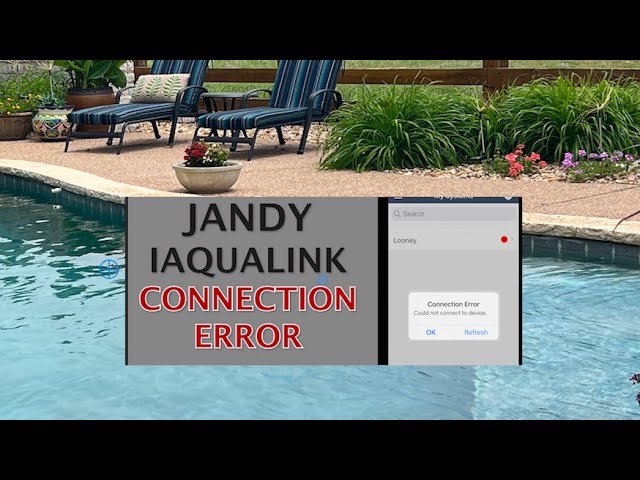
Credit: www.youtube.com