
If you own a pool with an automatic control system, you know how important it is to keep everything running smoothly. The Pentair Easy Touch panel is a popular choice for managing pool and spa features, lighting, heating, and more. But what do you do when the panel stops responding or shows unexpected behavior? Resetting the Easy Touch panel can fix many common issues, restore normal operation, and save you from costly technician visits. However, doing it the wrong way can create new problems or even damage your system.
This guide will show you how to reset the Pentair Easy Touch panel safely and effectively. You’ll learn why and when to reset, the exact steps for different reset types, what to check before and after, and how to avoid common mistakes. Whether you’re a homeowner, pool technician, or just curious, you’ll find clear explanations, practical tips, and expert insights that go far beyond the basics.
Understanding The Pentair Easy Touch Panel
Before you try to reset your panel, it’s good to know what it does and why it sometimes needs a reset. The Pentair Easy Touch is an automation system that controls pool and spa equipment from a single interface. You can manage pumps, valves, lights, heaters, and chemical feeders. The panel comes in several models, including 4-circuit and 8-circuit versions, with or without wireless remotes.
Most problems with the Easy Touch panel are caused by:
- Power surges or outages
- Software glitches
- Communication errors with remote controls
- Frozen or unresponsive displays
- Programming errors or forgotten passcodes
A reset often solves these issues, but it’s important to choose the right type of reset for your situation.
Types Of Reset For Pentair Easy Touch
Not all resets are the same. Here are the main ways to reset your Easy Touch panel, each for different situations.
- Soft Reset – Reboots the panel without erasing settings. Good for minor glitches.
- Full System Power Cycle – Cuts all power, then restarts the unit. Useful for more persistent problems.
- Factory Reset – Restores original settings, erases all custom programs. Use as a last resort.
Knowing which reset to use can save you time and prevent data loss.
When Should You Reset Your Easy Touch Panel?
Resetting is helpful, but only when needed. Some common reasons to reset include:
- The panel is not responding to button presses.
- The screen is blank or frozen.
- Pool equipment doesn’t turn on/off as programmed.
- Wireless remote cannot connect or sync.
- Programming changes do not take effect.
- After a major power outage or electrical storm.
- When updating firmware (if recommended by Pentair support).
However, if you notice burning smells, visible damage, or water inside the panel, do not reset. Call a professional immediately.
Safety Precautions Before Resetting
Working with pool control panels involves electricity and water—two things that can be dangerous together. Always follow these safety tips before touching your Easy Touch panel:
- Dry your hands and the area around the panel.
- Wear rubber-soled shoes if standing on wet ground.
- Turn off power at the main circuit breaker if doing a full reset.
- Avoid using metal tools around the control box.
- Keep children and pets away during the process.
Even though most resets are simple, safety always comes first.
Tools And Information You’ll Need
Resetting the Easy Touch doesn’t require many tools, but being prepared helps. Gather these items before you begin:
- Small flathead screwdriver (for opening panel door)
- Flashlight (if working in low light)
- Paper and pen (to note current settings)
- Owner’s manual (optional but helpful)
- Access to your main circuit breaker
It’s a good idea to take photos of your current settings and wiring, especially before a factory reset.
How To Perform A Soft Reset
A soft reset is the simplest way to restart your Easy Touch panel. This won’t erase your schedules, equipment names, or custom settings. Use it when the panel is sluggish, buttons don’t work, or after minor glitches.
Steps For A Soft Reset
- Open the Panel Door
- Use the latch or a small screwdriver to carefully open the front panel.
- Locate the Reset Button
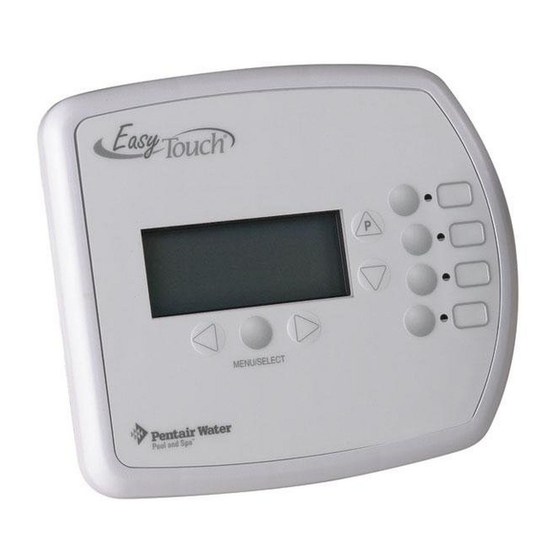
- On most models, the reset button is a small, recessed button near the main display.
- Press the Reset Button
- Use a pen tip or paperclip to press and hold the button for 3–5 seconds.
- Wait for Reboot
- The screen will go blank, then show the startup logo. Release the button.
- Test the Panel
- Try turning on a pump or light to confirm normal operation.
If the panel still does not respond, you may need a full system power cycle.
Non-obvious insight: Many users overlook that a soft reset can also resolve remote control syncing issues. Try this before re-pairing remotes.
Credit: www.manualslib.com
How To Power Cycle The Easy Touch Panel
A full system power cycle is stronger than a soft reset. It cuts all power, which can clear deeper glitches and memory errors. This is often recommended after a storm, power surge, or when the screen remains blank.
Steps For Power Cycling
- Turn Off Equipment
- Shut down pumps, heaters, or other pool devices using the panel or manually.
- Switch Off Main Breaker
- Find the breaker for the pool control panel (often labeled “POOL” or “EASY TOUCH”) in your electrical box.
- Flip the switch to OFF.
- Wait 60 Seconds
- Give the system time to discharge residual power.
- Switch Breaker Back ON
- Flip the breaker to the ON position.
- Observe the Startup
- The display should light up, and you’ll see the Pentair logo.
- Check Equipment
- Make sure all equipment turns on/off and schedules are active.
Practical tip: If the screen stays blank after a power cycle, check for a tripped GFCI outlet nearby. These outlets protect against shock and can cut power to the panel.
How To Perform A Factory Reset
A factory reset erases all user settings, schedules, and device names. The panel returns to its original configuration, just like when it was new. Only do this if you have major software problems, can’t access menus, or are instructed by Pentair support.
Warning Before Factory Reset
- All schedules and names will be erased.
- You’ll need to reprogram everything after the reset.
- Take photos of current settings and wiring if possible.
Factory Reset Steps
- Power Off the Panel
- Follow the power cycle steps above to turn off the panel at the breaker.
- Hold Down the Mode/Reset Button
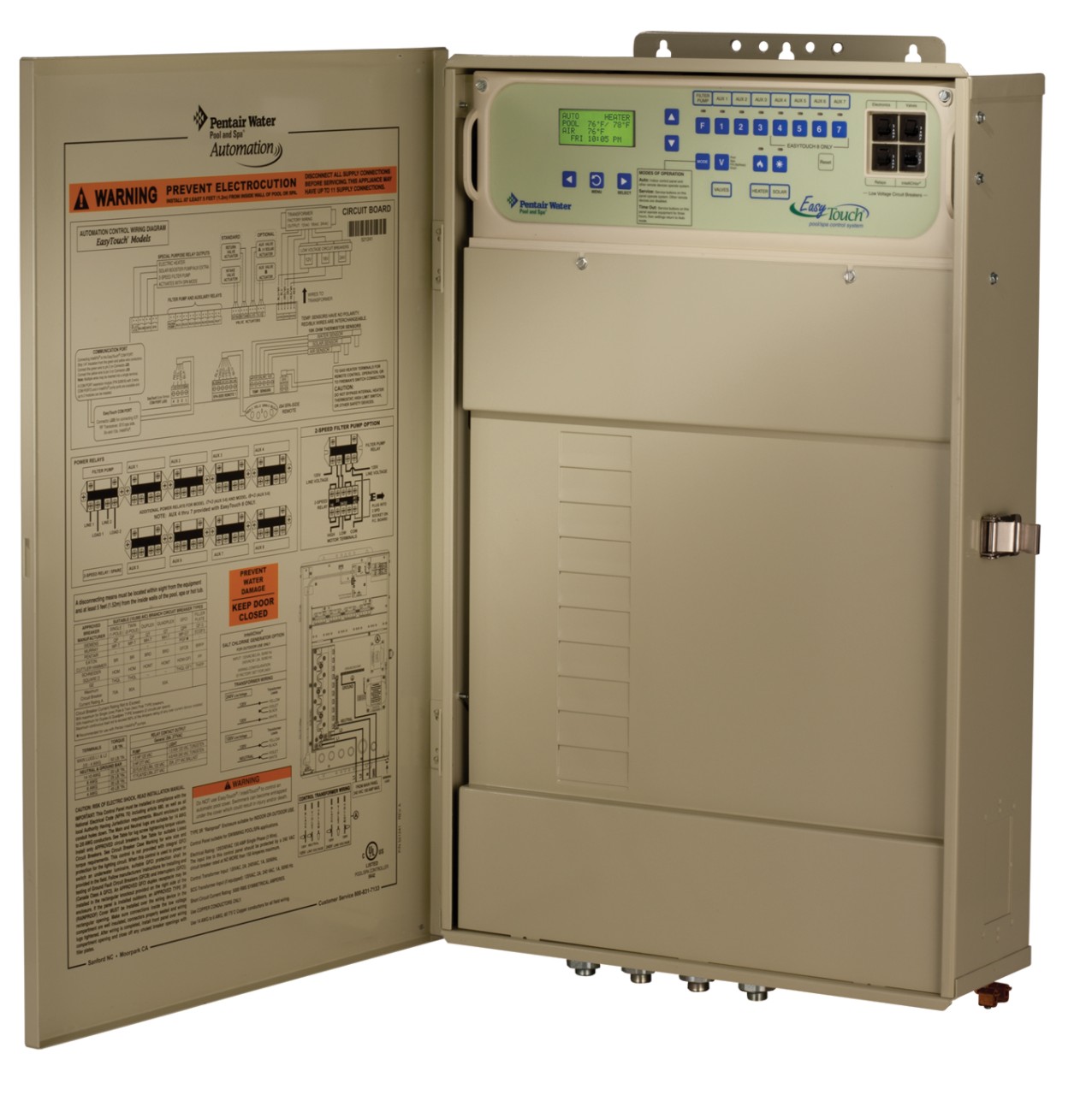
- With the panel off, locate the MODE or RESET button (usually near the display).
- Press and hold the button.
- Restore Power
- While still holding the button, turn the breaker back ON.
- Wait for Reset Menu
- Keep holding until the display shows a reset or “factory default” prompt.
- Confirm Factory Reset
- Use arrow keys to select “Yes” and press ENTER (follow on-screen instructions).
- Release the Button and Reboot
- The system will restart and return to default settings.
Non-obvious insight: After a factory reset, you must recalibrate sensors (like water temp) and reconnect wireless remotes. Many people forget this step and think their equipment is broken.
Credit: www.pentair.com
What To Do After A Reset
Once your panel restarts, it’s important to check that everything works and to re-enter your settings if needed.
- Verify All Equipment: Turn each device on/off from the panel.
- Check Schedules: Reprogram your pump, lights, and heater timers if erased.
- Reconnect Remotes: Re-sync any wireless remotes or mobile apps.
- Test Sensors: Make sure temperature and water level readings are correct.
- Observe for Errors: Watch the screen for error codes or warnings.
If you see strange behavior or error messages, consult the user manual or contact Pentair support.
Common Problems And Troubleshooting After Reset
Even after a reset, some issues can persist. Here’s how to solve the most frequent problems:
Panel Does Not Power On
- Check the breaker and GFCI outlets.
- Inspect for blown fuses inside the control box.
- Look for loose wires.
Equipment Not Responding
- Confirm all relays are connected.
- Reprogram equipment schedules.
- Make sure the correct circuit is selected.
Remote Or Screen Still Frozen
- Perform another soft reset.
- Check for interference or low battery in remotes.
Error Codes Displayed
- Look up the code in your Easy Touch manual.
- Some codes need a technician; do not ignore repeated errors.
Settings Not Saving
- Panel may have a damaged memory board.
- Try a factory reset if the problem continues.
Key Differences: Soft Reset Vs Power Cycle Vs Factory Reset
Understanding which reset to use can save hours of troubleshooting. Here’s a quick comparison:
| Reset Type | What it Does | When to Use | Data Loss |
|---|---|---|---|
| Soft Reset | Reboots interface | Minor glitches, frozen screen | No |
| Power Cycle | Fully cuts and restores power | After power surge, blank screen | No |
| Factory Reset | Restores to factory defaults | Major software errors, forgotten codes | Yes, all settings erased |
Preventing Issues In The Future
Resetting is useful, but prevention is even better. Here’s how you can avoid most Easy Touch problems:
- Use a surge protector for your pool panel. This protects against lightning and power spikes.
- Keep the panel dry by checking the seal on the door and covering it if exposed.
- Update firmware only with official Pentair files and follow instructions carefully.
- Do not overload circuits with too many high-power devices.
- Check wiring yearly for corrosion or loose connections.
- Change passwords and codes from factory defaults to prevent unauthorized access.
Practical tip: Many problems are caused by insects or small animals getting inside the panel. Check for nests or webs during routine maintenance.
How To Back Up And Restore Your Settings
Losing all your custom programs after a factory reset is frustrating. Some newer Easy Touch models allow you to back up settings to a mobile app or computer. Here’s how:
Backing Up
- Connect the panel to the Pentair ScreenLogic app or web interface.
- Use the app’s backup feature to save your current configuration.
- Store the backup file in a safe location.
Restoring
- After a reset, reconnect the app.
- Use the restore feature to reload your saved settings.
Non-obvious insight: If your model doesn’t support app backup, write down schedules and equipment names or take clear photos before you reset.
Advanced Reset Techniques
Sometimes, unusual problems require more advanced steps. These are rarely needed but can help if you’re comfortable with electronics.
Clearing Communication Errors
If the panel and remote or mobile app can’t communicate, try this:
- Turn off power to both the panel and the remote device.
- Wait 2 minutes.
- Power on the panel first, then the remote.
- Re-pair following the manual’s pairing sequence.
Memory Board Reseating
If error codes persist, the memory board may have shifted due to vibration or age.
- Power off the panel.
- Open the enclosure and locate the memory board (consult manual).
- Gently remove and re-insert the board.
- Power on and test.
Warning: Only do this if you are confident. Otherwise, call a certified Pentair technician.
Comparison: Easy Touch Vs Other Pool Control Panels
If you’re considering other pool panels or want to see how Easy Touch compares, here’s a quick overview:
| Feature | Pentair Easy Touch | Hayward Aqua Plus | Jandy Aqualink |
|---|---|---|---|
| Reset Options | Soft, Power, Factory | Power, Factory | Soft, Power, Factory |
| Wireless Remote | Yes | Optional | Yes |
| Mobile App | ScreenLogic | OmniLogic | iAquaLink |
| Back Up Settings | Limited | Yes | Yes |
Pro tip: When choosing a pool control system, consider local support and update frequency, not just features.
Reprogramming After A Factory Reset
After a factory reset, you’ll need to set up your Easy Touch panel from scratch. Here’s what to do:
Step 1: Set The Date And Time
- Use the up/down arrows to navigate to the clock menu.
- Adjust date and time so schedules run correctly.
Step 2: Name And Assign Equipment
- Name each relay (e.g., “Pool Pump,” “Spa Light”).
- Assign each device to a circuit.
Step 3: Enter Schedules
- Set start and stop times for pumps, heaters, and lights.
- Double-check AM/PM settings.
Step 4: Calibrate Sensors
- If you have temperature or chemical sensors, calibrate using the service menu.
- Follow manual guidelines for accuracy.
Step 5: Reconnect Remotes And Apps
- Follow pairing instructions for any wireless controls.
- Log into the ScreenLogic app if using mobile control.
Step 6: Test Everything
- Turn on/off each device from the panel to confirm setup.
When To Call A Professional
Not every problem can be solved with a reset. Call a Pentair technician if:
- The panel shows repeated error codes after multiple resets.
- You see burn marks, melted plastic, or water inside the box.
- The screen remains blank despite power cycling and GFCI checks.
- You are not comfortable with electrical equipment.
A professional has special tools and software to diagnose deeper hardware or firmware faults.
Frequently Asked Questions
Why Does My Easy Touch Panel Need To Be Reset So Often?
Frequent resets may mean your panel is experiencing power fluctuations, old firmware, or wiring issues. Consider installing a surge protector, updating firmware, or having an electrician inspect the system.
Will A Factory Reset Delete All My Schedules And Device Names?
Yes, a factory reset erases all user settings, schedules, and custom names. Make sure to back up or write down your configuration before performing this reset.
Can I Reset My Easy Touch Panel Using The Mobile App?
Some software glitches can be solved by rebooting through the ScreenLogic app, but a full system or factory reset usually requires manual steps at the panel.
My Panel Is Stuck On The Startup Logo After A Reset. What Should I Do?
This may indicate a firmware issue or hardware problem. Try a full power cycle. If it remains stuck, contact Pentair support or a certified technician.
Where Can I Find The Official Pentair Easy Touch Manual?
You can download the latest manual and troubleshooting guides from the Pentair official website.
A well-functioning pool automation system brings comfort and peace of mind. Knowing how to safely reset your Pentair Easy Touch panel ensures you’re always in control, whether you’re fixing a minor glitch or restoring the entire system. Take time to understand the reset process, record your settings, and follow safety guidelines. If problems persist, don’t hesitate to call a professional for help. Proper care and knowledge will keep your pool running smoothly for years to come.
Credit: www.troublefreepool.com