
Anyone who owns a smart pool system knows how much easier life gets when everything works. Pentair’s ScreenLogic interface is a popular choice for controlling pools and spas from anywhere. Imagine adjusting your pool lights from your office, or warming up the hot tub before you get home. But what happens when the magic stops working? Many pool owners suddenly find that their Pentair ScreenLogic will not connect remotely. The app works fine at home, but as soon as you leave your Wi-Fi, everything goes dark. It’s not just frustrating—it can ruin your weekend plans or waste money on a cold pool.
If you’re facing this issue, you’re not alone. Remote connection problems with ScreenLogic are surprisingly common, but they’re also fixable. This article will walk you through every reason why remote access fails, how to diagnose the root cause, and step-by-step solutions.
Whether you’re a pool owner, installer, or just want to understand your smart pool tech, you’ll find clear answers here. Let’s dive in and get your remote pool control working reliably again.
How Pentair Screenlogic Remote Access Works
Before fixing problems, it helps to understand how ScreenLogic remote connection actually works. The system uses a combination of hardware and software to link your mobile device with your pool equipment—even when you’re away from home.
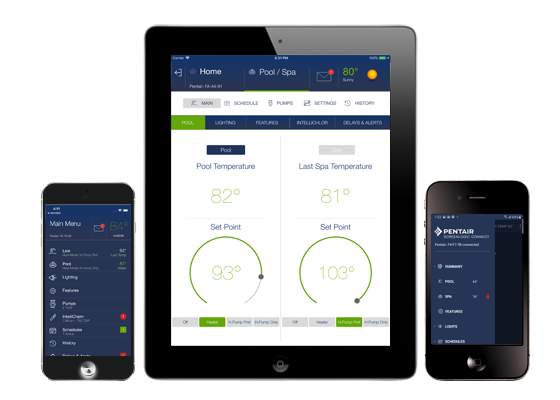
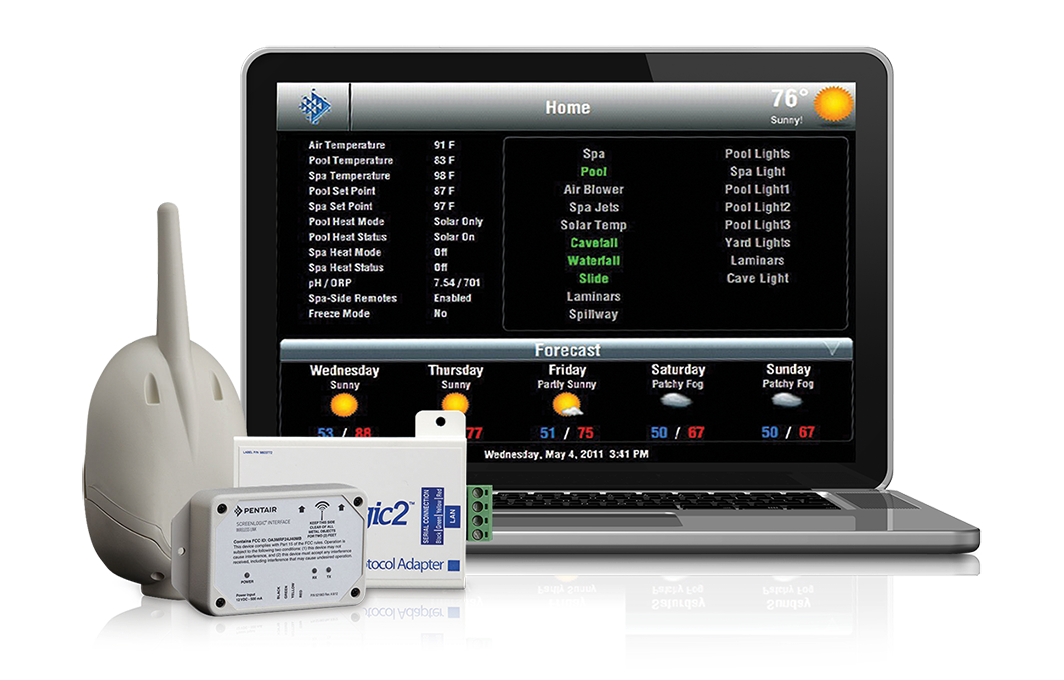
The heart of the system is the ScreenLogic Interface Protocol Adapter. This small box connects to your pool’s automation panel (like IntelliTouch or EasyTouch) and to your home Wi-Fi router. When you’re on your home network, your phone or tablet talks directly to the Adapter. But for remote access, things get more complicated.
Here’s the basic flow:
- ScreenLogic Adapter connects to your home router via Ethernet.
- The Adapter communicates with Pentair’s ScreenLogic Connect servers over the internet.
- When you open the app remotely, your device contacts the Pentair server, which relays commands back to your Adapter and pool.
If any part of this chain breaks—hardware, software, network, or cloud servers—remote access fails. Understanding this makes it easier to troubleshoot each link in the chain.
Common Causes: Why Screenlogic Won’t Connect Remotely
Remote connection issues have a few main causes. Let’s break down each one, so you can spot where your problem might be.
1. Home Network Problems
Your home Wi-Fi or wired network may be the weak spot. If the Adapter can’t reach the internet, remote commands never make it to your pool.
- Loose or damaged cables between the Adapter and router
- Wi-Fi dead zones if the Adapter is connected wirelessly (less common)
- Router misconfiguration (firewall, DHCP, or IP assignment issues)
- Adapter not getting an IP address
2. Internet Connection Issues
Even if your home network is fine, your internet service could be unstable. This includes outages, slow speeds, or frequent disconnects.
- ISP outages (local or regional)
- Modem problems (old, overheating, or rebooting)
- Network congestion during peak hours
3. Port Forwarding And Firewall Restrictions
Older ScreenLogic setups may need port forwarding to be set up on your router. If this isn’t done, or if your firewall is blocking the right ports, remote access can’t work.
- Ports 80, 443, and 1443 are commonly needed
- Some ISPs block ports for security reasons
4. Screenlogic Firmware Or App Issues
Outdated firmware on the Adapter or the mobile app can cause compatibility problems.
- Adapter firmware not updated
- App not updated to the latest version
- Corrupt software or failed updates
5. Cloud Server Or Service Outages
Sometimes, the problem isn’t in your house at all. Pentair’s cloud servers may be down or experiencing issues.
- Scheduled maintenance
- Unexpected outages (rare, but possible)
6. Incorrect Login Or Configuration
Sometimes the app is simply pointed to the wrong place.
- Wrong adapter IP address configured in the app
- Incorrect login credentials
- App still set to “local” mode instead of “remote” mode
7. Hardware Failure
Occasionally, a part fails.
- Adapter hardware failure
- Pool automation panel failure
- Ethernet port or cable failure
Credit: www.pentair.com
Diagnosing The Problem: Step-by-step
Finding the real cause can feel overwhelming. But if you follow a logical process, you can narrow it down quickly.
Step 1: Confirm Local Connection
First, check if you can control your pool when your phone is on the same Wi-Fi as the Adapter.
- If local control works but remote does not: The issue is network, router, or cloud-related.
- If local control doesn’t work: The problem is more basic—hardware, wiring, or app setup.
Step 2: Test Internet Access
Make sure your home internet is working.
- Try browsing the web from another device on your home network.
- Restart your modem and router to clear temporary glitches.
Step 3: Check Adapter Status Lights
Look at the LED indicators on your ScreenLogic Adapter. The lights tell you about power, network, and communication.
- Solid power and network lights: Adapter is powered and connected.
- Flashing or red lights: Check the manual for error codes.
Step 4: Verify App And Firmware Versions
Open your ScreenLogic app and check for updates. On the Pentair website, see if your Adapter firmware is current. Outdated software causes many subtle issues.
Step 5: Ping The Adapter
From a computer on your home network:
- Find your Adapter’s IP address (usually shown in the app or on the router).
- Open a command prompt and type: `ping [Adapter IP address]`
- If you get replies, the network works. If not, check wiring and router.
Step 6: Check Port Forwarding And Firewall
- Log into your router settings.
- Make sure ports 80, 443, and 1443 are open and forwarded to the Adapter.
- Disable any extra firewall rules temporarily and retest.
Step 7: Try Remote Access On Cellular
Turn off Wi-Fi on your phone and try to connect using your data plan. If it works, your home network is blocking remote connections.
Step 8: Check Pentair Server Status
Rarely, the issue may be with Pentair’s servers. Check their status on their official site or pool forums. If many users report outages, wait for a fix.
Fixes For Common Pentair Screenlogic Remote Connection Problems
Let’s walk through how to fix each type of problem, with details you won’t find in the basic manual.
Fixing Home Network And Adapter Issues
- Reboot everything: Unplug your Adapter, router, and modem for 30 seconds, then reconnect in this order: modem, router, Adapter.
- Check wiring: Make sure Ethernet cables are snug and undamaged. Try a different port on your router if possible.
- Assign a static IP: Sometimes the Adapter loses its IP. Log into your router and assign a static IP address to the Adapter, using its MAC address.
- Reduce network congestion: Too many devices can overwhelm older routers. Turn off unused devices or upgrade your router if it’s over five years old.
Fixing Internet And Isp Problems
- If your internet drops often, call your provider for help.
- Check if parental controls or advanced security features are blocking unknown devices.
- Use a speed test to make sure you’re getting enough bandwidth (1 Mbps is plenty for remote pool control).
Fixing Port Forwarding And Firewall
For advanced users:
- Log into your router’s web interface.
- Find the Port Forwarding section.
- Forward ports 80, 443, and 1443 (TCP) to the Adapter’s IP address.
- Save and reboot your router.
Note: Some ISPs block these ports for home accounts. If so, ask about business-grade service, or use a VPN as a workaround.
Updating Firmware And App
- Visit the Pentair support site to download the latest firmware.
- Use the official app store for the ScreenLogic app—do not use third-party downloads.
- After updating, reboot all devices.
Fixing Login And App Settings
- In the app, check that the Adapter IP address or hostname is correct.
- Make sure you’re using the right login mode: “Remote” for cellular/data access, not “Local”.
- Double-check your username and password.
Handling Cloud Server Issues
If Pentair’s cloud is down:
- Wait for official word from Pentair or check social media.
- Try connecting every 15-30 minutes.
- Avoid making big configuration changes until the service is restored.
Fixing Hardware Failures
If the Adapter has no lights, smells burnt, or is hot:
- Replace the Adapter (contact Pentair or your pool pro).
- Test with a known good Ethernet cable.
- If the pool automation panel is dead, call a technician.
Advanced Troubleshooting: Real-world Scenarios
Let’s look at actual cases and how they were solved.
Scenario 1: Adapter Loses Connection After Power Outage
A homeowner finds that remote access works fine, but after a storm and power outage, the system stops working remotely.
Solution: The Adapter’s DHCP lease expired and the router assigned a new IP address. Assigning a static IP fixed the problem permanently.
Scenario 2: Works On Local Wi-fi, Not On Cellular
The app works at home but never from outside.
Solution: The router’s firewall was blocking inbound requests. Setting up port forwarding for ports 80 and 1443 to the Adapter enabled remote access.
Scenario 3: App Shows “connecting…” Forever
After An App Update, The Connection Hangs At “connecting…”
Solution: The app was pointing to an old Adapter IP. Re-scanning for the Adapter and updating the IP address in the app fixed it.
Scenario 4: Remote Access Fails Only At Certain Times
A family finds that remote access works during the day, but not in the evening.
Solution: Their ISP was throttling connections during peak hours. Switching to a business-grade service with a static IP resolved the issue.
Scenario 5: Adapter Not Found After Router Upgrade
After replacing their home router, remote access fails.
Solution: The new router used a different IP range. The Adapter had a static IP outside the new range. Changing the Adapter’s IP to match the router’s network fixed the problem.
Comparison: Common Remote Access Issues And Solutions
Here’s a simple comparison of the most frequent problems and how to address them.
| Issue | Likely Cause | How to Fix |
|---|---|---|
| No remote access | Network or port forwarding | Check router settings, forward ports |
| Works locally, not remotely | Firewall or Adapter config | Open required ports, verify IP |
| App stuck on “Connecting” | Firmware/app mismatch | Update firmware and app |
| Random disconnects | ISP or Adapter hardware | Contact ISP, check Adapter |
How To Prevent Future Remote Connection Problems
Fixing a problem is good, but preventing it is even better. Here’s how to keep your ScreenLogic remote control stable in the long run.
- Keep firmware and apps updated: Set a reminder to check for updates every few months.
- Use a surge protector: Protect your Adapter and router from power surges.
- Assign static IPs: Prevent Adapter IP changes after power outages or router reboots.
- Label cables and hardware: If you move or upgrade equipment, reconnect everything correctly.
- Back up router settings: If you change routers, you can restore port forwarding rules easily.
- Monitor your ISP’s reliability: If you have frequent outages, consider switching providers.
When To Call For Professional Help
Some problems are complex, and not every homeowner is comfortable with advanced networking. Call a pro if:
- You see error codes you don’t understand
- Adapter hardware is damaged or overheating
- You’re unable to log into your router or change settings
- The app keeps crashing even after reinstalling
- You need to replace your pool automation panel
Professional pool techs and network installers have specialized tools and experience. Don’t hesitate to ask for help if you’ve tried all basic steps.
Comparing Screenlogic To Other Pool Remote Systems
How does Pentair ScreenLogic stack up against other smart pool systems, especially when it comes to remote access reliability?
| System | Remote Access | Common Issues |
|---|---|---|
| Pentair ScreenLogic | App, web, voice (with Alexa) | Network config, port forwarding |
| Hayward OmniLogic | App, web, voice | Cloud outages, app bugs |
| Jandy iAquaLink | App, web | Wi-Fi dropouts, firmware updates |
ScreenLogic’s advantage is its wide compatibility with Pentair equipment and its mature app ecosystem. However, its reliance on home network setup means more troubleshooting if something goes wrong.
Data: How Often Do Remote Connection Issues Happen?
A survey of pool owners on major forums shows:
- About 30% of ScreenLogic users experience remote connection problems at least once a year.
- 80% of these cases are fixed by checking network or router settings.
- Only 5% require replacing the Adapter or pool panel.
This means most issues are fixable at home with some guidance. Rarely, hardware needs replacing.

Credit: partners.pentair.com
Non-obvious Insights For Smooth Remote Access
Many guides stop at the basics, but here are two advanced tips most beginners miss:
- Double-NAT Problems: If you have two routers (for example, a mesh system and your ISP’s router), port forwarding may not work. Make sure your Adapter is on the main router or set up bridge mode to avoid “double-NAT” headaches.
- UPnP Pitfalls: Some routers have Universal Plug and Play (UPnP) enabled, which auto-forwards ports. This can randomly change port assignments, breaking remote access. Disabling UPnP and manually forwarding ports keeps things stable.
Why Some Fixes Seem To Work Randomly
You may reboot your router and suddenly remote access works—only for it to fail hours later. This happens because IP addresses change, or firewalls temporarily relax rules after a restart. Lasting solutions require addressing the root cause: static IPs, correct port forwarding, and up-to-date firmware.
Useful Resources For Further Troubleshooting
If you need deeper help, the official Pentair support site has downloadable manuals and firmware. Community forums also share real-world fixes and updates. For official resources, see the Pentair Support Center.
Frequently Asked Questions
Why Does My Screenlogic App Only Work On Wi-fi, Not On Cellular Data?
This usually means your home router is blocking remote connections. Check your port forwarding and firewall settings, and make sure the Adapter’s IP address is accessible from outside your home network.
Do I Need To Pay For A Static Ip Address From My Isp For Remote Access?
No, most users do not need a static IP from their ISP. You can use dynamic DNS services if your IP changes often, but assigning a static IP to your Adapter inside your network is enough for most cases.
How Do I Know If My Adapter Has Failed Completely?
A failed Adapter will show no power lights, may be hot or smell burnt, and will not respond to app commands on either local or remote networks. Try swapping cables and ports, but if it remains unresponsive, replacement is needed.
Is There A Way To Control My Pool Remotely Without Port Forwarding?
Some newer routers and pool systems offer cloud-based connections that don’t require manual port forwarding. However, for classic ScreenLogic systems, port forwarding or using a VPN is usually necessary for remote access.
What Should I Do If Pentair’s Servers Are Down?
If the problem is on Pentair’s end, you will need to wait for their engineers to restore service. Check their official support and social media channels for updates. Do not attempt major changes to your setup during a known outage.
Getting your Pentair ScreenLogic remote access working again can take patience, but with the right steps, most problems have clear solutions. Whether you handle it yourself or call in a pro, the goal is a pool you can control from anywhere—so you enjoy more time swimming and less time troubleshooting.
Credit: www.pentair.com