
If your pool is your place of relaxation, you know how important it is to keep the system running smoothly. The Pentair Easy Touch Panel is at the heart of many modern pool automation systems, giving you command over pumps, heaters, lights, and more. But like any advanced device, sometimes it needs a reset—maybe the screen freezes, a function won’t respond, or you just made changes and want a fresh start. Resetting the panel can solve many issues, but if you’ve never done it before, it can feel confusing or even risky.
Let’s walk through everything you need to know about how to reset a Pentair Easy Touch Panel—what it does, when and why to reset, different reset methods, common problems, and what to do if things still don’t work. Along the way, you’ll learn helpful tips that most owners miss, so you can save time, avoid mistakes, and get your pool automation back on track.
Understanding Your Pentair Easy Touch Panel
Before you start pressing buttons, it’s smart to understand what the Easy Touch Panel actually does. This control system is designed to automate and simplify your pool and spa equipment. With it, you can manage everything from your pump’s schedule to the temperature of your spa—often from a single screen.
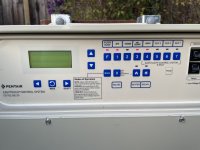
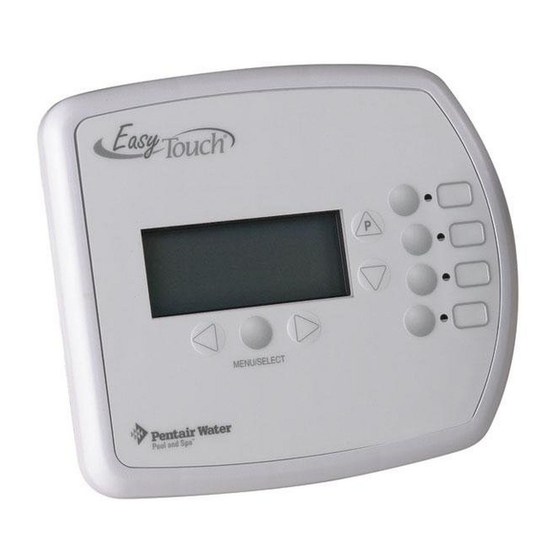
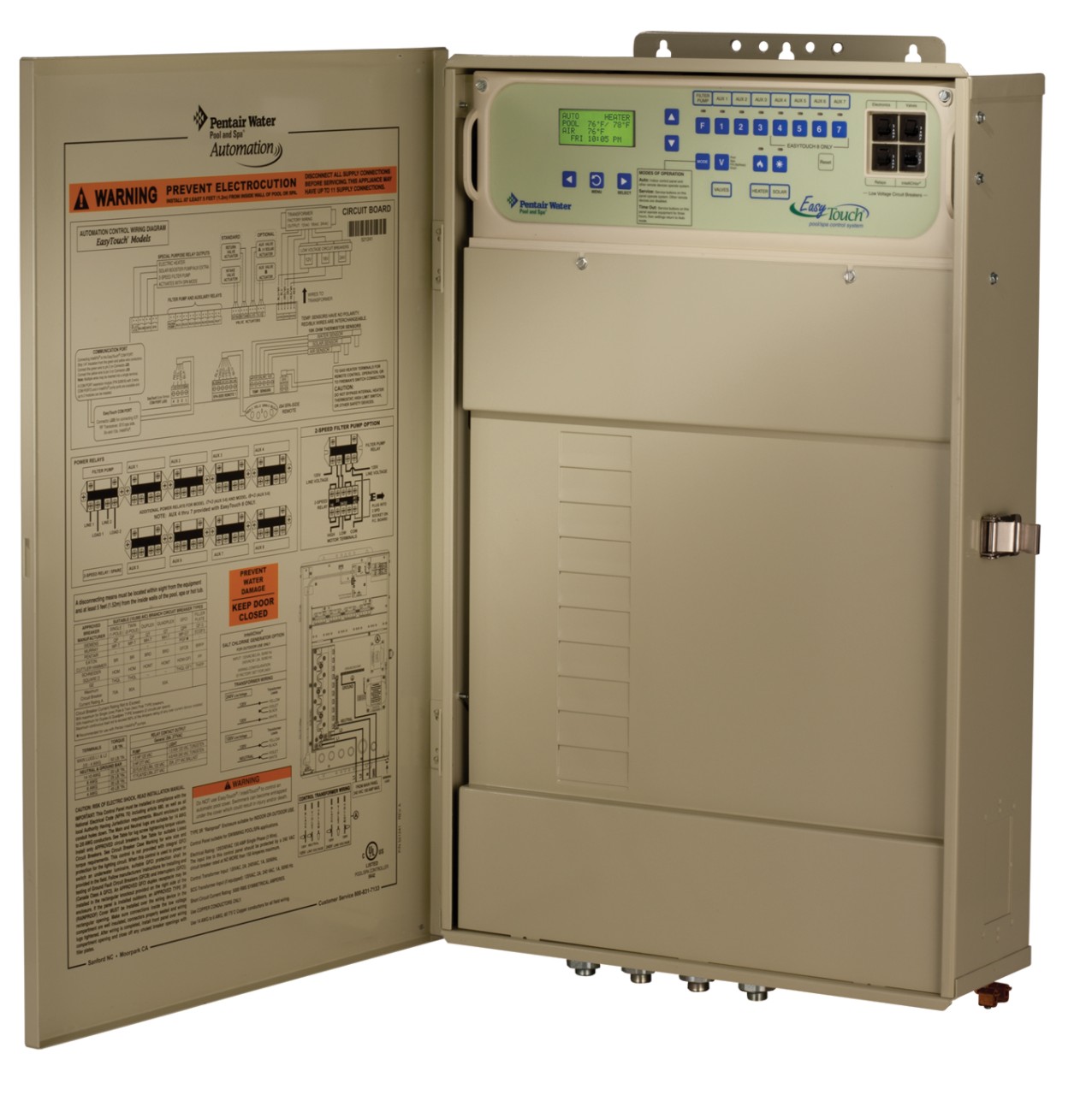
The panel usually sits near your pool equipment pad. It’s a rectangular box with a flip-up cover, digital screen, and a set of labeled buttons. Some models allow remote control via wireless remotes or smartphone apps. The main circuit board inside is the “brain,” and it coordinates all your devices.
Most Easy Touch systems come in two main types:
- Single Body (for pool only, or spa only)
- Dual Body (for pool and spa combinations)
Knowing your type helps you follow the right reset procedure. You’ll often find the model number inside the panel door. If you’re not sure, check the manual or the sticker on the inside cover.
Why Resetting Is Sometimes Necessary
Resetting is not just for emergencies. There are several reasons you might need or want to reset your Pentair Easy Touch Panel:
1. Frozen Screen Or Unresponsive Buttons
Sometimes, the display locks up or the buttons stop working. This can happen after a power surge or lightning strike.
2. Unexpected Equipment Behavior
If your pump, heater, or lights start acting up—turning on/off at odd times, not responding to commands—resetting may resolve communication errors.
3. After Major Changes
If you rewire equipment, update firmware, or add new devices, a reset ensures everything is synchronized.
4. Clearing Fault Codes Or Errors
The panel may show error messages like “No Comm” or “Sensor Error. ” Some can be cleared by a reset.
5. Routine Maintenance
Occasionally, a reset is recommended during annual servicing to clear temporary glitches.
6. Restoring Factory Settings
If you need to wipe all schedules and settings (for example, when selling your home), a full reset is required.
Not every problem needs a reset. For minor glitches, a simple restart is enough. For deeper issues, a full factory reset might be needed. The right reset method depends on your situation.
Types Of Resets: Soft Reset Vs Hard Reset
There are two main ways to reset your Easy Touch Panel—soft reset and hard reset. Each has its place, and it’s important to choose the right one.
Soft Reset
A soft reset simply reboots the system, turning it off and on without erasing your programmed schedules or settings. This is like restarting your computer when it’s frozen.
When to use:
- Screen is unresponsive
- Buttons don’t work
- Minor error messages appear
Hard Reset (factory Reset)
A hard reset wipes all user data and restores factory settings. This is like formatting your phone and starting fresh.
When to use:
- Major changes in pool equipment
- System is behaving erratically after firmware updates
- Selling or giving away the system
- Persistent errors that a soft reset cannot fix
Warning: A hard reset deletes all schedules, device names, and custom configurations. You’ll need to reprogram everything from scratch.
Preparing To Reset Your Easy Touch Panel
Before you reset, take a few smart steps to protect your setup and avoid common mistakes.
1. Record Your Settings
Write down or photograph your current schedules, device names, and timer settings. After a hard reset, you’ll need these to re-enter your preferences.
2. Check Power Supply
Make sure the panel is getting stable electricity. Power fluctuations during a reset can cause further issues.
3. Warn Other Users
If your family or service people use the system, tell them you’ll be resetting. This prevents confusion if their remotes or apps disconnect.
4. Locate The Panel And Circuit Breaker
Know exactly where the main Easy Touch Panel and its power breaker are located. Most panels are near the pool equipment, but some are in garages or utility rooms.
5. Read The Manual
If you have the manual, review the section on resetting. Each model can have slight differences. If you don’t have a manual, you can find one on the official Pentair website.
How To Perform A Soft Reset
A soft reset is usually safe and quick. It fixes most minor glitches and does not affect your saved programs.
1. Open The Panel Door
Flip up the cover to access the main buttons and screen.
2. Turn Off The Power
Find the dedicated circuit breaker for your Easy Touch system (not just the pool pump). It’s usually labeled in your electrical panel. Flip it to OFF.
3. Wait 30 Seconds
This allows the system to fully discharge. Don’t rush—some internal capacitors need time to reset.
4. Turn Power Back On
Flip the breaker to ON. The panel should boot up and display the normal home screen.
5. Check Functions
Test a few buttons—turn the pump on/off, change light color, adjust temperature. Make sure everything responds.
6. Reconnect Remotes Or Apps (if Needed)
Wireless remotes or phone apps may need a moment to reconnect after a power cycle.
If the issue is gone, you’re done. If not, you may need a deeper reset.
How To Perform A Hard Reset (factory Reset)
Performing a hard reset is more involved. It should only be done if you are ready to lose all custom settings.
1. Backup Your Settings
As mentioned earlier, write down all schedules and device names.
2. Turn Off The System
Use the circuit breaker to power down the panel.
3. Remove The Panel Faceplate
Unscrew or unlatch the front cover to access the main circuit board. Be careful—there may be exposed wires.
4. Locate The Reset Button
On most Easy Touch boards, there is a small recessed button labeled “Reset” or “SW1. ” You may need a pen or paperclip to reach it.
5. Press And Hold The Reset Button
Hold the button down.
6. Turn Power Back On While Holding The Button
With the reset button pressed, flip the breaker to ON. Keep holding the button for about 10 seconds.
7. Release The Button
The display should light up and show a factory start-up screen.
8. Reassemble The Panel
Replace the faceplate and tighten any screws.
9. Reprogram Your System
Enter your schedules, device names, and any custom settings.
Practical tip: If your system has a battery backup, remove it for a minute during the reset process to fully clear all memory.
Credit: www.troublefreepool.com
Common Mistakes When Resetting
Even experienced pool owners sometimes get tripped up. Here are key mistakes to avoid:
1. Resetting The Wrong Breaker
Pool systems often have multiple breakers—one for the pump, one for the panel. Make sure you’re resetting the Easy Touch, not just the pump.
2. Not Waiting Long Enough
After turning off the power, always wait at least 30 seconds. Some errors persist if you rush.
3. Losing All Custom Settings
Forgetting to record schedules before a hard reset means starting over, which is frustrating.
4. Not Noticing Loose Wires
When opening the panel for a hard reset, be careful. Loose wires can cause shorts or prevent the system from restarting.
5. Skipping The Battery Removal
On some models, if you don’t remove the battery, the reset won’t fully clear memory.
6. Assuming All Errors Require A Reset
Some problems (like a tripped GFCI outlet or a blown fuse) won’t be fixed by resetting the panel.
What To Do After A Successful Reset
Resetting solves most software-related problems, but your job isn’t done yet. Here’s what you should do next:
Recalibrate Timers And Schedules
Go through the menu and set up your pump times, heater schedules, and light routines. This ensures your pool runs efficiently, saving energy and money.
Reconnect Remote Devices
If you use a wireless remote, indoor control panel, or app, check that it’s still paired with the main panel. Some connections need to be re-established.
Update Device Names
Custom names like “Spa Jets” or “Waterfall” may return to default after a hard reset. Rename them for easy identification.
Check Firmware Version
Occasionally, a reset will show you’re running outdated firmware. If you notice missing features, check the Pentair website for updates.
Test All Functions
Turn each piece of equipment on and off. Try pool and spa mode, lights, cleaner, and auxiliary outputs. Make sure everything responds correctly.
Monitor For Recurring Problems
Keep an eye on the system for the next few days. If the same problem returns, you may have a deeper issue—like a bad sensor or board.
When To Call A Professional
While most resets are simple, there are times when it’s best to call a pool pro or licensed electrician. Here are signs you need help:
- Panel won’t power up after reset
- Display shows unreadable characters or stays blank
- Persistent “No Comm” or “Sensor Error” even after reset
- Visible damage to wiring or circuit board
- System resets itself randomly (may indicate power or board problems)
Attempting repairs beyond a basic reset can be dangerous. If you see sparks, smell burning, or find water inside the panel, stop and call an expert.
Troubleshooting Common Issues Before And After Reset
Resetting fixes many problems, but it’s not magic. Some issues need a deeper look. Here are common Easy Touch Panel problems, what they mean, and if a reset will help:
“no Comm” Error
This means the panel has lost communication with a device (like a remote, pump, or salt cell). Try a soft reset first. If the error returns, check wires for damage or loose connections.
“sensor Error”
This usually points to a bad temperature or water sensor. Resetting may clear the message if it’s a glitch, but if it returns, the sensor may need replacing.
Unresponsive Wireless Remote
Sometimes the remote just needs to be resynchronized. Turn off the panel power for 30 seconds, then turn it back on. If not, follow the pairing instructions in the manual.
Frozen Or Blank Screen
A soft reset almost always solves this. If not, the display board may be faulty.
Equipment Won’t Turn On/off
If your pump or heater ignores commands, try a reset. If that fails, check relays (the mechanical switches inside the panel) and look for tripped breakers or blown fuses.
Example Error Troubleshooting Table
Here’s a quick reference for common error messages and what action to take:
| Error Message | Possible Cause | Will Reset Help? |
|---|---|---|
| No Comm | Loose wire, failed device | Sometimes (try soft reset first) |
| Sensor Error | Bad temperature sensor | Rarely (replace sensor if error returns) |
| Frozen Screen | Software glitch | Yes (soft reset) |
| Unresponsive Buttons | Panel needs reboot | Yes (soft reset) |
| Pump Not Responding | Relay failure, tripped breaker | Sometimes (check hardware if reset fails) |
Credit: www.manualslib.com
Safety Tips For Working With Pool Control Panels
Whenever you work with electrical equipment, safety comes first. Here are practical tips to keep you safe:
- Always wear dry, non-conductive gloves if touching inside the panel.
- Never reset the system with wet hands or while standing in water.
- Make sure nobody is swimming during a reset.
- Double-check you are working on the correct breaker.
- If you see rust, corrosion, or water inside the panel, stop and call a professional.
- Only use insulated tools when pressing the reset button inside the panel.
How Resetting The Easy Touch Panel Compares To Other Pool Systems
Different brands use different reset procedures. Here’s a comparison of how the Pentair Easy Touch reset process stacks up against other common pool automation systems:
| System | Soft Reset Method | Hard Reset Method | User Complexity |
|---|---|---|---|
| Pentair Easy Touch | Breaker off, wait, breaker on | Panel open, hold reset button, power on | Moderate |
| Hayward Pro Logic | Breaker off/on | Menu reset via LCD | Easy |
| Jandy Aqualink | Breaker off/on | Special key sequence | Moderate |
| Intermatic PE Series | Breaker off/on | Manual jumper reset on board | Advanced |
As you can see, the Easy Touch reset process is similar to other brands but may require opening the panel for a hard reset. If you’re switching from another system, always check the manual as steps can be different.
Credit: www.pentair.com
Hidden Features And Advanced Reset Tips
Most guides stop at the basics, but the Easy Touch has a few advanced tricks:
- Partial Reset: On some firmware versions, you can reset just a single device (like the salt cell or heater) from the menu without wiping everything.
- Diagnostic Mode: Holding certain button combinations on startup can enter a diagnostic menu, useful if you suspect a hardware fault.
- Battery Backup: The panel has a small coin battery for the clock and memory. If your schedules keep resetting after power loss, the battery may be dead—replace it during your next reset.
- Firmware Update Reset: If you recently updated firmware and see odd behavior, always do a soft reset after the update to clear old cache data.
How To Avoid Needing Frequent Resets
If you find yourself resetting the panel often, there may be an underlying issue. Here’s how to reduce the need for resets:
1. Install A Surge Protector
Power surges are a common cause of glitches. A weatherproof surge protector between the breaker and panel can save you many headaches.
2. Keep The Panel Clean
Insects, dirt, and moisture cause more problems than you might think. Once a year, carefully clean the inside with compressed air (power off first).
3. Update Firmware Annually
New software fixes bugs and improves reliability. Check Pentair’s site once a year for updates.
4. Schedule A Pro Checkup
Having a pool pro inspect your system each spring can catch small problems before they require a reset.
5. Replace The Battery Every 2-3 Years
This keeps the clock and memory stable during power outages.
Real-world Example: Resetting A Problematic Panel
Consider this scenario: Susan’s pool lights stopped responding, and the display on her Easy Touch panel froze. She was worried she’d need an expensive repair. Following the soft reset steps, she turned off the breaker, waited 30 seconds, and powered back on. The display came back, and the lights worked again.
A week later, the problem returned. This time, Susan checked the panel and noticed ants inside. After cleaning, she did a hard reset, reprogrammed her settings, and had no more trouble. Her case shows two things:
- A soft reset fixes most minor glitches
- Hardware issues (like insects or moisture) can cause recurring problems that need a deeper fix
Essential Maintenance After A Reset
Resetting is only part of good pool care. Keep your system healthy with these maintenance tasks:
- Inspect wiring for signs of wear or animal damage
- Make sure the panel cover seals tightly to prevent water entry
- Review and update schedules with the seasons (longer filter run times in summer, shorter in winter)
- Check the panel once a month for error messages or odd behavior
Quick Reference: Soft Vs Hard Reset Steps
Here’s a summary table to help you remember the steps:
| Reset Type | Steps | Data Loss? | When to Use |
|---|---|---|---|
| Soft Reset | Breaker off, wait 30 sec, breaker on | No | Minor glitches, frozen screen |
| Hard Reset | Panel open, hold reset button, power on, reprogram | Yes (all settings lost) | Major errors, after equipment changes |
External Resources For Further Help
For official manuals, troubleshooting guides, and firmware downloads, visit the Pentair official site. Their customer support is also helpful for complex problems.
Frequently Asked Questions
How Do I Know Which Breaker Powers My Easy Touch Panel?
Check your home’s electrical panel. The breaker should be labeled “Pool Automation” or “Easy Touch. ” If it’s not labeled, turn off breakers one at a time while a helper watches the Easy Touch screen—when it goes blank, you’ve found the right one.
Will Resetting The Panel Erase My Pump And Heater Settings?
A soft reset does not erase your settings. A hard reset (factory reset) will delete all user-programmed schedules and device names, so you’ll need to re-enter them manually.
My Wireless Remote Stopped Working After A Reset. What Should I Do?
First, check the remote’s batteries. If the screen stays blank, try re-pairing the remote to the main panel (see the manual’s pairing instructions). Sometimes, you need to power cycle both the panel and the remote.
Can I Reset The Easy Touch Panel From My Phone App?
No. A full reset requires physical access to the panel and the power breaker. The phone app can control equipment but cannot perform a full system reboot or factory reset.
What Should I Do If The Panel Still Doesn’t Work After A Reset?
If the display stays blank, shows garbled text, or won’t respond after a reset, you may have a hardware issue—like a failed circuit board, blown fuse, or bad transformer. At this point, it’s best to contact a qualified pool technician.
With the right approach, resetting your Pentair Easy Touch Panel is safe and straightforward. Take time to record your settings, follow the correct steps for your situation, and don’t hesitate to seek expert help for complex issues. A well-maintained control panel means less stress and more time enjoying your pool or spa.