
If you own a pool with a Pentair automation system, the ScreenLogic Interface Wireless Link is a game changer. It lets you control your pool’s features—from pumps to lights—right from your smartphone, tablet, or computer. But wireless technology can sometimes be tricky. Many pool owners face issues with their ScreenLogic wireless link, such as lost connections, slow response times, or confusing error messages. If you’re struggling with these problems, you’re not alone. This article will guide you through troubleshooting Pentair ScreenLogic Interface Wireless Link step by step. We’ll cover everything from basic checks to advanced solutions, show you how to avoid common mistakes, and help you get your pool automation running smoothly again.
Understanding Pentair Screenlogic Interface Wireless Link
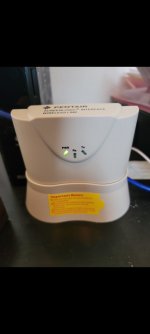
Before jumping into troubleshooting, it’s important to know how the ScreenLogic Interface Wireless Link works. The system uses two wireless transceivers (sometimes called “wireless bridges” or “wireless links”). One unit connects to your pool automation control panel, while the other connects to your home router. These devices create a bridge, allowing your mobile devices or computers to communicate with the pool system wirelessly.
The main components are:
- Wireless transceiver #1: Plugs into the pool automation panel.
- Wireless transceiver #2: Connects to your home router.
- ScreenLogic app/software: Installed on your device for control and monitoring.
Knowing this setup will make it easier to follow the troubleshooting steps. Also, understanding the data flow—from your app, through your home network, to the pool control panel—helps you pinpoint where things might go wrong. For example, if your app can’t “see” the pool, the problem could be with your home Wi-Fi, the transceivers, or even the pool panel itself.
Some pool owners may not realize that ScreenLogic works by creating a small network “bridge” separate from your home Wi-Fi. The wireless transceivers use their own internal radio signal to communicate, so even if your Wi-Fi is strong for phones and laptops, the link between these two boxes can be more sensitive to distance and interference.
Common Symptoms Of Wireless Link Issues
Problems with the Pentair ScreenLogic Interface Wireless Link can appear in several ways. Recognizing the symptoms helps target the right solution.
- No connection to pool system: App cannot find or connect to the pool. This is the most obvious sign and usually means the bridge between your devices and the pool panel is broken somewhere.
- Intermittent connection: Link works sometimes, then drops suddenly. This can be especially frustrating because it may seem like everything is fixed, only to fail again.
- Slow response: Commands take too long to execute. For instance, turning on pool lights from your phone takes 20 seconds or more to react.
- Error messages: “Cannot find interface,” “Link lost,” or similar alerts. Some error messages may be vague, but they usually point to communication problems.
- Incomplete control: Some features work, others don’t. Maybe you can turn on the pump, but not the heater, or the app displays only part of your pool equipment.
- Device not detected: Wireless unit not found by router or automation panel. Sometimes, one device vanishes from your network or the panel refuses to recognize the link.
Each symptom points to a different cause. For example, slow response often means weak Wi-Fi, while “device not detected” hints at a cable issue or failed transceiver. If you pay close attention to exactly what is happening, you can save time in troubleshooting.

Credit: www.youtube.com
Step-by-step Troubleshooting For Screenlogic Wireless Link
1. Check Power And Connections
Start with the basics. Make sure both wireless transceivers have power and are connected properly.
- Power supply: Each unit should have a solid power connection. Check for loose plugs or damaged cables. Sometimes, a power adapter might work loose due to vibration or accidental bumps, so always double-check.
- LED indicators: Most units have LED lights. A steady green light means normal operation; blinking or red lights show trouble. If you see no lights at all, the unit may be dead or have a failed power adapter.
- Physical placement: Ensure units are not blocked by metal objects or walls. Wireless signals can be weakened by obstructions. Even a thin metal plate can reflect signals and create “dead zones.”
Sometimes, simply unplugging and replugging the power can reset the internal electronics. If you see lights come back on, that’s a good sign the unit is not completely dead.
2. Inspect Ethernet And Serial Connections
Each transceiver connects via Ethernet or a serial cable. Problems here are common.
- Ethernet cable check: Look for broken or bent pins, loose connectors, or damaged cables. Sometimes, the plastic clip that holds an Ethernet cable in place can break, causing a loose connection that drops signal unexpectedly.
- Serial cable check: If your pool automation panel uses a serial connection, confirm it’s securely attached. Gently wiggle the connector to see if it feels loose.
A simple cable swap can sometimes fix connection issues. It’s surprising how often a $5 cable is the source of a $500 headache. If you have a spare cable or can borrow one, try swapping it as a test. Always use cables of good quality and proper length—very long cables can degrade the signal.
3. Confirm Wireless Pairing
The two transceivers must be paired. If they lose sync, the link fails.
- Pairing status: Check if both units are paired. Usually, LEDs show pairing (consult your Pentair manual for specifics). Some models show a specific blink pattern when searching for a partner.
- Re-pairing process: If not paired, press the pairing button on both units. Wait for the LEDs to indicate successful pairing. This can take up to a minute.
If pairing fails repeatedly, move both units closer together during the process. Wireless signals can struggle through walls, so even a few feet can make a difference. After successful pairing, you can move them back to their normal spots.
A common beginner mistake is forgetting to re-pair after a factory reset or firmware update. Always check pairing status after any major change.
4. Review Wi-fi Network Settings
The wireless link relies on your home Wi-Fi. Incorrect settings can block communication.
- SSID and password: Make sure your wireless link uses the correct network name (SSID) and password. If you recently changed your Wi-Fi password, you’ll need to update it on your wireless link.
- Router compatibility: Some older routers don’t support the required protocols. If your router is over five years old, consider upgrading. Modern routers handle more devices and have better range and reliability.
- 2.4 GHz vs. 5 GHz: Pentair wireless links usually work only on 2.4 GHz Wi-Fi. If your router defaults to 5 GHz, change the setting. Many new routers offer both bands, so make sure your link connects to the right one.
Some routers have “smart connect” features that automatically move devices between bands. This can confuse the ScreenLogic link, so if possible, assign a dedicated 2. 4 GHz SSID for your pool system.
5. Update Screenlogic App And Firmware
Outdated software can cause glitches.
- ScreenLogic app update: Make sure you have the latest version for your device (check the app store). Updates often fix bugs and improve performance.
- Firmware update: Visit Pentair’s official site and download any updates for your wireless link. Follow instructions carefully. Some updates require a computer connection to the link.
Updating solves many compatibility problems, especially after router upgrades. Don’t overlook the pool panel firmware itself; sometimes both the panel and wireless link need updates to talk to each other properly.
It’s easy to forget that firmware updates affect not only the wireless bridge, but also how your app communicates with the pool. If you notice new features not working, check for updates.
6. Reset Wireless Transceivers
A reset often restores normal operation.
- Power cycle: Unplug both transceivers, wait 30 seconds, and plug them back in. This clears temporary glitches.
- Factory reset: Some units have a reset button. Hold it for 10 seconds to clear settings and start fresh. After a reset, all pairing information is erased.
Note: After factory reset, you must re-pair the units. This step is often missed—make sure to go through the pairing process again or the link will not work.
Sometimes, a reset can resolve odd problems like the app showing wrong device names or schedules not updating.
7. Test Network Speed And Reliability
A slow or unstable Wi-Fi network can cause ScreenLogic issues.
- Speed test: Use a free tool like Speedtest.net to check your network speed. Aim for at least 5 Mbps upload and download. Speeds below this can cause lag.
- Ping test: High ping times (over 100 ms) mean slow response. Move wireless units closer to the router or reduce interference.
If your Wi-Fi is overloaded (many users streaming video or gaming), your pool link may suffer. Try running a speed test both near the router and at the pool equipment pad to compare.
8. Check For Interference
Wireless signals can be disturbed by other devices.
- Microwave ovens, cordless phones, baby monitors: These can interfere with 2.4 GHz signals. Even smart home devices like cameras or smart plugs can cause trouble.
- Move units away from interference sources: Relocate transceivers if possible. If you notice problems only at certain times (like when the microwave is running), this is a clue.
- Change Wi-Fi channel: Log into your router and select a less crowded channel (often channels 1, 6, or 11 are best). You can use free Wi-Fi analyzer apps to see which channels are busy.
In crowded neighborhoods, Wi-Fi channel overlap is a common but overlooked issue.
9. Inspect For Firmware Corruption
Rarely, firmware on the wireless link may become corrupted.
- Signs of corruption: Units fail to pair, LEDs act strangely, or resets don’t help. Sometimes the unit may show no lights or blink in an odd pattern.
- Solution: Download and install the latest firmware from Pentair’s official site.
If the problem persists, contact Pentair support. They can sometimes guide you through a recovery process, or arrange for a replacement if your unit is under warranty.
10. Try Wired Connection As A Test
If troubleshooting fails, try using a wired connection.
- Ethernet cable test: Connect the pool automation panel directly to your router with a cable. If it works, the issue is with wireless, not the pool system.
This test can help isolate the source of the problem. If the wired connection is stable, you may consider running a permanent Ethernet line for reliability, especially if your equipment pad is close to your house.
Comparing Wireless Vs Wired Connections
Understanding the differences between wireless and wired can help you decide if switching is right for you.
| Feature | Wireless Link | Wired Connection |
|---|---|---|
| Ease of Installation | Simple, no drilling | Requires cable routing |
| Reliability | Can drop, affected by interference | Stable, rarely fails |
| Speed | Depends on Wi-Fi | Consistent, fast |
| Maintenance | Occasional troubleshooting | Low maintenance |
| Cost | Included with wireless kit | May require extra cables |
Most pool owners prefer wireless for convenience, but wired is best for long-term stability. If your equipment pad is very far from the house, wireless can be easier, but if you have ongoing issues, the effort to run a cable may pay off in fewer headaches.
Some homeowners use both: wireless for initial setup and wired as a backup if problems arise.
Advanced Troubleshooting Techniques
If basic steps don’t solve your issue, try these advanced methods.
Replacing Wireless Transceivers
Wireless units can fail over time. If one unit shows no LED or cannot pair, consider replacing it.
- Replacement process: Order the same model from Pentair or authorized dealers. Install and pair as described above. Keep your receipt for warranty support.
If your unit is under warranty, Pentair may send a replacement at no cost. Always check for visible damage or corrosion on the connectors, especially if your equipment pad is outdoors.
Using Signal Boosters
If your home is large or has thick walls, signal boosters can improve connection.
- Wi-Fi extender: Place an extender between the pool automation panel and the router. This helps “carry” the signal across longer distances or through barriers.
- Mesh network: Upgrade to a mesh Wi-Fi system for better coverage. Mesh systems allow seamless handoff between access points, reducing dropouts.
For best results, place the extender in a spot where it still receives a strong signal from your main router but is also close to the pool area.
Network Isolation
Sometimes, other devices on your network interfere with the wireless link.
- Dedicated network: Create a guest Wi-Fi network just for the ScreenLogic system. This limits interference from smart TVs, gaming consoles, or heavy bandwidth users.
- Reduce connected devices: Disconnect unused devices to free up bandwidth.
Network isolation is especially helpful in homes with many smart devices. By limiting network congestion, your pool system gets a clearer path for communication.
Monitoring With Diagnostic Tools
Some routers and the ScreenLogic app offer diagnostic tools.
- ScreenLogic diagnostics: Look for logs or error reports in the app. These can show if commands are reaching the panel or being blocked.
- Router diagnostics: Many routers show which devices are connected and their signal strength.
Use these tools to spot weak points in your setup. For example, you might discover your signal drops every evening when neighbors come home and start using Wi-Fi.
A helpful tip: Keep a simple log of issues, noting the time and what devices were in use. Patterns may help pinpoint the cause.
Example Scenarios And Solutions
Let’s look at real-world examples to make troubleshooting clearer.
Scenario 1: App Cannot Find Pool System
A homeowner opens the ScreenLogic app and sees “Cannot find interface. ”
- Solution: Confirm both transceivers have power. Check pairing status. Move units closer together. Restart app and try again.
- Extra tip: If you just updated your router or changed the Wi-Fi password, repeat the setup process for the wireless link.
Scenario 2: Connection Drops Frequently
The link works for a few minutes, then disconnects.
- Solution: Check for nearby sources of interference. Change Wi-Fi channel. Update firmware and app.
- Extra tip: If connection always drops when a certain appliance is used (like a microwave), try moving units further away from it or changing channels.
Scenario 3: Slow Response Time
Commands take 10-20 seconds to register.
- Solution: Run a speed test on your home Wi-Fi. Move wireless units closer to router. Use a Wi-Fi extender if needed.
- Extra tip: Disconnect other high-bandwidth devices (like streaming TVs) while testing. If response improves, network congestion is likely the cause.
Scenario 4: Partial Control
Some pool features work, others don’t.
- Solution: Update app and firmware. Reset wireless units. Check cables and connections.
- Extra tip: Check that all pool equipment is properly labeled and added in the automation panel. Sometimes, equipment wiring changes can affect what features appear in the app.
Scenario 5: Wired Connection Works, Wireless Doesn’t
Direct Ethernet works perfectly, wireless fails.
- Solution: Replace wireless transceivers. Consider using wired long-term if your pool is close to the router.
- Extra tip: If possible, use shielded outdoor Ethernet cable for extra durability.
How To Avoid Common Mistakes
Many pool owners make simple mistakes that cause wireless link problems.
- Placing units in metal boxes: Metal blocks signals. Keep units outside or away from metal enclosures. Even stainless steel pool equipment pads can cause interference.
- Using wrong Wi-Fi band: Most Pentair links only work on 2.4 GHz. Double-check your router settings and SSID.
- Ignoring firmware updates: Updates fix bugs and improve compatibility. Schedule a reminder to check every few months.
- Skipping pairing steps: Always pair units after resetting or replacing them. Watch for the right LED pattern before moving forward.
- Overloading network: Too many devices can slow your pool system. Limit connected devices for best performance.
- Assuming Wi-Fi strength is the same everywhere: Signal can be strong in the house but weak at the equipment pad. Always test in both locations.
Pentair Screenlogic Wireless Link Statistics
Pentair’s wireless link is widely used in the US and globally. Here are some useful statistics:
- Over 100,000 units installed worldwide
- Customer satisfaction rate: 86% (based on Pentair surveys)
- Average troubleshooting time: 15–30 minutes for most issues
- Most common issues: Power loss (28%), pairing failure (23%), interference (19%), outdated firmware (14%), cable damage (16%)
These numbers show that most problems are fixable with simple steps. Interestingly, data shows that power-related problems and simple cable faults are more common than advanced network issues.
Pentair’s support team reports that the majority of calls are solved with basic resets, firmware updates, or re-pairing—so don’t overlook these steps before diving into complex fixes.

Credit: partners.pentair.com
Recommended Placement For Wireless Transceivers
Proper placement of wireless units is key for strong signal.
| Placement Location | Signal Strength | Recommended |
|---|---|---|
| Near pool automation panel | Strong | Yes |
| Inside metal box | Weak | No |
| Near home router | Strong | Yes |
| Behind thick wall | Moderate | No |
| Near microwave oven | Weak | No |
Always place units in open areas with few obstructions. If you must place a unit outdoors, use a weatherproof cover but avoid metal enclosures. A good rule is to try to “see” one unit from the other, or at least ensure only one or two walls are in the way.
When To Contact Pentair Support
Sometimes, troubleshooting isn’t enough. Contact Pentair support if:
- Wireless units show no LED after power up.
- Firmware update fails repeatedly.
- Pairing steps don’t work after several tries.
- Physical damage to units or cables.
- Error messages persist after all basic steps.
Pentair support can provide warranty service, advanced diagnostics, or replacement units. Before you call, have your product serial number, purchase date, and a list of steps you’ve already tried. This will help support staff resolve your problem faster.
If your pool professional installed the system, you can also ask them to check for warranty coverage or help with advanced steps.
Preventive Maintenance For Reliable Wireless Link
To avoid future problems, follow these tips:
- Check connections monthly: Inspect cables and plugs. Look for signs of wear or water damage, especially if equipment is outdoors.
- Update firmware twice a year: Visit Pentair site for updates. Many bugs are fixed before you ever notice them.
- Clean units: Dust can block vents and cause overheating. Use a dry cloth—never spray water or cleaners directly.
- Monitor app performance: If response slows, troubleshoot early. Don’t wait for a complete failure.
- Keep units away from interference: Move devices if you add new electronics nearby.
- Protect from weather: If your equipment pad is exposed, use weatherproof covers for all electronics.
These steps keep your ScreenLogic wireless link working for years. A little time spent on prevention saves hours of troubleshooting.
Comparison Of Pentair Wireless Link Models
Pentair offers several wireless link models. Choosing the right one can improve performance.
| Model | Max Range | Compatibility | Features |
|---|---|---|---|
| Original Wireless Link | 150 feet | Older Pentair panels | Basic pairing |
| Wireless Link II | 250 feet | All Pentair panels | Improved signal, easy pairing |
| Wireless Link Pro | 350 feet | Newer Pentair panels | Signal booster, diagnostics |
Choose a model that matches your pool size and panel version. If your pool equipment is far from your home, a model with greater range and signal boosting may be worth the extra investment. Always check compatibility, as using the wrong model can cause pairing failures or limited features.
Non-obvious Insights For Beginners
Many new pool owners miss these key points:
- Signal strength is affected by both distance and obstacles. Even if units are within range, thick walls or metal objects can block signals. Sometimes, moving a unit just a few feet can make the difference between a good and bad connection.
- A firmware mismatch between the pool panel and wireless link can cause strange errors. Always update both together. If your app or features stop working after an update, check for a second update for the other device.
- Home network changes (like new routers or Wi-Fi passwords) require re-pairing and setup. Don’t forget this step after upgrades. Many pool owners upgrade their router for better speed and forget to update their ScreenLogic settings.
- Environmental factors change over time: Trees growing near your equipment pad or adding new appliances in the home can affect wireless performance. Periodic reviews of your setup help keep things running smoothly.
Knowing these can save hours of frustration.
Useful Resources
For more details and official instructions, visit the Pentair support website or check their manuals. If you need advanced guidance, the Pentair ScreenLogic Interface page is a trusted resource.
Credit: www.troublefreepool.com
Frequently Asked Questions
What Does The Screenlogic Interface Wireless Link Do?
The ScreenLogic Interface Wireless Link lets you control your Pentair pool automation system from a smartphone, tablet, or computer. It connects your pool panel to your home Wi-Fi so you can adjust settings anywhere in your house. You can schedule pool cleaning, set heating times, and even change lighting colors remotely.
Why Does My Screenlogic Wireless Link Keep Losing Connection?
Common causes are Wi-Fi interference, outdated firmware, poor placement of wireless units, or network overload. Move units to open spaces, update software, and reduce interference for better stability. Consider using a Wi-Fi extender if your equipment pad is far from your home.
How Do I Re-pair My Pentair Wireless Transceivers?
Press the pairing button on both wireless units. Wait for the LED to show successful pairing (usually a steady green light). If pairing fails, move units closer together and repeat. Always re-pair after a factory reset or firmware update.
Can I Use Screenlogic With A Wired Connection?
Yes. You can connect the pool automation panel directly to your home router using an Ethernet cable. Wired connections are more stable and rarely drop but require cable routing. This is a good option if wireless problems persist.
What Should I Do If Troubleshooting Doesn’t Fix My Wireless Link?
If all steps fail, contact Pentair support. They can provide advanced diagnostics, firmware updates, or replacement units. Check for physical damage and error messages before calling.
Getting your Pentair ScreenLogic Interface Wireless Link working smoothly is possible with careful troubleshooting and maintenance. With the right steps and a little patience, you’ll enjoy easy pool control for years to come.